Approval & governance
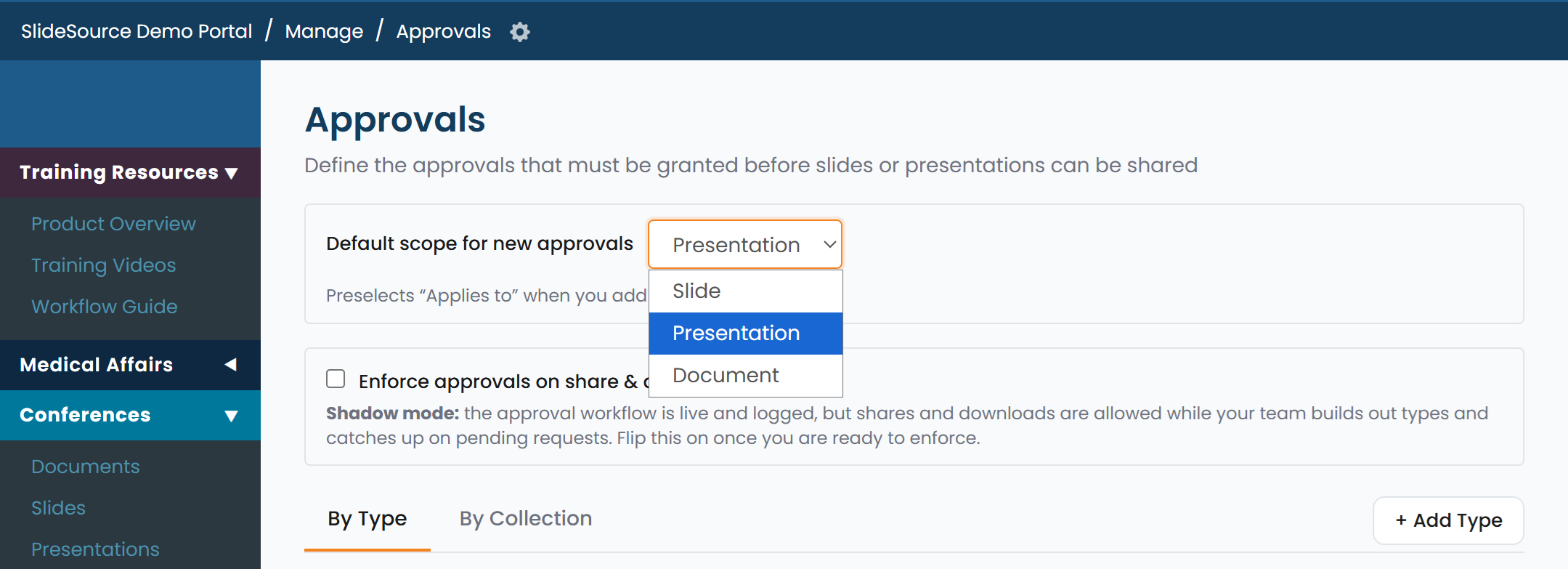
Approval lets your library mark which slide versions have cleared review, so people reuse approved content with confidence. It’s a library-wide mode plus a simple per-version decision and a queue for reviewers. For the step-by-step, see Approval & governance (workflow).
Approval Settings (the library mode)
Section titled “Approval Settings (the library mode)”Set the library’s approval behavior in Manage Library → Configuration → Approval Settings. There are three modes:
| Mode | What it means |
|---|---|
| Require approval | Approval is enforced: content is expected to be reviewed, and approval status is shown and acted on throughout the library. |
| Hide approval | Approval is turned off and hidden: the library doesn’t surface approval status or the review queue. |
| Use freely | Approval is available but not enforced: people can approve and reject, and status is shown, but it isn’t required. |
Approve / Reject a slide version
Section titled “Approve / Reject a slide version”Approval is decided per slide version. An approver opens a slide version and marks it Approve or Reject. Because it’s tied to the version, editing a slide creates a new version that is not yet approved, so the approval always reflects the exact content that was reviewed.
An approved version carries an approval stamp (for example, “Approved by … on …”) that people see in slide detail and when they reuse the slide.
The Review queue
Section titled “The Review queue”The Review queue collects the slide versions waiting for a decision, so approvers have one place to work through pending items rather than hunting for them. Approvers open the queue, review each version, and Approve or Reject it.
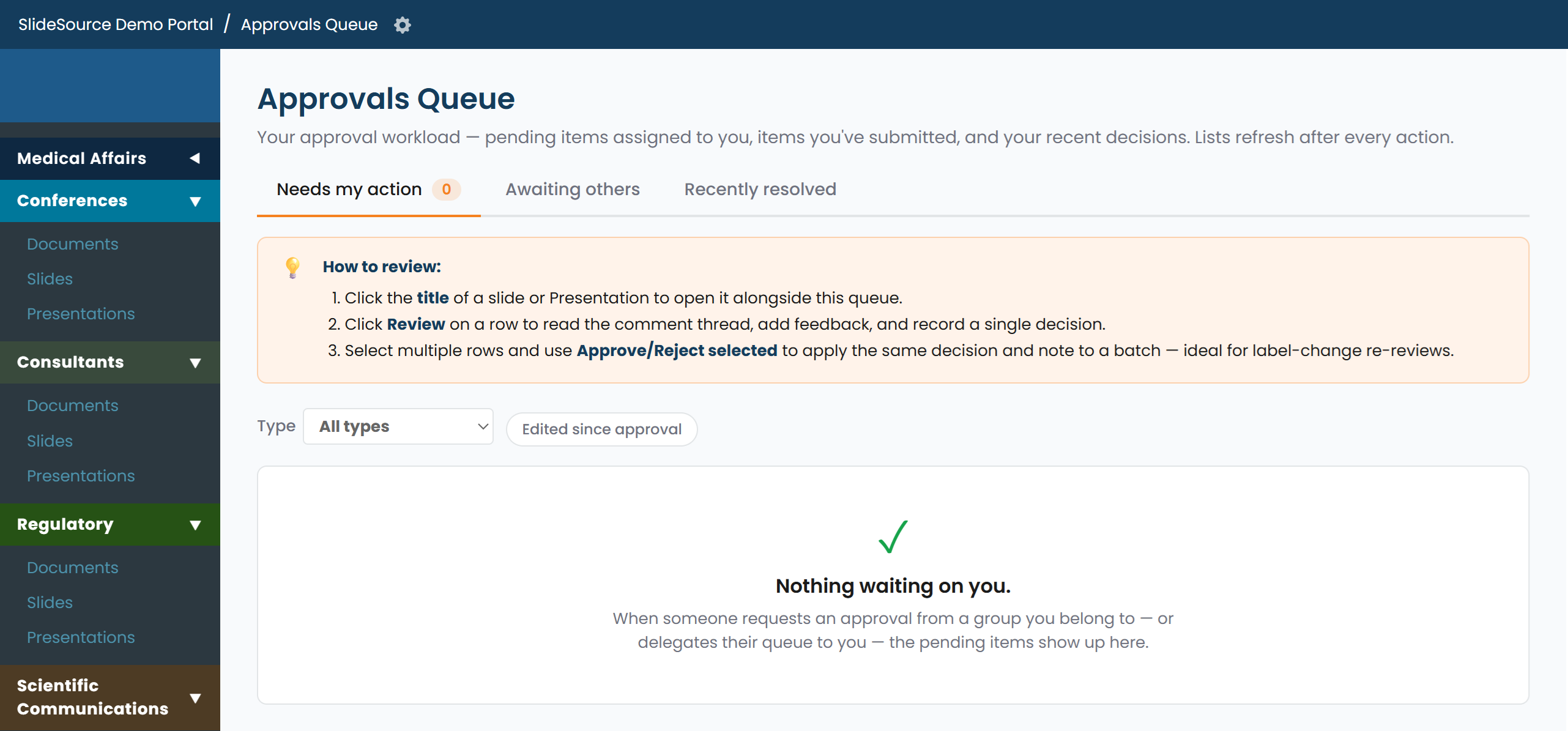
Who can approve is controlled by the Approve capability in the permission model: set per collection and inherited down the folder tree.
Presentations and approval
Section titled “Presentations and approval”Presentations reference slides, so a deck’s approval standing follows the slides it contains. When a presentation is submitted for review, its slide versions go through the same Approve / Reject decision and appear in the Review queue. Reusing already-approved slide versions keeps a deck’s content aligned with what has cleared review.