Build a presentation
Goal: assemble a presentation from slides that already live in the library: add sections, reorder, pin the versions you want, save it, and export it to PowerPoint.
When to use this: any time you need to build a deck. Because a presentation references slides rather than copying them, everyone stays on the same current, approved content.
-
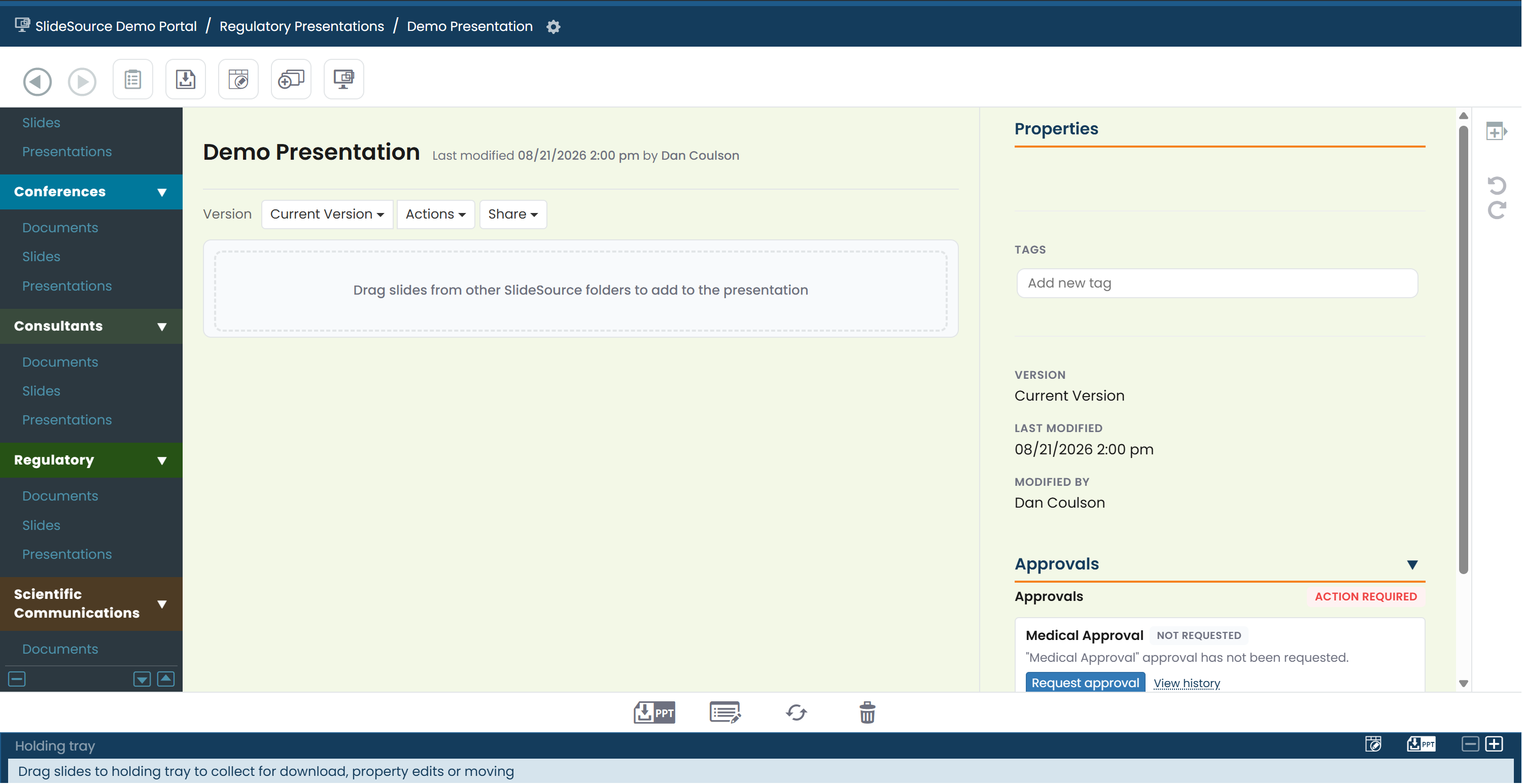
Create the presentation. Open the Presentation folder where the deck should live and click the New presentation icon (you’ll need create rights in that folder). The deck opens with the presentation on the left and the properties on the right.
-
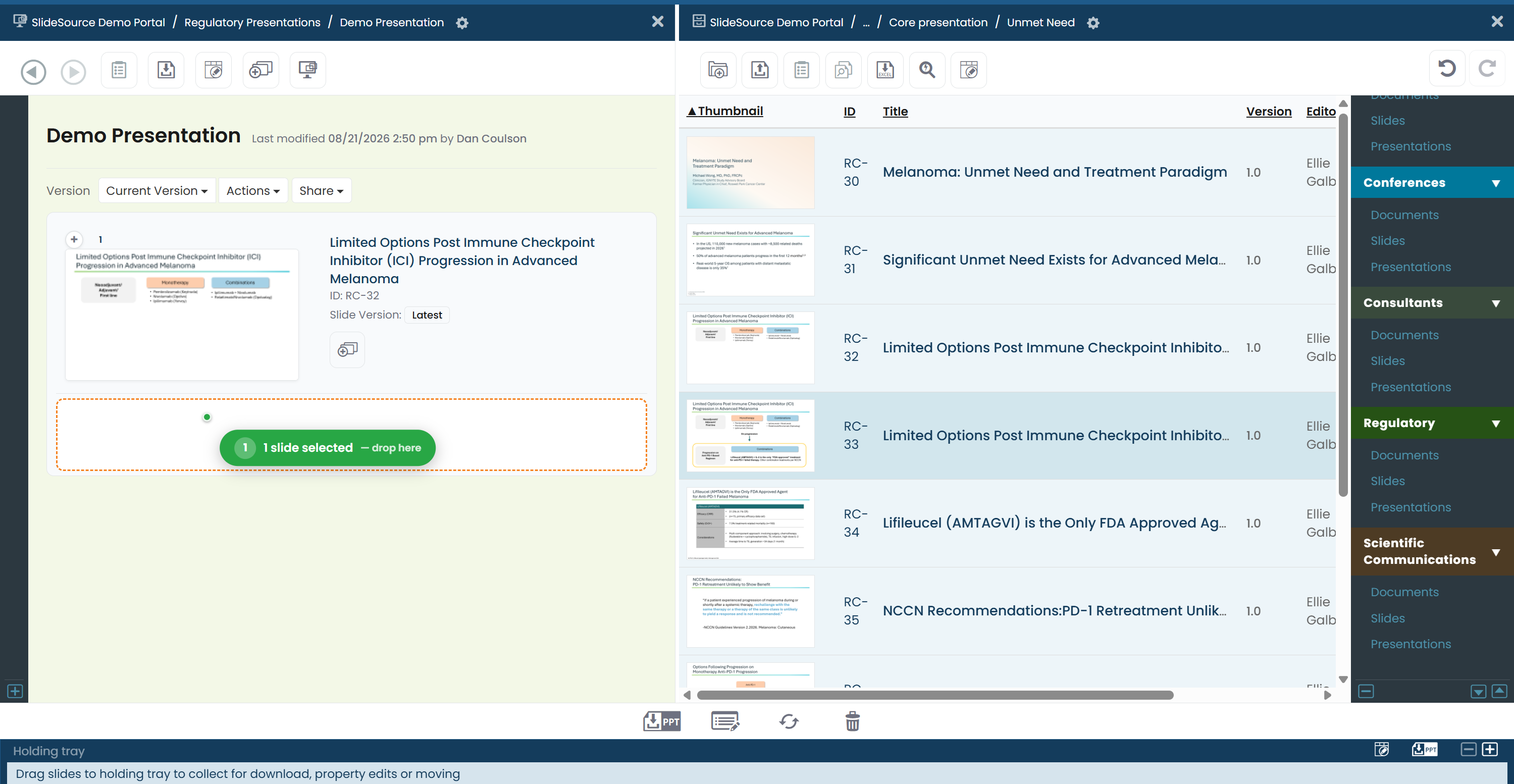
Open a second pane. Use the Copy Left Pane icon (or Ctrl/Cmd+click) to open a second pane, then navigate to the slides you wish to add to your presentation.
-
Select the slides. To add several at once, hold Ctrl and click each slide, or hold Shift to select a range.
-
Add slides. Drag slides into your presentation pane (you can also drag a specific slide version or a whole deck):
- Drop onto a row to insert at that position.
- Drop onto the Add slides zone at the bottom to append.
-
Reorder. Drag rows up or down to get the running order right.
-
Add section headers. Click + to insert a divider, then rename it inline. Toggle Stamp header to render it as a slide in the deck, and choose a Header Style: Dark, Light, or Consultant.
-
Pin the version of each slide. Open a slide’s Slide Version control to pin a specific version, or choose Always use latest so the deck follows that slide as it’s updated.
-
Fill in the deck’s Properties. In the right-hand Properties section, set the presentation’s tags and custom fields so it’s findable later.
-
Save a version. Use Actions → Save Version. Tick the optional Read-Only checkbox to lock a version from further edits. You can also Overwrite current (restore), Rename or Delete a version, and switch between saved versions with the version dropdown.
-
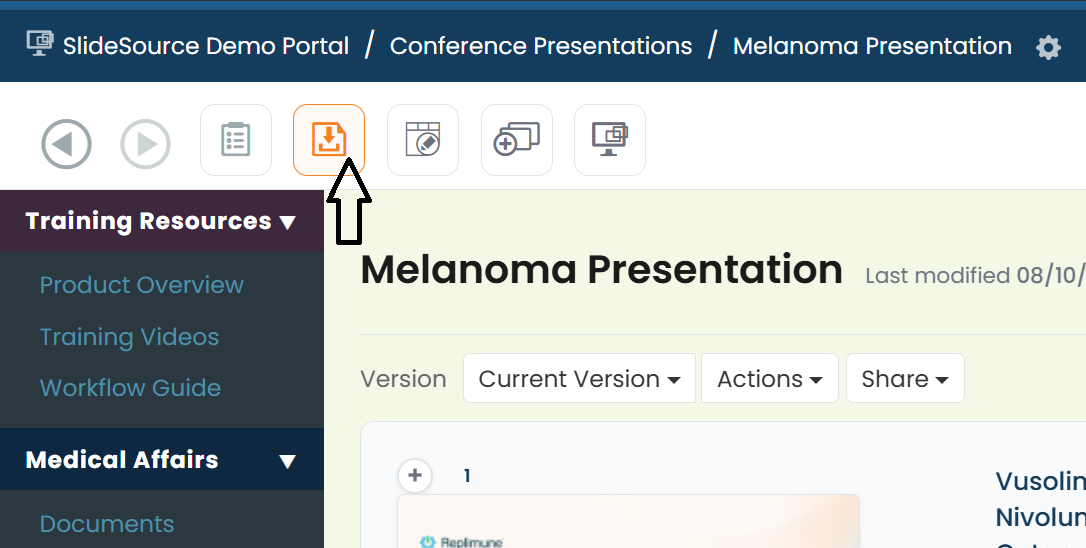
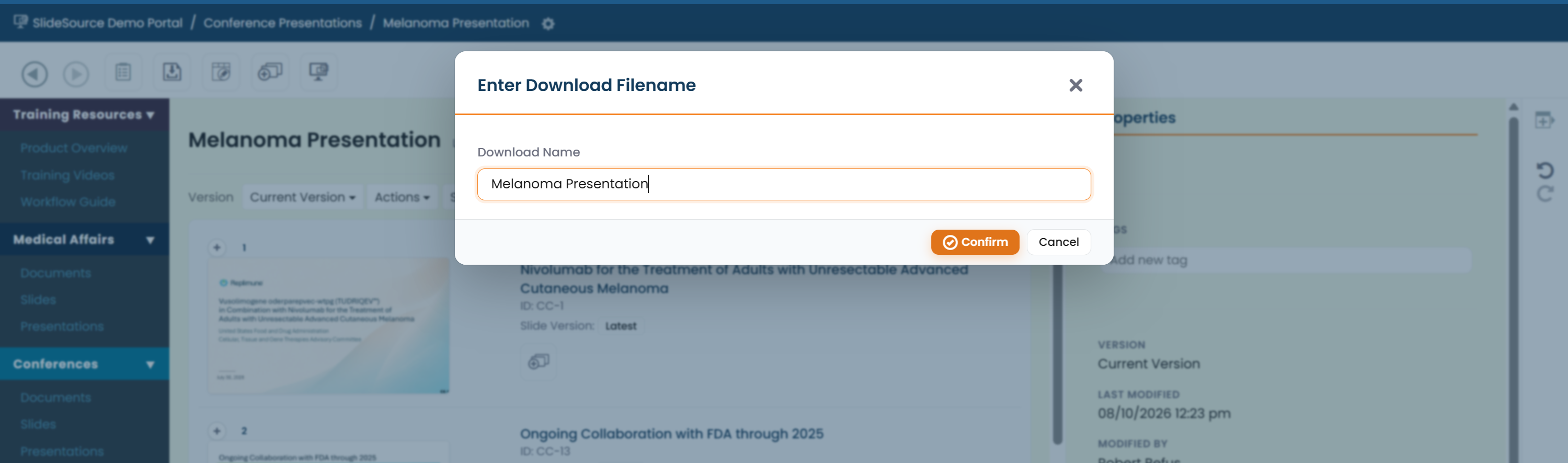
Download to PowerPoint. Click Download. Add your filename in the pop-up window (and choose a template variable if applicable), then watch the “Building… %” bar as SlideSource compiles the
.pptx.