Refresh a deck with vCheck
Goal: find out whether a deck you downloaded still matches the library, and, if slides have changed, get a refreshed copy with each one’s current version.
When to use this: when your library uses vCheck and you’re working from a deck you downloaded earlier and want to be sure it isn’t stale before you present or share it.
-
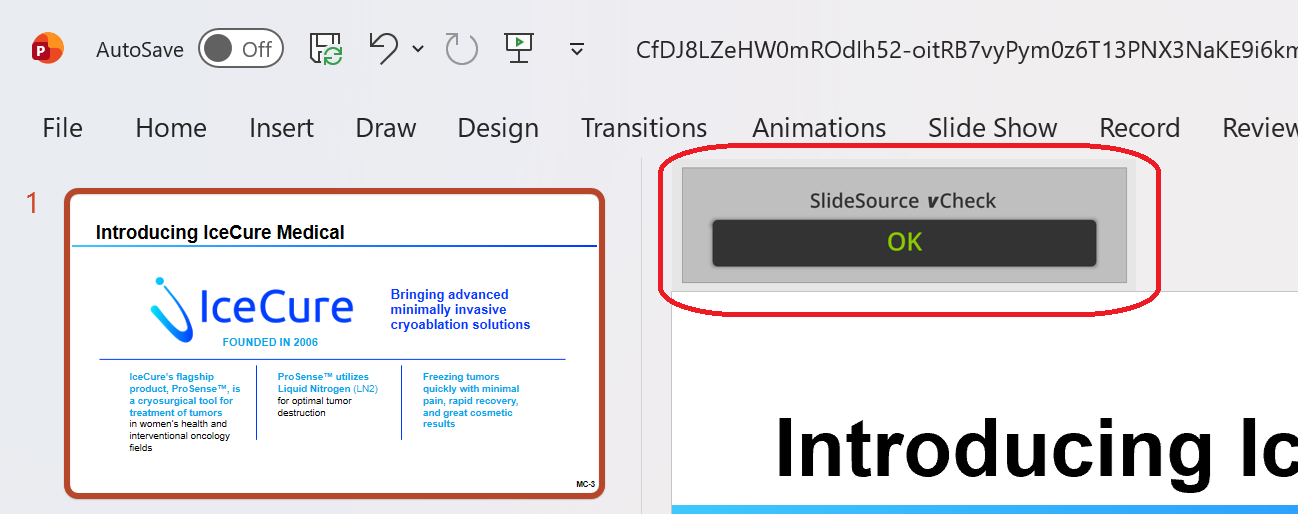
Read the status badges. In a downloaded deck from a vCheck library, each slide carries a small status badge linked to its status page. A badge reads one of:
- Up to date: the slide matches the library’s current version.
- Update available: a newer version exists.
- Rejected: the version in your deck was rejected.
- Deleted: the slide no longer exists in the library.
-
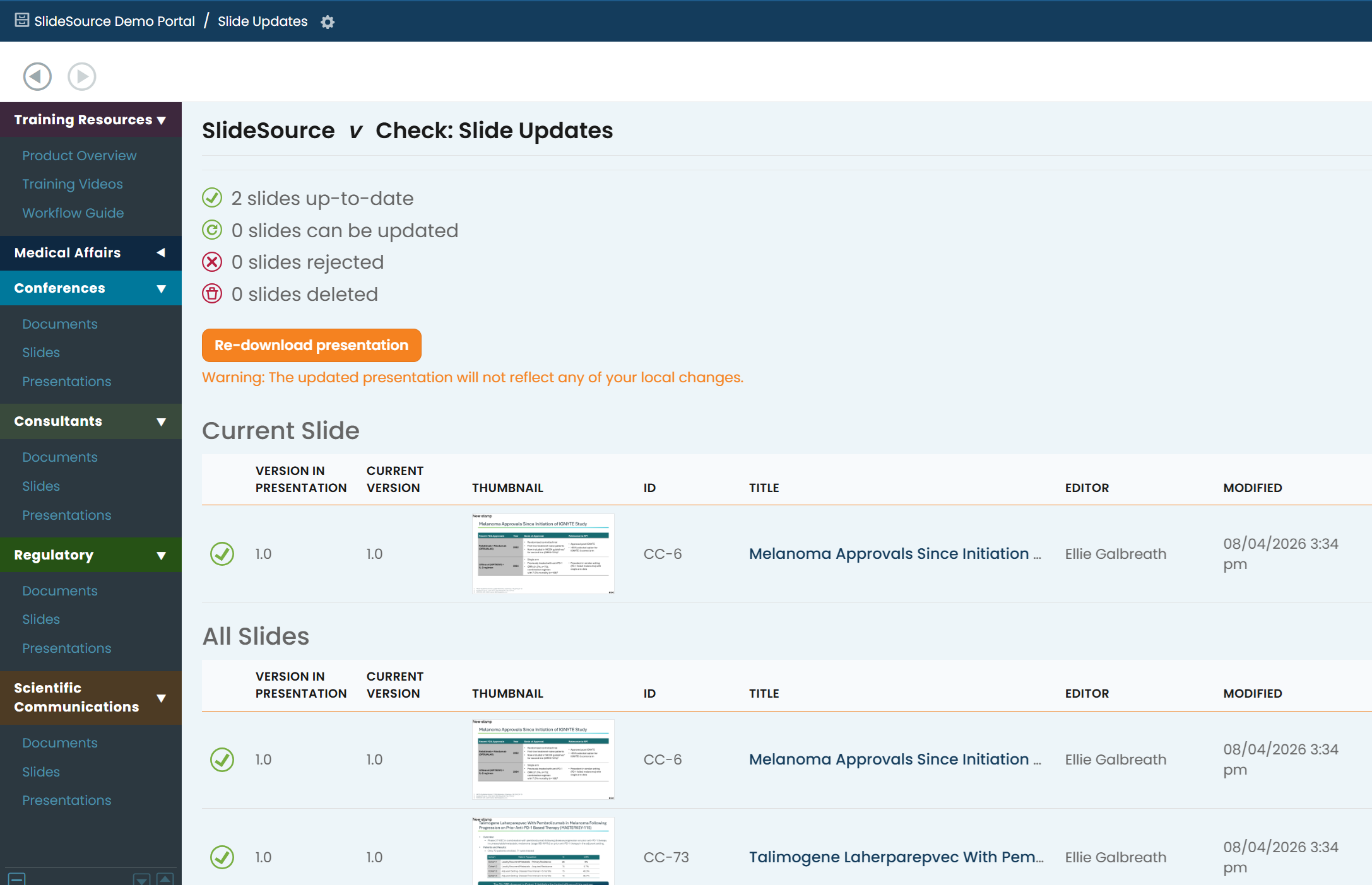
Open the vCheck report. Click a badge to open SlideSource vCheck: Slide Updates. It shows the counts by status and a per-slide table comparing the version in your deck with the current version in the library.
-
Download the refreshed deck. Click Download updated presentation to recompile the deck using each slide’s current version.