The interface
SlideSource Library is a single, fast workspace: a sidebar on the edge, a main area made of one or two panes, and a tray along the bottom. Once you know these three pieces you can navigate anything.
The sidebar
Section titled “The sidebar”The sidebar lists the collections and links an admin has set up, grouped into categories you can expand and collapse. It also includes a Personal Collections area for your own slide, presentation, and document sets. Collapse the sidebar to give the workspace more room.
Panes and split view
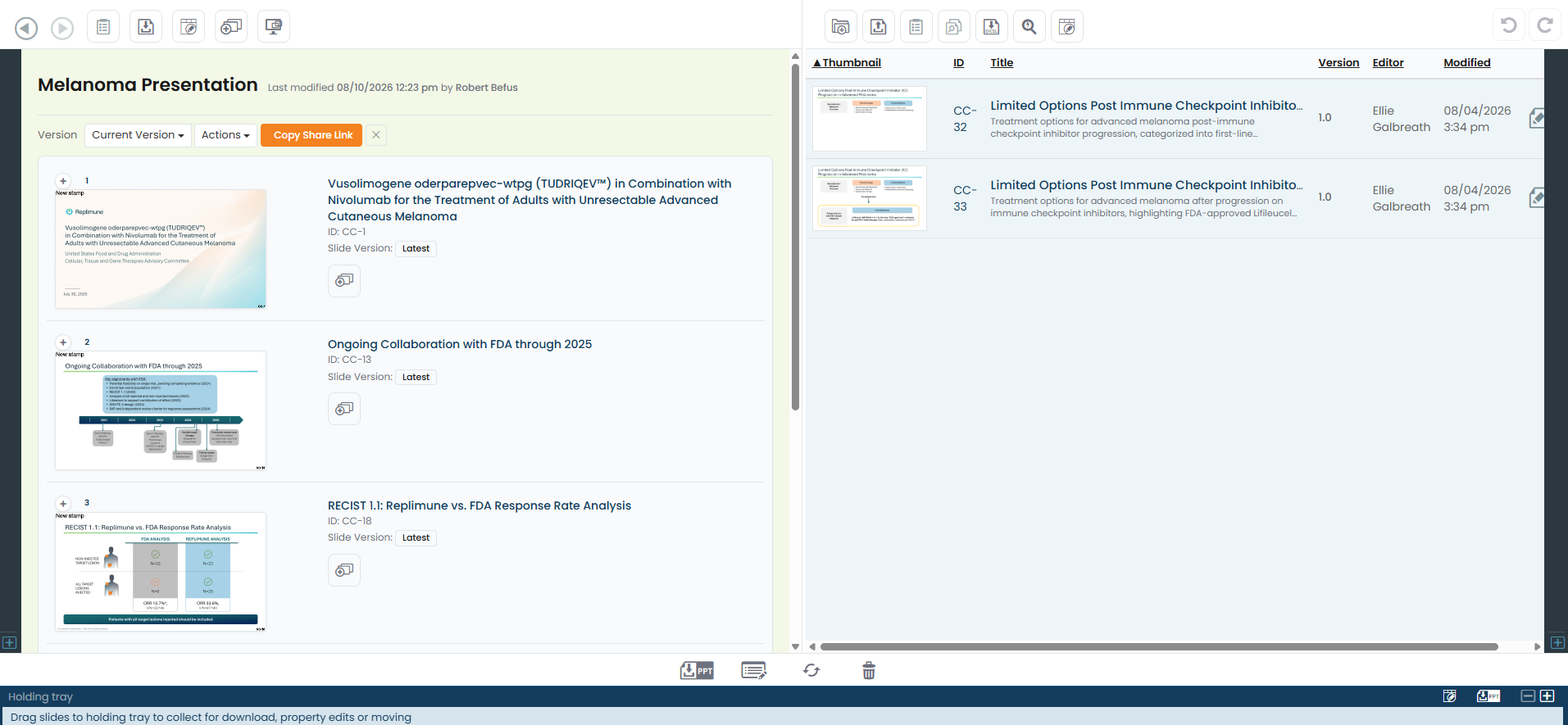
Section titled “Panes and split view”The main area is made of panes. You can work in a single pane or split the screen into two, for example, a slide folder on the left and a presentation you’re building on the right.
- Open a second pane from the landing page: Ctrl-click (Windows) / Cmd-click (Mac), or middle-click (the mouse wheel), any link. A normal click opens it in the same pane. You can minimize/maximize the side bar in each pane to navigate independently using normal clicks.
- Open a second pane from a collection: In addition to using the steps above, you can also open a second pane with the new-pane icon in the top right corner (labeled Copy Left Pane), so you can work in two panes side by side.
- Each pane has its own Back / Forward history and its own search box.
- Close a pane with the ✕ in its title bar.
Breadcrumbs
Section titled “Breadcrumbs”Every pane shows a breadcrumb trail at the top: Library → collection → folder → item. Click any level to jump straight back to it.
Search
Section titled “Search”There are several ways to find content (covered in depth in Navigating & search):
- Search box: the box in each pane’s toolbar searches the current area.
- Library search: one search across every collection you can see.
- Lightning Search: fast slide filtering with toggles (Title, Text, Notes, Fields, Tags) and VID shortcuts (type
bu3to find BU-3). - Search by Tag and Advanced search: filter by tags or specific custom fields.
The tray
Section titled “The tray”The tray is a holding space along the bottom of the screen. Drag items into it (slides, versions, documents, whole folders) to collect them, then use the tray’s toolbox to download / compile to PowerPoint, bulk-edit properties, recycle, or subscribe: all at once.

Undo / redo
Section titled “Undo / redo”Most actions can be reversed with the Undo / Redo buttons in the pane toolbar.