Set up notifications
Goal: get emailed about the changes you care about, and only those, by choosing which events trigger email notifications and where those notifications apply.
When to use this: when you want to monitor a collection, folder, or item without checking the library manually, for example when a slide is updated or a version needs approval.
-
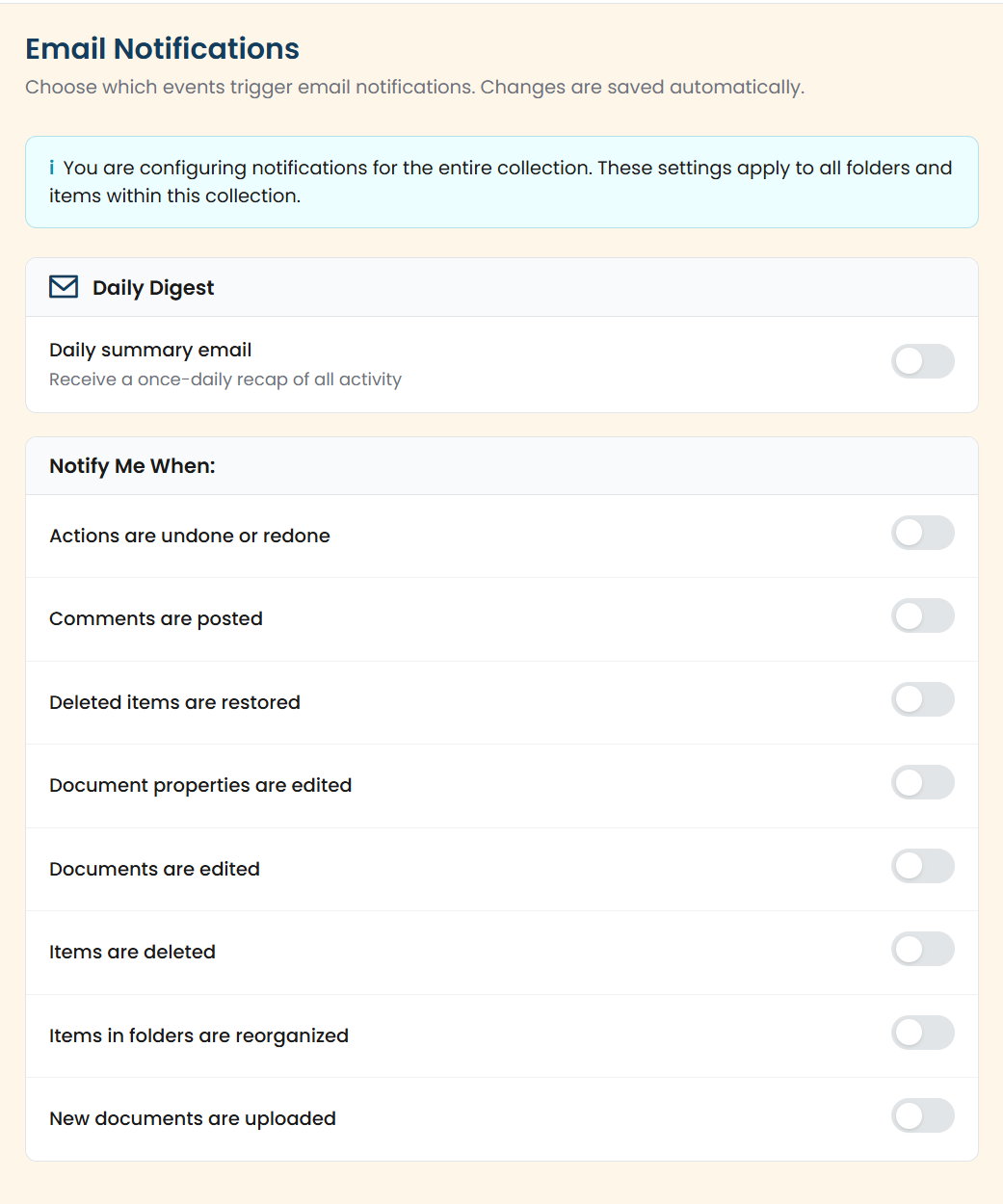
Open the notification settings. Go to Email Notifications on the collection, folder, or item you want to watch.
-
Turn on the Daily Digest if you’d rather get one rolled-up email a day than individual messages.
-
Pick your events. Under Notify Me When:, toggle the individual events you want. Your choices save automatically: there’s no separate save button.
What you’ll receive
Section titled “What you’ll receive”- Action Notification: an immediate email when a watched event happens.
- Activity Summary: the daily digest, rolling up the day’s activity.
- Event emails such as Approval Pending when a version needs an approver’s attention.
Tips & pitfalls
Section titled “Tips & pitfalls”Related
Section titled “Related”Notifications (reference)Email subscriptions, the daily digest, and the events you can watch.
Approve contentWhere Approval Pending emails come from.
Manage a documentWatch a document for check-ins and new versions.
Build a presentationKeep track of decks you depend on.