Approvals
Approvals let a library record which slide versions have been reviewed. Approval in SlideSource Library works by stamping a slide version as approved or rejected, a visible signal of review status, rather than hard-blocking anyone from using the slide.
Approval stamps
Section titled “Approval stamps”Every slide version can carry an approval stamp:
| Stamp | Meaning |
|---|---|
| Pending | The version hasn’t been reviewed yet. |
| Approved by … | An approver has approved this version: the stamp records who and when. |
| Rejected by … | An approver has rejected this version: the stamp records who and when. |
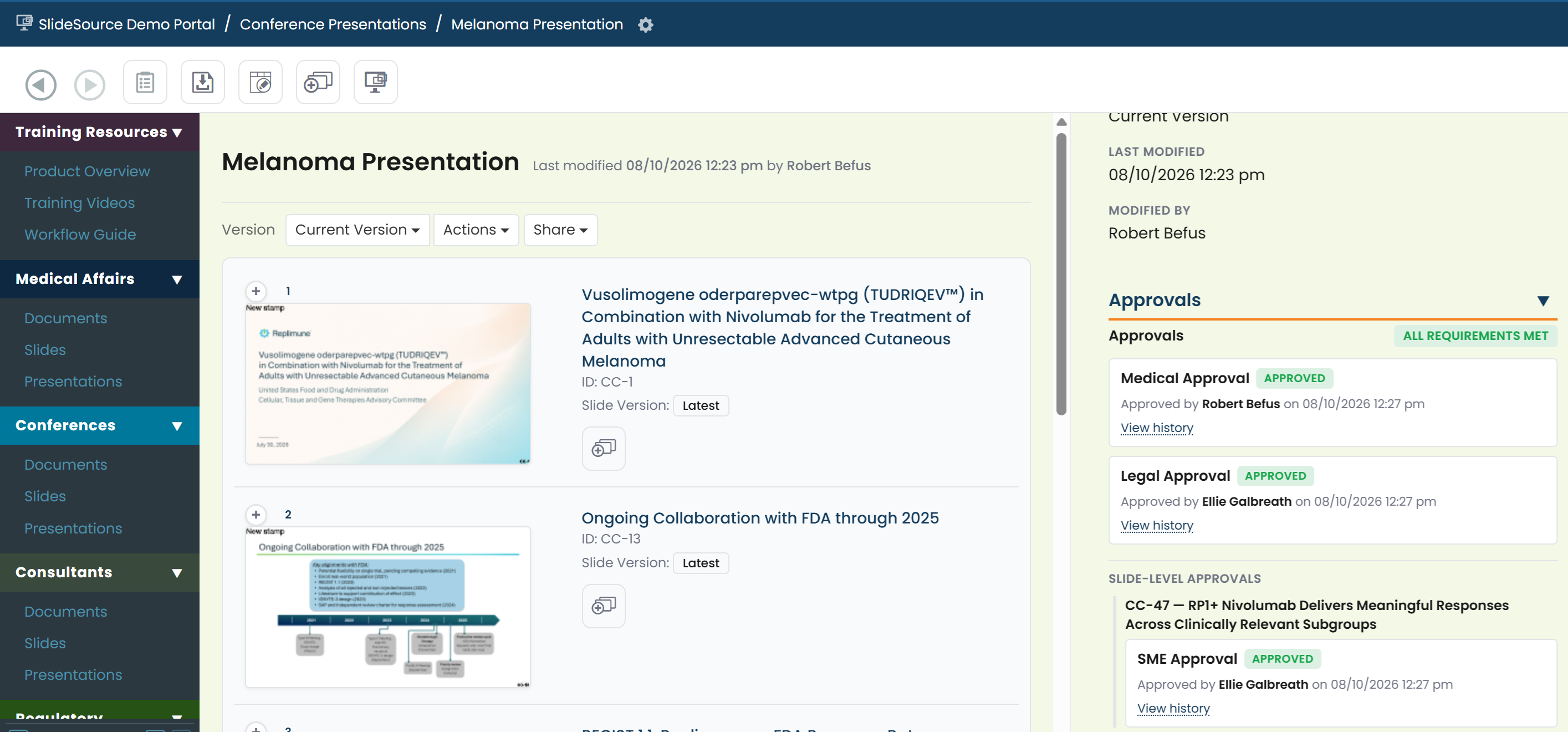
Because approval is per slide version, editing a slide creates a new version that starts out Pending again: approval applies to the exact content that was reviewed.
What you see
Section titled “What you see”- Everyone sees the approval stamp on a slide version, so you can prefer Approved content when you reuse.
- Approvers additionally see the Approve / Reject controls and the Review queue.
The Review queue
Section titled “The Review queue”Approvers work from the Review queue: a running list of slide versions waiting for a decision. Open the queue, review each pending version, and Approve or Reject it. The workflow below walks through it.
Approve contentWork the Review queue and record decisions, step by step.
How approval behaves
Section titled “How approval behaves”- Approval is advisory by design: a stamp communicates review status but doesn’t, by itself, stop someone from using a slide.
- Stamps travel with the slide everywhere it appears, so you can judge a slide’s status in search results, in slide detail, and inside a deck.
Related
Section titled “Related”Approve contentThe approver workflow.
SlidesWhere approval stamps appear on a slide.
Approval & governance (admin)How admins configure approval for the library.