Navigating & search
Everything in SlideSource Library is reachable in a few clicks once you know the four navigation surfaces (the sidebar, the folder hierarchy, breadcrumbs, and split panes) and the handful of ways to search.
The sidebar
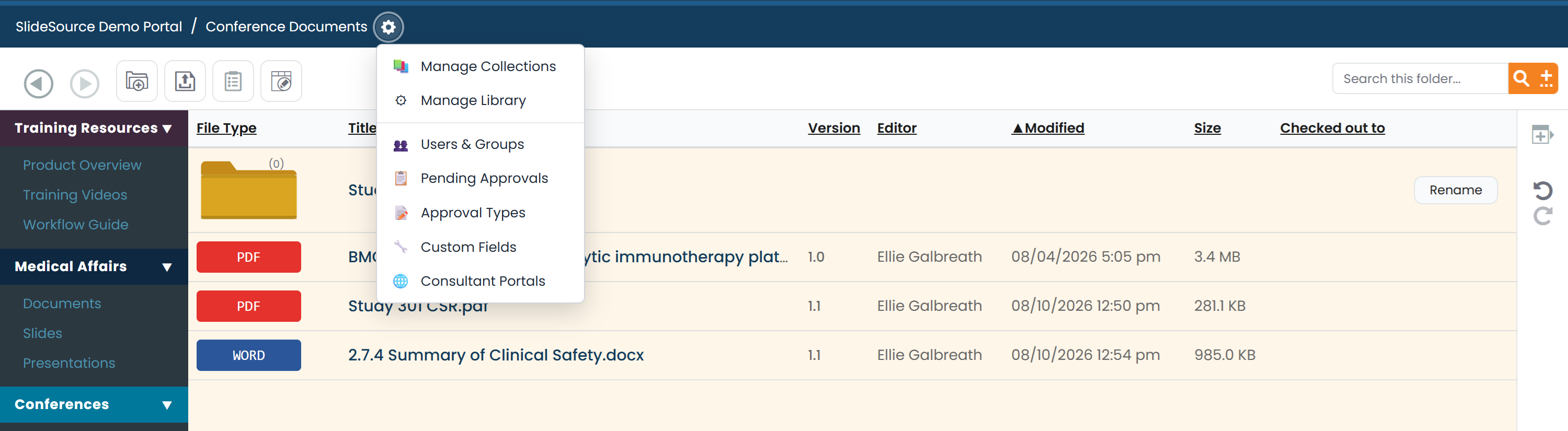
Section titled “The sidebar”The sidebar runs down the edge of the workspace and is your jumping-off point for everything you have access to.
- Categories: the collections and links your library admin has set up, grouped into categories you can expand and collapse.
- Personal Collections: your own private slide, presentation, and document sets, for organizing content the way you work.
- Collapse the sidebar to give the main area more room; expand it again when you need to jump somewhere new.
The folder hierarchy
Section titled “The folder hierarchy”Open a collection and you’re looking at its folder hierarchy: a sortable table of the subfolders and items inside the current folder.
- Sort the table by clicking a column heading.
- Drag to move or reorder items and folders where your permissions allow it. If dragging does nothing, you likely don’t have edit rights in that folder.
- Click a subfolder to move down a level, or an item to open its detail view.
Breadcrumbs
Section titled “Breadcrumbs”Every pane shows a breadcrumb trail across the top: Library → collection → folder → item. Click any segment to jump straight back to that level: you never have to click Back repeatedly to get out of a deep folder.
Split panes
Section titled “Split panes”The main area can be a single pane or split into two side-by-side panes, for example, a slide folder on the left and a presentation you’re building on the right.
- Open a link in the other pane: hold Ctrl (Windows) or Cmd (Mac) while clicking, or middle-click the link. A normal click opens it in the same pane.
- Each pane keeps its own Back / Forward history and its own search box, so you can search two things at once.
Searching the library
Section titled “Searching the library”There are several ways to search, from a quick keyword match to a precise field query. Pick the one that fits how much you already know.
Library search
Section titled “Library search”Library search is the fastest way to find something by keyword. It searches across every collection you can see (slides, presentations, and documents) and returns matches ranked by relevance. Use it when you know roughly what you’re looking for but not where it lives. You can find the library search in the top right corner of the library, or in the top right corner of each pane in dual-pane view.
Advanced search
Section titled “Advanced search”Advanced search allows for a precise field query for when a keyword match returns too much. You can filter by:
| Field | Notes |
|---|---|
| ID | The item’s VID identifier. |
| Title | Words in the title. |
| Text | Words in the on-slide text. |
| Notes | Words in the speaker notes. |
| Editor | Who last edited the item. |
| Last-edited date | A start/end date range. |
| Tags | One or more tags. |
| Custom fields | Any custom field defined in your library. |
Lightning Search
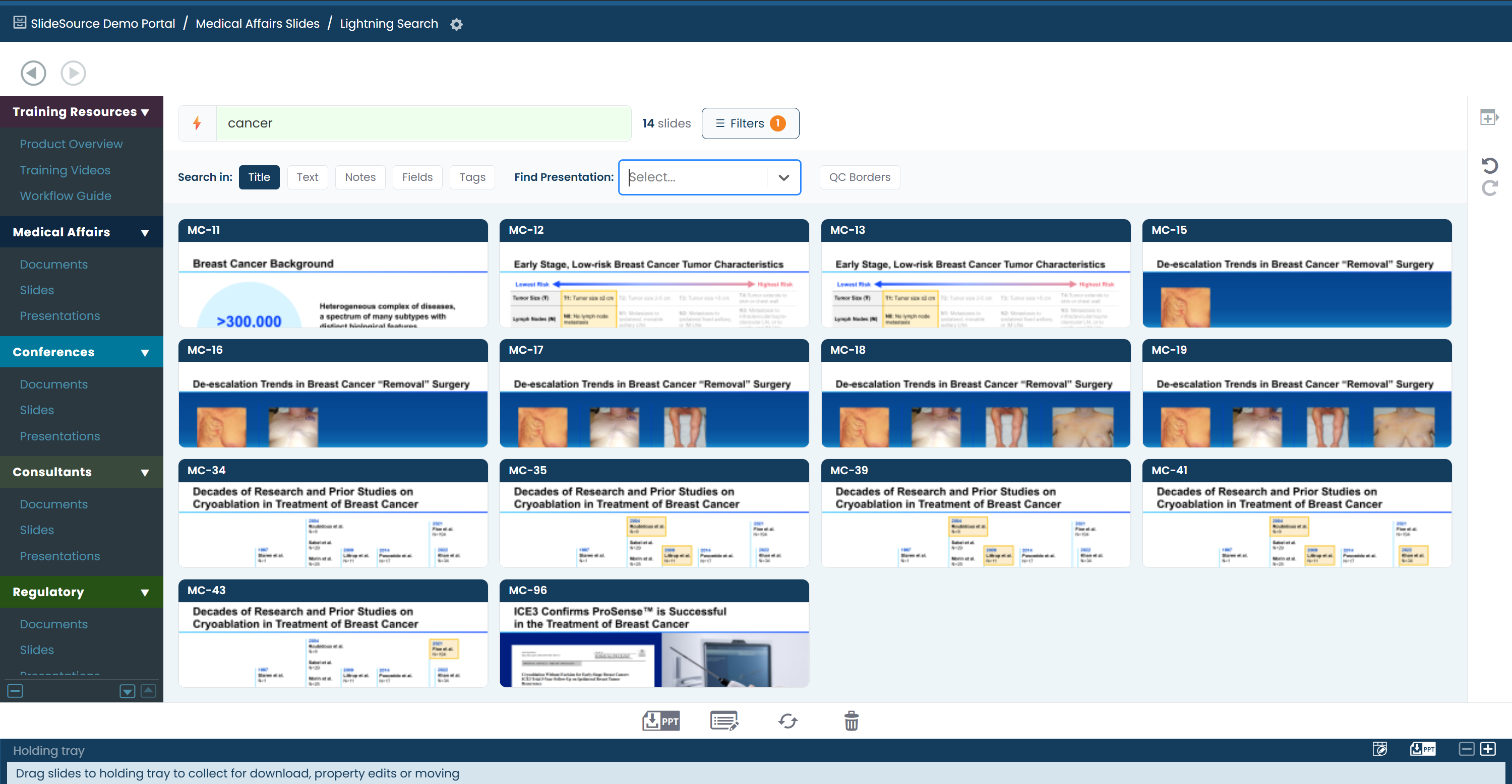
Section titled “Lightning Search”Lightning Search is a fast, live filter built for slides. As you type, results narrow instantly. Access Lightning Search by clicking the icon at the top of your collection page. It gives you:
- Scope toggles: turn matching on or off for Title, Text, Notes, Fields, and Tags.
- VID shortcut: type a Visual ID shorthand such as
bu3to jump straight to BU-3. - C-Code filter: narrow to slides carrying a particular C-Code.
- QC-status borders: an optional colored border around each result that reflects its review status, so you can spot approved vs. pending slides at a glance.
- AND / OR logic: require every term to match, or any of them.
Search by Tag
Section titled “Search by Tag”Search by Tag pulls back everything carrying a given tag. Unlike Lightning Search, it returns both slides and presentations, so it’s the quickest way to gather all content on a topic regardless of type.