Documents
Documents are the supporting files behind your content: publications, study reports, source materials, and any other file you want governed alongside your slides and decks. Documents use a check-out / check-in model so only one person edits a file at a time.
The document folder
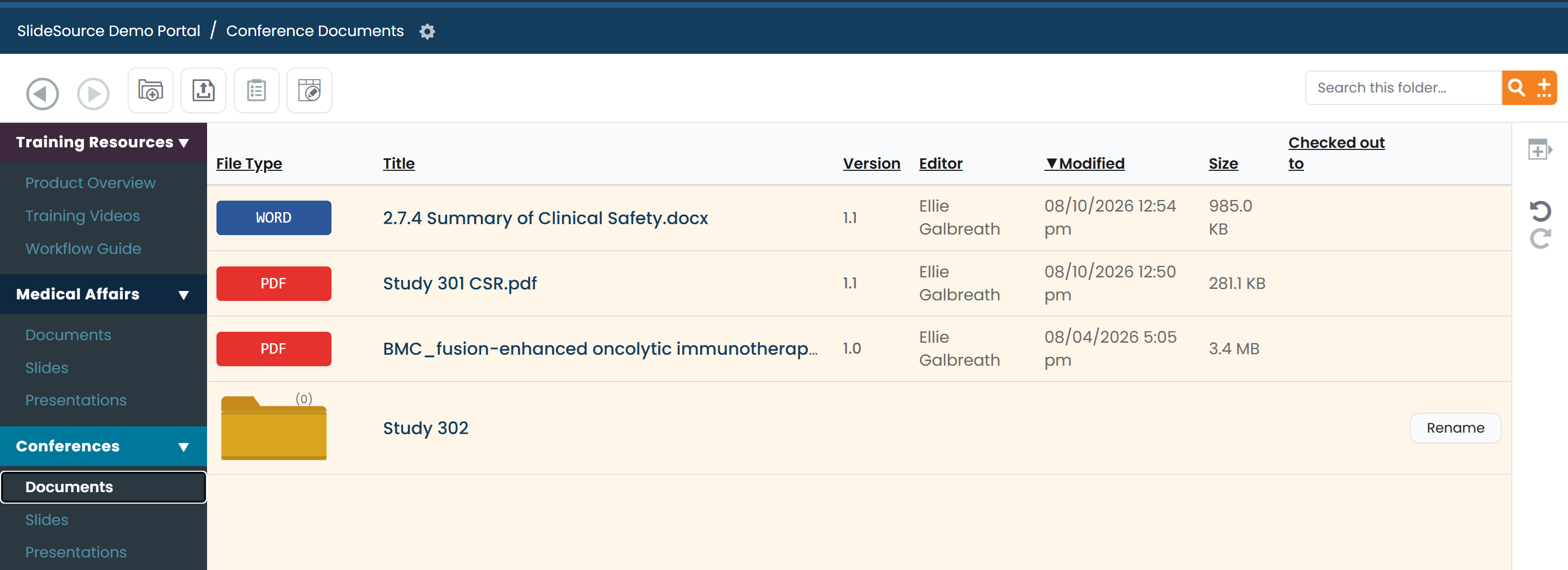
Section titled “The document folder”A document folder is a sortable table of files. Each row shows:
| Column | What it tells you |
|---|---|
| File-type icon | The kind of file (Word, PDF, Excel, and so on). |
| Version | The major.minor version number. |
| Editor | Who last changed the file. |
| Modified | When it last changed. |
| Size | The file size. |
| Checked out to | Who currently has it checked out, if anyone. |
The document view
Section titled “The document view”Open a document to see its detail view:
- Preview: view the file’s contents inline where the type supports it.
- Check-out / check-in state: the document is either available, or checked out to someone. Checking out reserves the file for you to edit; checking in returns it and creates a new version.
- Restore old versions: roll back to an earlier version (permission-gated).
- Public share link: create a link to the document for people outside the library. See External access.
- Per-version comments: leave notes on a specific version, keeping discussion tied to the exact revision.
Version history
Section titled “Version history”Version history lists every revision with its major.minor number, editor, and date. From here you can download:
- Per file: grab a single version.
- Batch: download several versions at once.
Related
Section titled “Related”See Manage a DocumentThe check-out / edit / check-in cycle, step by step.
Edit in PowerPointHow the Office round-trip uses check-out.
External accessWhat recipients of a shared document link see.
Navigating & searchFind documents, including the Checked-Out filter.