Approval & governance
Goal: decide how tightly your library governs content by picking an approval mode, then keep content moving through the Review queue by approving or rejecting versions.
When to use this: when you’re establishing (or changing) how your library handles review, and whenever approvers need to work through pending content.
-
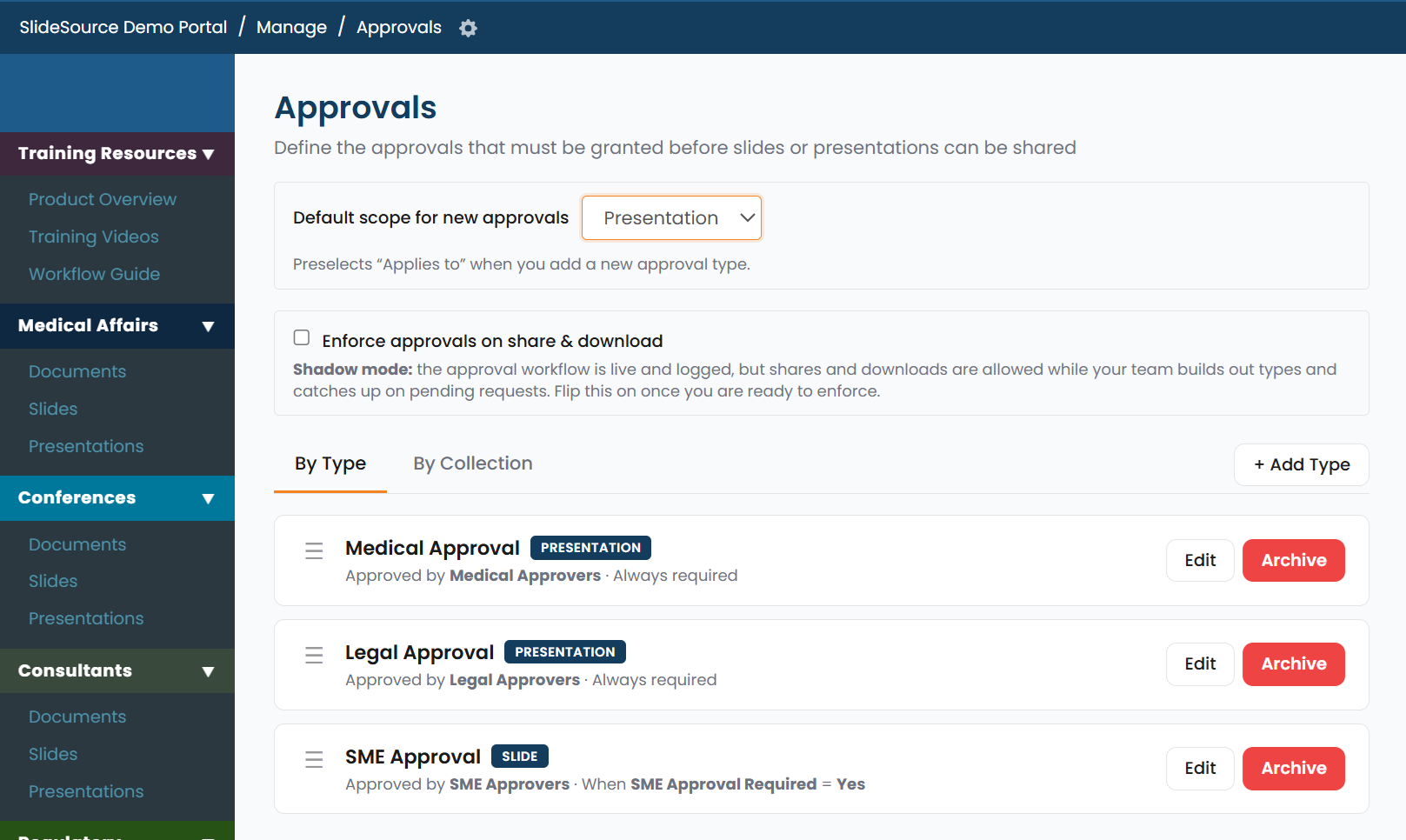
Choose the library’s approval mode. In Approval Settings, pick one of three modes for the whole library:
- Require approval: new slide versions must be approved before they’re considered current.
- Hide approval: approval controls are hidden from the interface.
- Allow slides to be used freely: no approval gate; anything can be used.
-
Understand what happens on edit. With Require approval on, editing a slide creates a new version that becomes pending. The previously approved version stays the “current, approved” copy until an approver clears the new one.
-
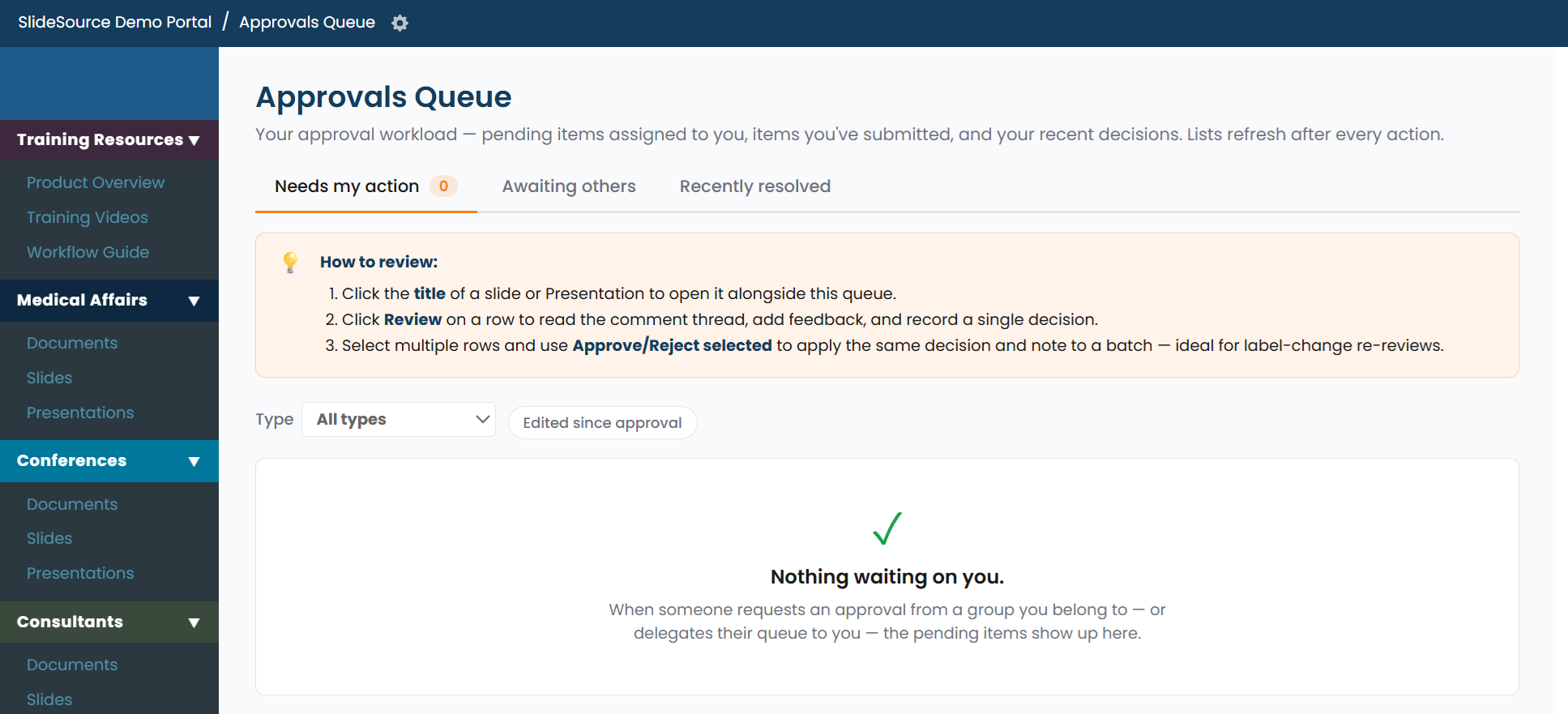
Work the Review queue. Approvers reach pending content from a folder’s View slides pending approval, which opens the Review queue. For each version, Approve or Reject and leave a comment explaining the decision.
-
Govern presentations. Presentations follow a submit / approve workflow:
- only one version can be out for approval at a time,
- only one approved version exists at a time, and
- approved versions are locked: to change an approved deck you create and submit a new version.