Slides
Slides are the reusable building blocks of your library. Every slide is versioned, carries its own properties and tags, and remembers where it’s used. This page covers the slide detail section and everything attached to a slide.
Slide detail
Section titled “Slide detail”Click any slide to open slide detail: the full picture of a single slide.
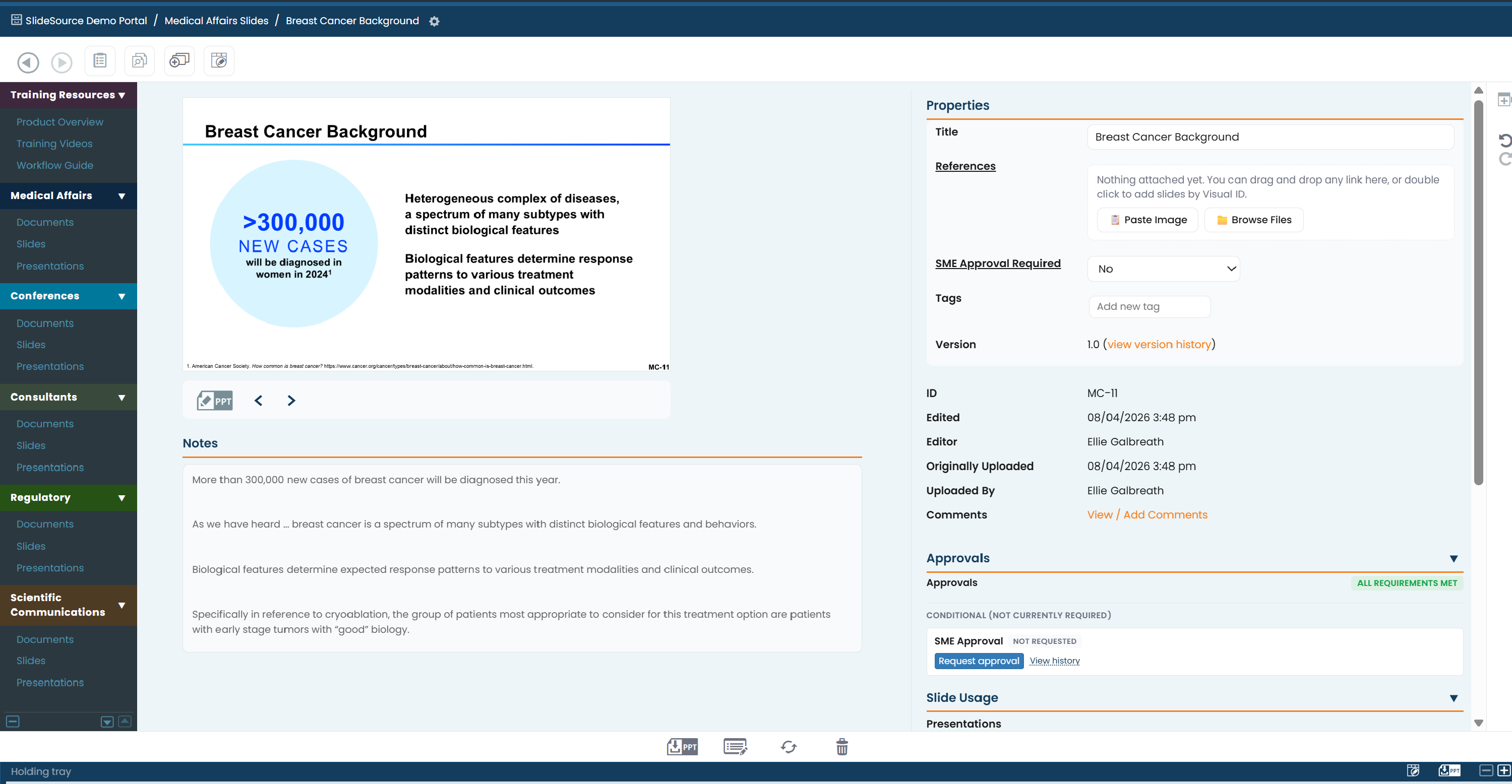
Thumbnail and speaker notes
Section titled “Thumbnail and speaker notes”- A large thumbnail shows the rendered slide. Click it to open a full-size image in a separate tab.
- Speaker notes appear below the slide thumbnail, exactly as they were authored in PowerPoint.
- A missing-fonts notice warns you when the slide uses fonts the server couldn’t render, so you know the preview may not match the original perfectly.
Properties
Section titled “Properties”The Properties panel is the slide’s metadata at a glance:
- Custom fields: your library’s structured metadata (product, indication, audience, and so on).
- Tags: free-form labels for finding and grouping the slide.
- Version number, with a link to view version history.
- ID: the Identification Number for the slide.
- Edited / uploaded info: who last changed the slide and when, and who first uploaded it.
Field change history
Section titled “Field change history”The field change history records edits to the slide’s fields and tags (what changed, who changed it, and when) right on the detail page.
PowerPoint metadata
Section titled “PowerPoint metadata”A read-only PowerPoint metadata section surfaces details pulled from the source file (such as the original author and file properties). It’s informational: you can’t edit it here.
Slide Usage
Section titled “Slide Usage”Slide Usage lists where the slide appears: the presentations that reference it. This is how you gauge impact before editing: a change to a widely used slide reaches every deck that references it.
Slide Requirements
Section titled “Slide Requirements”Slide Requirements flags anything the slide still needs (for example, missing required fields) so you can bring it up to your library’s standards.
Moving through slides
Section titled “Moving through slides”Use prev / next buttons under the slide thumbnail to step through neighboring slides in the same folder without going back to the list.
Adding to the tray
Section titled “Adding to the tray”Drag the slide down into the tray to collect it for download or bulk actions. You can drag from the detail view, a folder row, or a specific version.
The detail view’s tools include:
- Action history: a fuller audit trail of everything that has happened to the slide.
- Find duplicates: surface near-identical slides elsewhere in the library.
- Subscribe: get notified when this slide changes. See Notifications.
Permission-gated actions
Section titled “Permission-gated actions”Depending on your rights, you may also see:
- Edit fields / tags: change the slide’s properties in place.
- Edit in PowerPoint: round-trip the slide through Office. See Edit in PowerPoint.
- Restore version: make an earlier version current.
- Copy slide: duplicate the slide.
- Approve / Reject: set the review status of the current version. See Approvals.
Slide folders
Section titled “Slide folders”A slide folder is the table view of the slides in a collection. From a folder you can:
- Browse subfolders and slides (a sortable table).
- Upload new slides: see Uploading & Slide Identification.
- See what’s pending review and jump into it.
- Export to Excel: a spreadsheet of the folder’s slides and their fields.
- Run Lightning Search to filter the folder fast: see Navigating & search.
Version history
Section titled “Version history”Every edit creates a new version, and version history keeps them all.
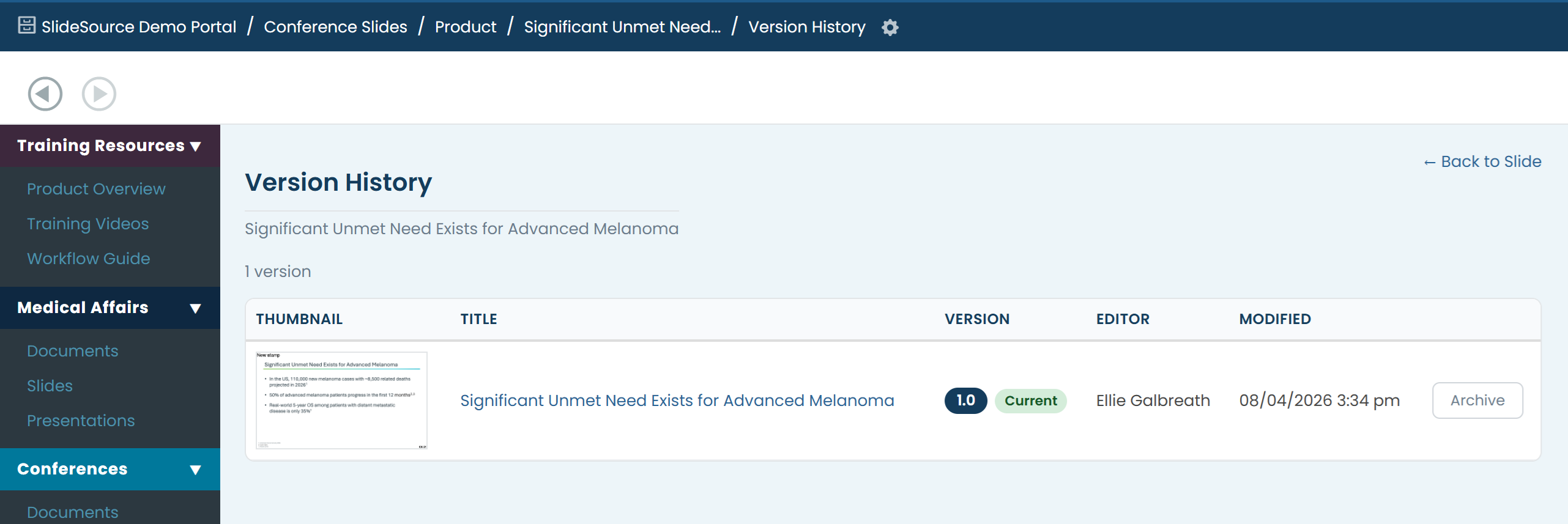
Each row shows:
- The version’s thumbnail.
- A Current label on the version that’s live.
- The editor and date.
- An approval column with that version’s review status.
You can also:
- Show / hide archived versions.
- Archive / unarchive a version to tidy the list without deleting history.
- Restore an older version to current (permission-gated): see Restore version.
Comments
Section titled “Comments”Comments are attached per version, so a discussion stays tied to the exact slide it’s about.
- Type
#followed by a visual ID (for example#BU-3) and it auto-links to that slide. - Press Ctrl+Enter to post.
Tags & custom fields
Section titled “Tags & custom fields”Tags and custom fields are how content is found and organized.
- Tags: free-form labels with autocomplete; start typing and pick an existing tag or add a new one.
- Custom fields: your library’s structured metadata, defined by your admin. Fields can hold single-line or rich text, a date, a single choice or several choices from a list, a true/false value, a link to a person, or file attachments. Some fields are calculated rather than typed in, and simply display a value.
Which fields you see, and which are required, is set per library by your admin, so two libraries rarely look the same.
Attachments / supporting documents
Section titled “Attachments / supporting documents”A slide can carry supporting documents: the evidence and source material behind it. You can attach:
- Files, other slides, or URLs.
There are several ways to add them:
- Upload a file directly.
- Drag-and-drop a file onto the slide.
- Paste an image with Ctrl+V.
- Drag from the tray.
- Add by VID: reference an existing library item by its Visual ID.