Customize the landing page
Goal: customize the library’s appearance and navigation: set the Landing Page branding, configure the Sidebar, and choose which collections appear as home widgets.
When to use this: during initial setup, or any time your branding, disclaimers, or navigation need to change.
-
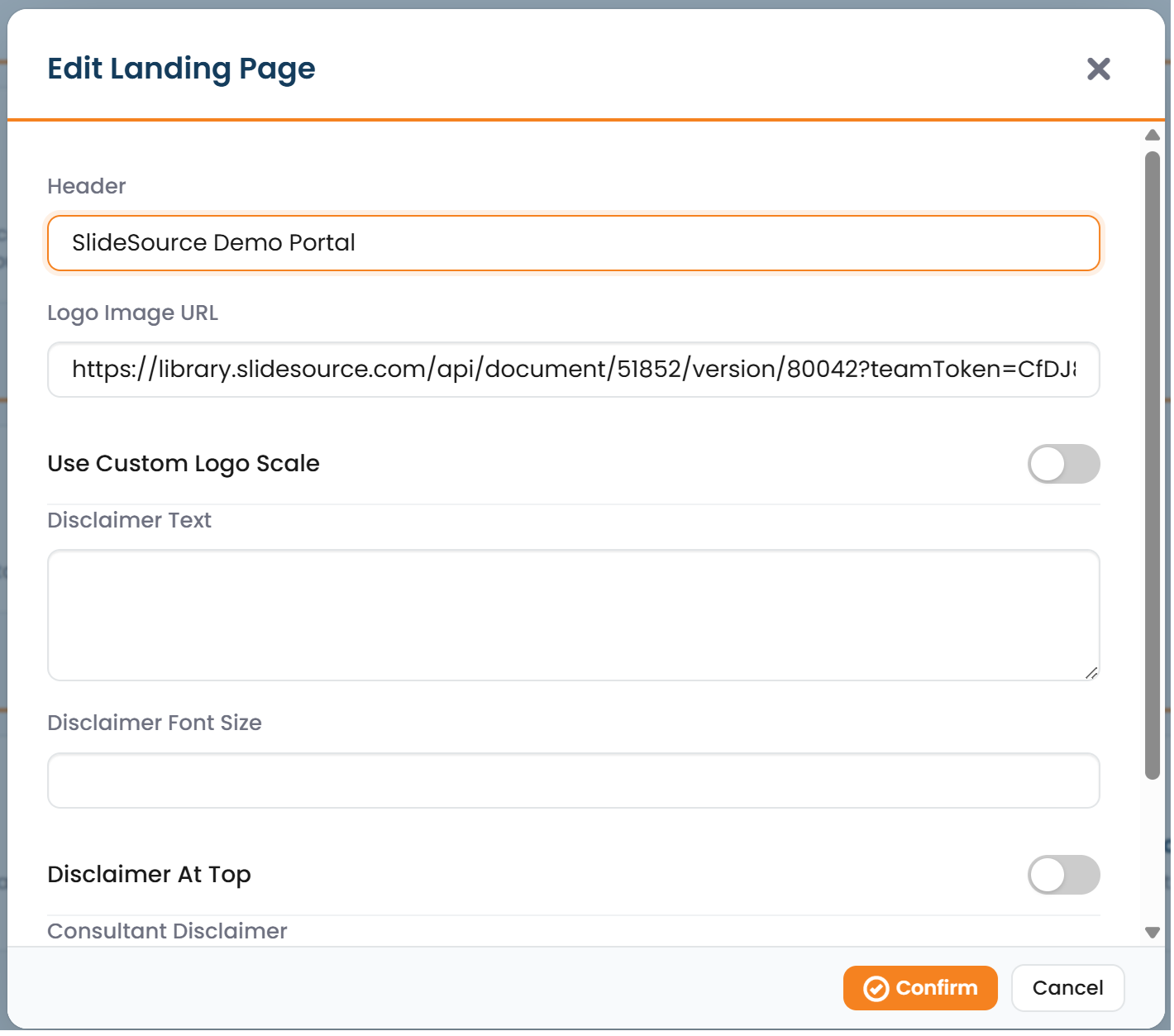
Edit the Landing Page. From Manage Library, choose Edit Landing Page. Set:
- the header text,
- the logo image and its scale,
- the disclaimer text, size, and position, and
- a separate Consultant Disclaimer shown to external/consultant viewers.
-
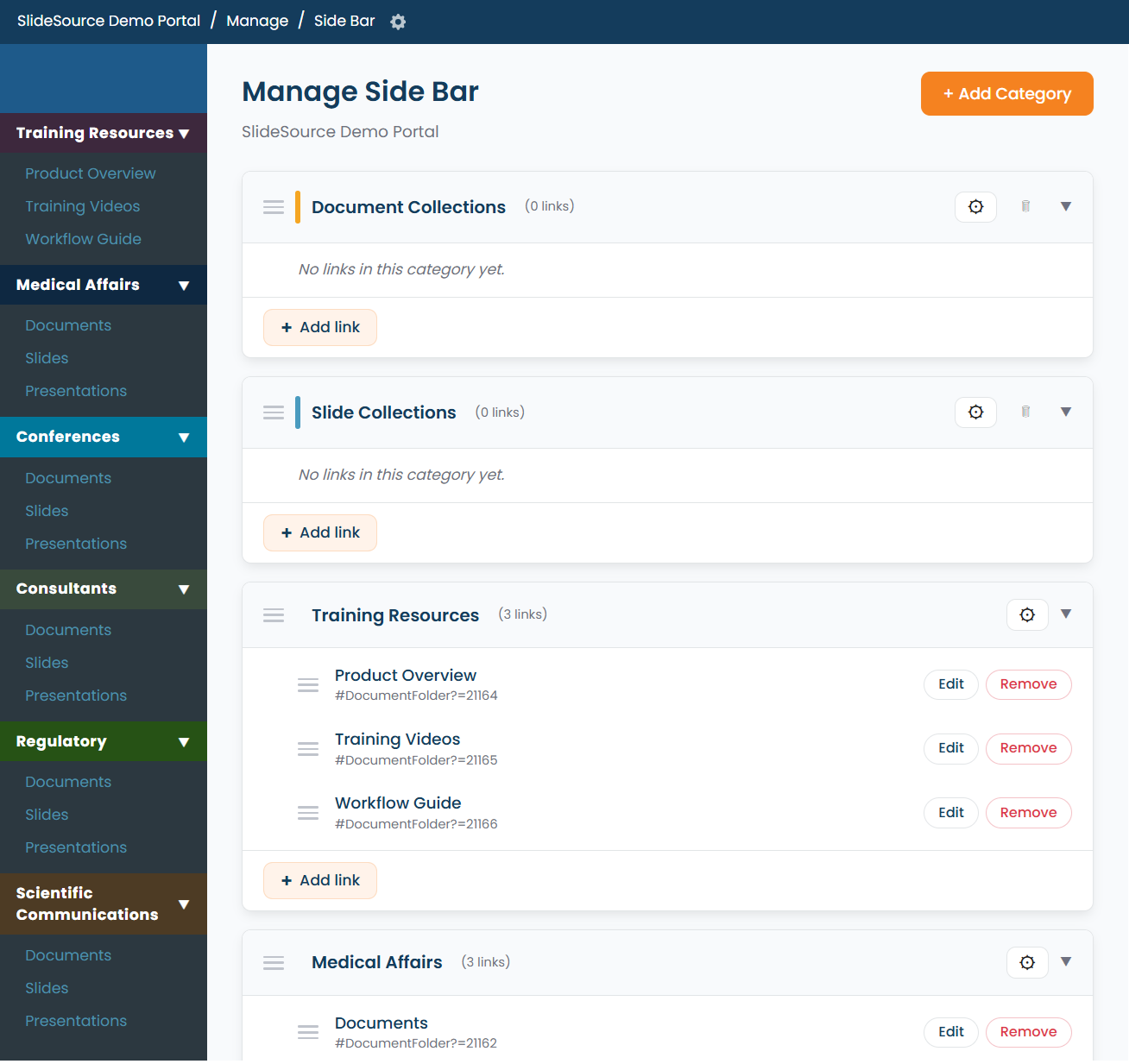
Curate the Side Bar. Open Manage Side Bar to edit the categories and links that appear in the sidebar, and organize how users navigate the library.
-
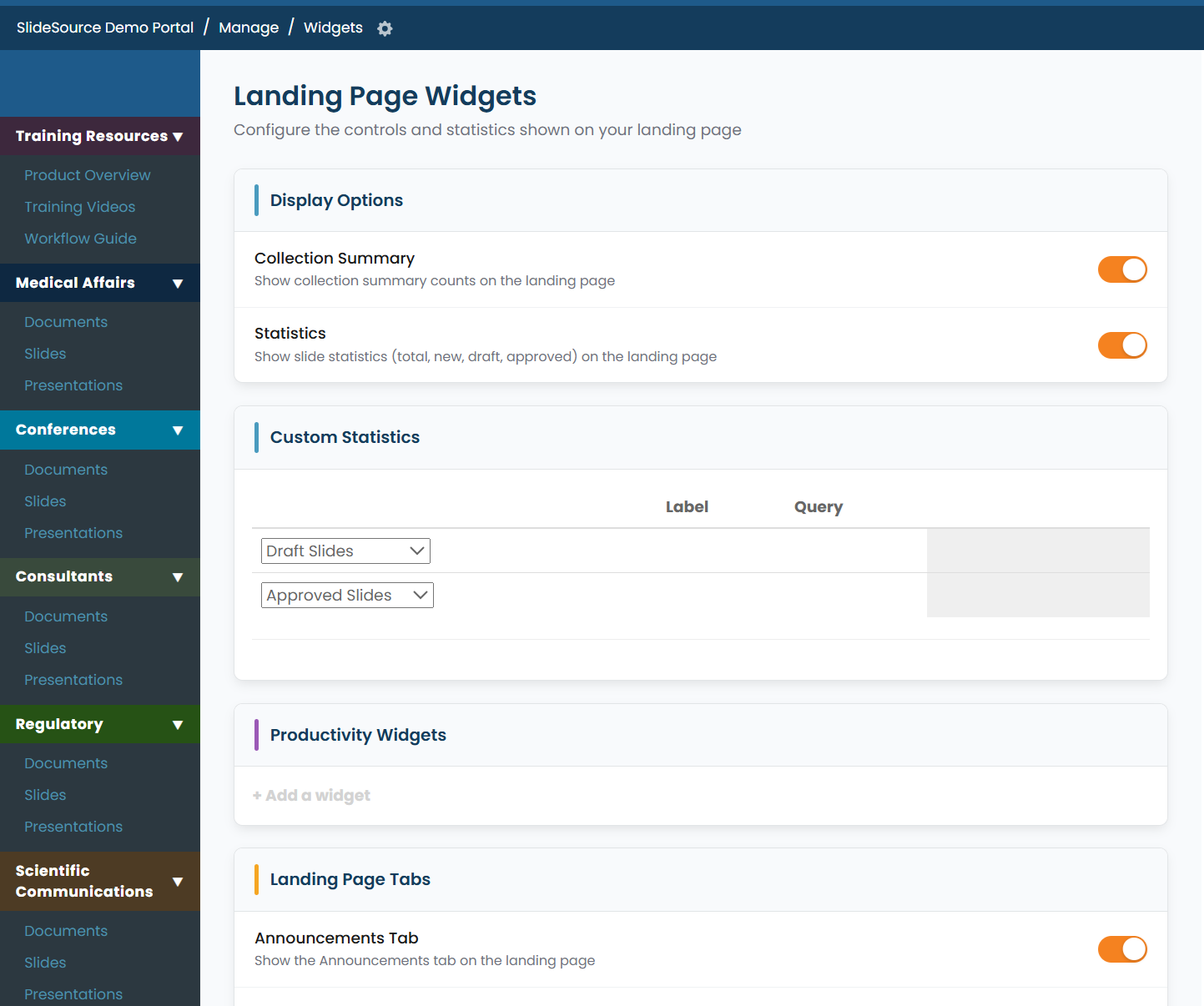
Choose home widgets. In Manage Widgets, choose which collections appear on the landing page so frequently used content is one click away.
-
Preview. Use Preview from Manage Library to see the landing page as users will see it, then adjust and preview again as needed.