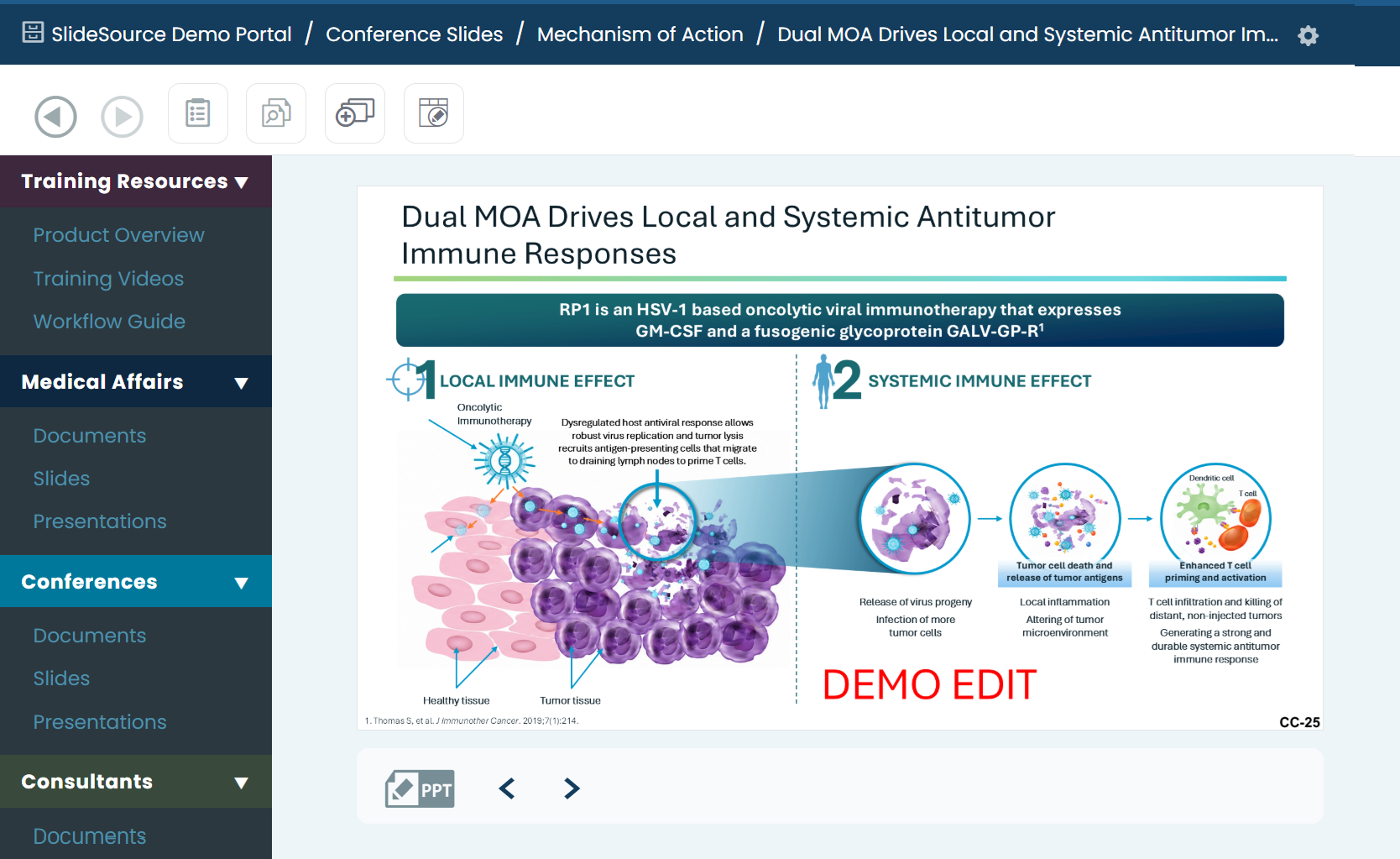
Edit a slide in PowerPoint
Goal: change a slide’s actual content in desktop PowerPoint and have your edits flow straight back into the library as a new version: no download-edit-reupload round trip.
When to use this: whenever you need to edit the slide itself (text, layout, graphics), not just its properties. To edit only tags or custom fields, use the slide’s Properties instead.
-
Check you can edit it. From the slide’s detail view, Edit in PowerPoint is available when you have edit rights, the slide is not locked by someone else, and you’re on the slide’s current version.
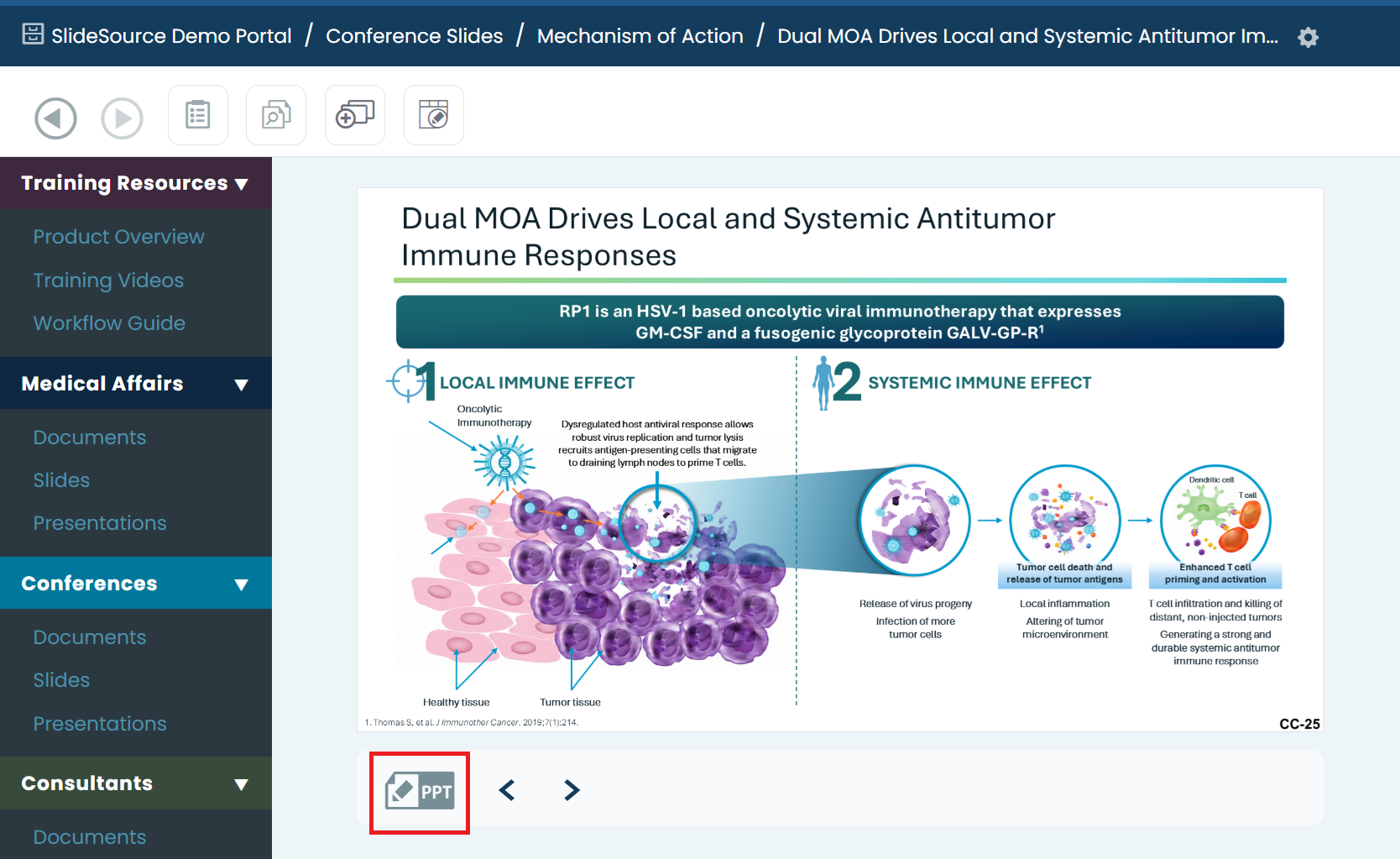
-
Open it in PowerPoint. Click Edit in PowerPoint. Desktop PowerPoint opens the slide directly over a secure connection: you’re editing the library copy, not a download.
-
Make your edits in PowerPoint as you normally would.
-
Save. When you Save in PowerPoint, your changes flow back into the library as a new version. Return to the web page to see the result: including any size-mismatch or other error, if something couldn’t be applied.