Manage a document
Goal: keep a supporting file (a publication, study report, or source material) under control: upload it, edit it safely, track its versions, and share it when your library allows.
When to use this: whenever you’re working with files in a Document folder (as opposed to slides or presentations). Documents use check-out / check-in so two people never overwrite each other.
-
Upload the file. In a Document folder, use the Upload documents icon to add one or more files.
-
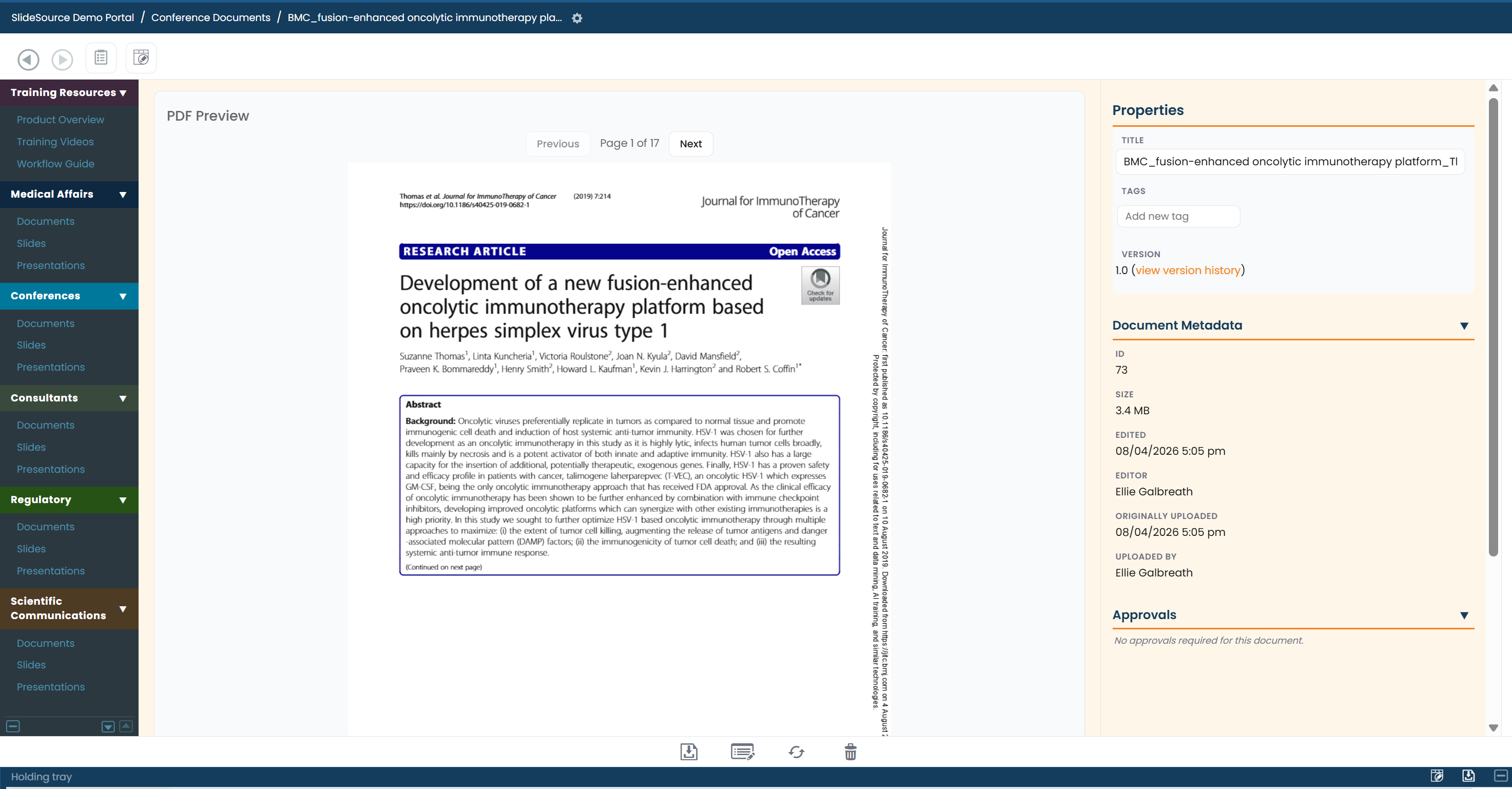
Preview it. Open a document to preview its contents in the browser before you decide what to do with it.
-
Choose how to work with it. To open the document, choose from 3 options:
- Check Out and Edit: allows you to open and edit the file through Office, and locks it for editing, all while maintaining the connection to the library.
- Check Out and Download: reserves the file to you and downloads a copy.
- Download Only: grabs a copy without checking anything out.
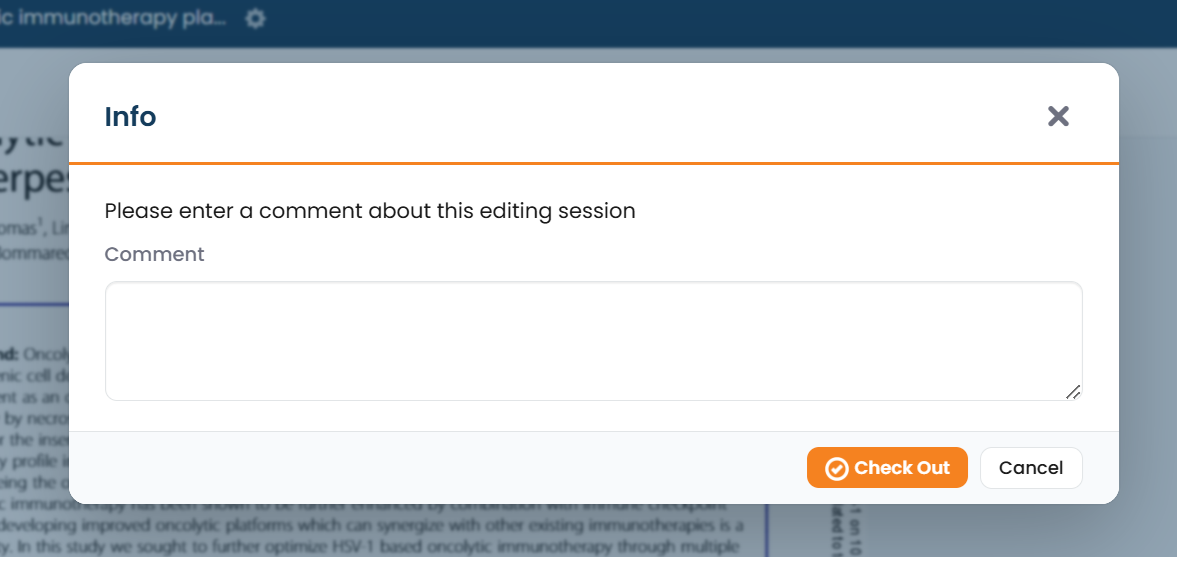
Checking out asks for a comment describing the change. A comment is not required but can help when reviewing old versions.
-
While you have the file checked out, saving in Office updates the document.
-
Finish up. To Check In and upload your new version, save the file in Office (Save only, do not Save As), and close the file. Cancel Check-Out on the library page to release the file with no changes.