Upload slides & assign VIDs
Goal: get the slides from a PowerPoint file into a slide folder: sorting out which slides are updates to existing ones and which are brand new, and assigning IDs (and Visual IDs, in libraries that use them).
When to use this: whenever you have a .pptx of slides to add to the library, whether they’re new slides or newer versions of slides that already exist.
What is a VID? A short, easy-to-reference identifier assigned to a slide, such as BU-3.
-
Start the upload. Click the Upload new slides icon.
-
Drop the file in. Drag a
.pptxonto the slide folder where the slides belong. Large files upload in chunks, so a big deck uploads reliably.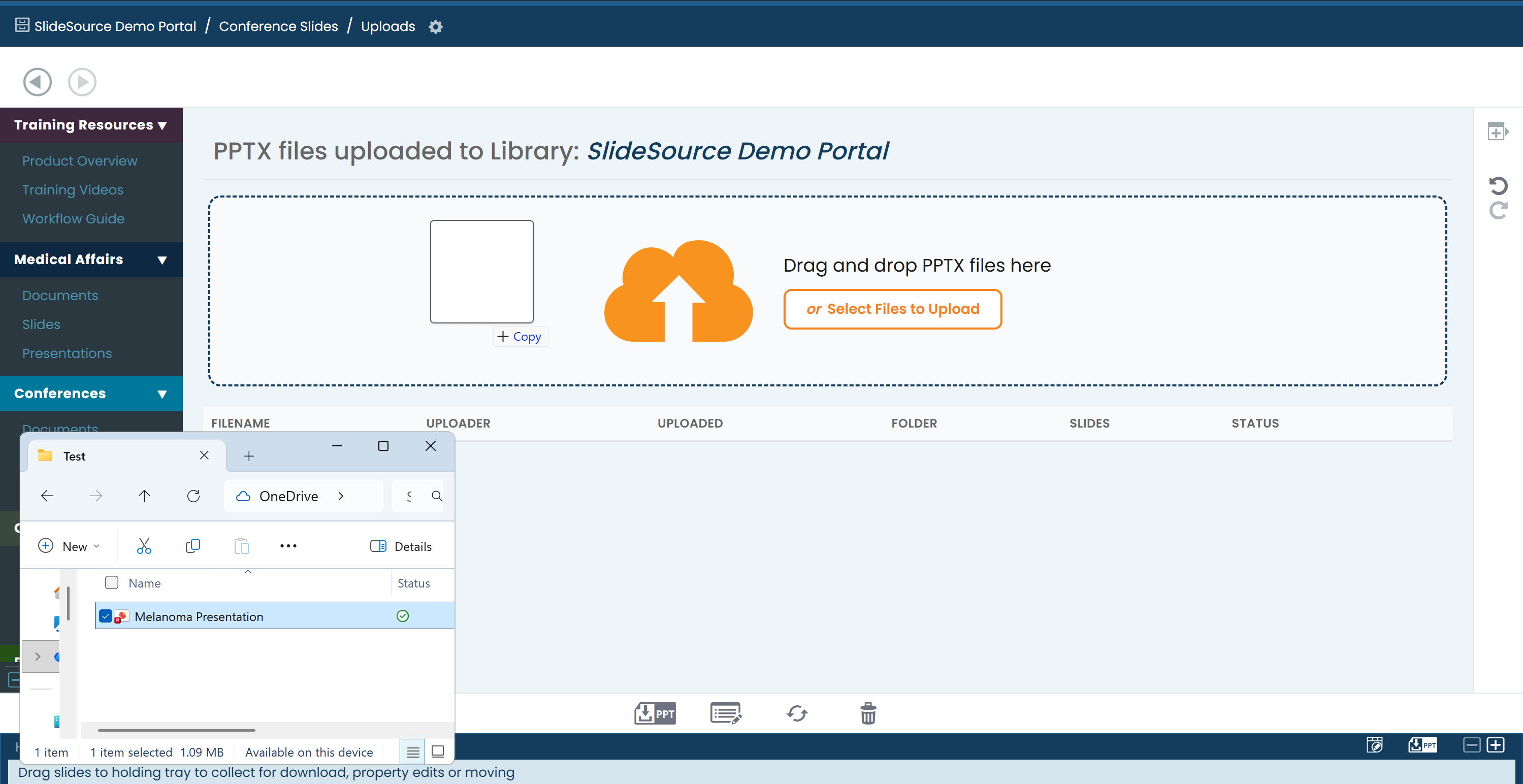
-
Let it process. SlideSource splits the file into individual slides and generates thumbnails. This runs automatically before the review steps.
-
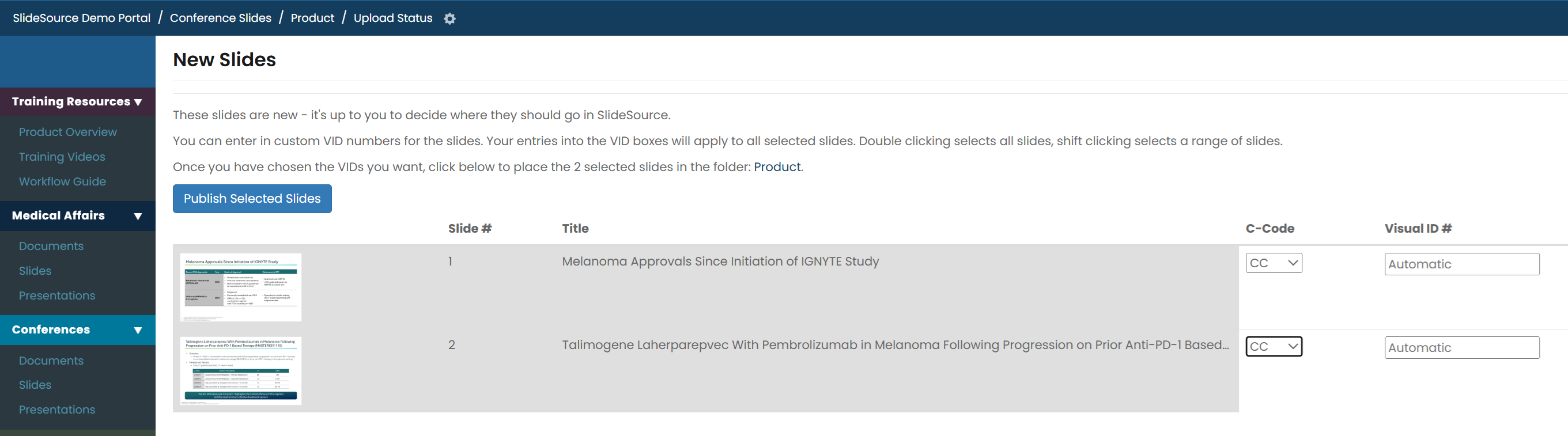
Publish the New Slides. The New Slides step depends on your library:
- Libraries using VIDs: assign a C-Code to each slide using the dropdown, or choose Other to create a new one. Applying a C-Code to the first slide carries it down the list. Visual ID numbers are assigned automatically when left blank, or you can enter a starting number to auto-increment the remaining slides.
-
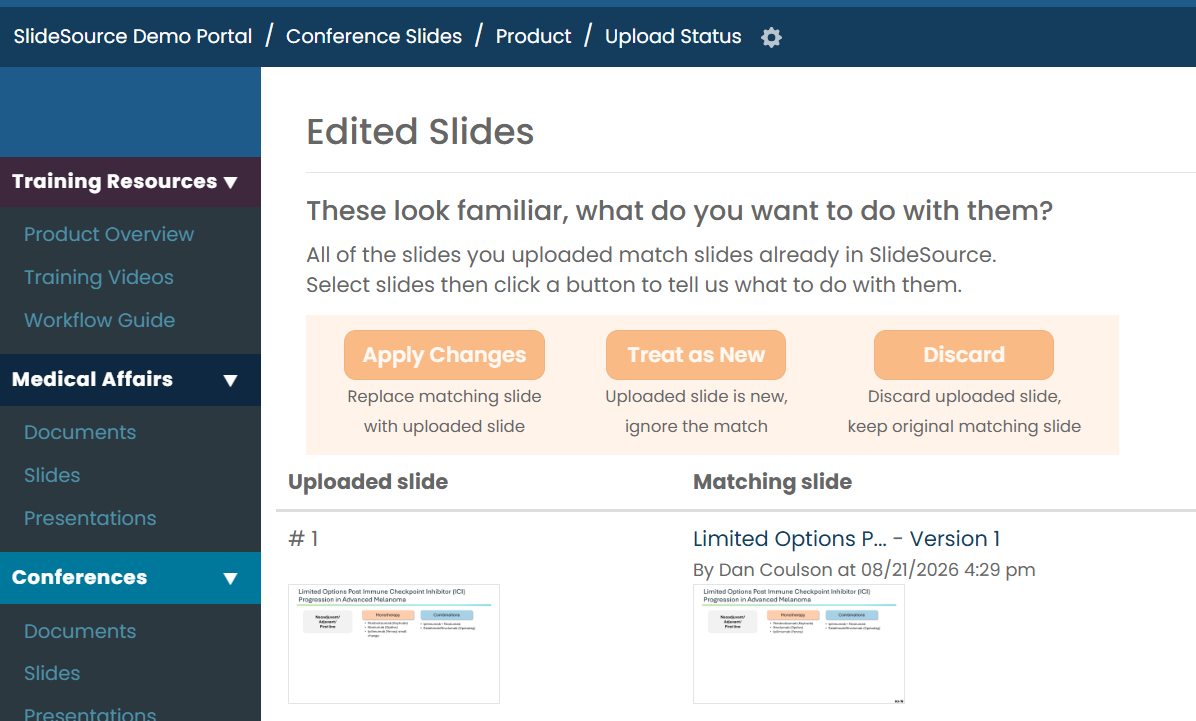
Review the Edited Slides. For any uploaded slide that matches one already in the library, the Edited Slides step provides tools to compare the versions and see what changed. For each slide, choose:
- Apply Changes: save it as a new version of the existing slide.
- Treat as New: keep it as a separate, brand-new slide.
- Discard: ignore this upload and keep the current slide as-is.
-
Review the Summary. The Summary step lists what happened and the resulting IDs / VIDs. From here you can upload more, create a presentation from these slides, or replace an existing presentation with them.