Presentations
A presentation is a deck assembled by referencing slides from the library rather than copying them. Because it references the live slides, a presentation stays connected to the current, approved versions, and you can pin specific versions when you need stability.
Browsing decks
Section titled “Browsing decks”Presentations live in their own collection with a folder hierarchy, just like slides. Browse or search to find a deck, then open it to see its slides in order.
The Presentation View
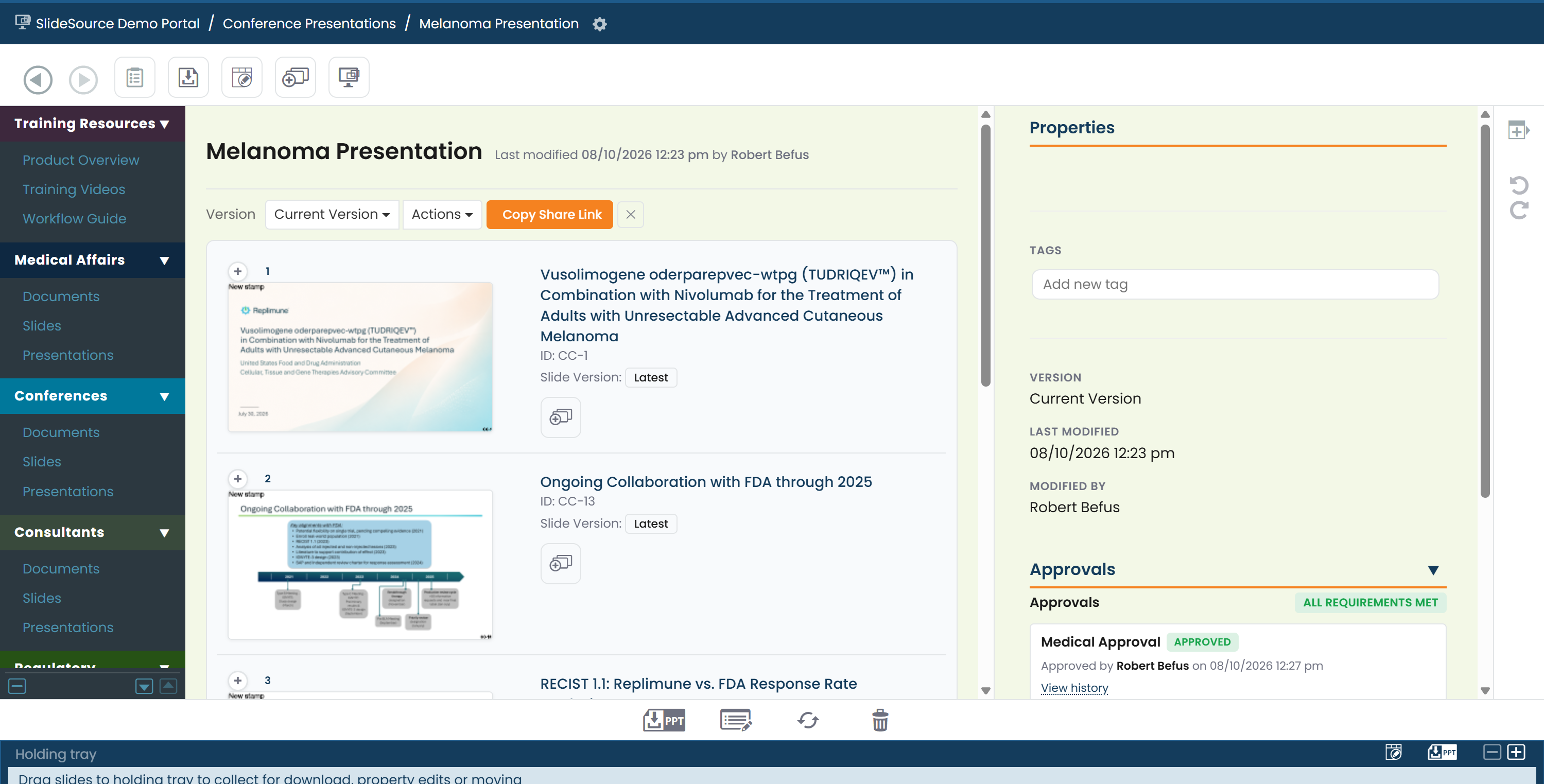
Section titled “The Presentation View”Open a presentation and you see your presentation on the left and properties on the right. Resize these windows as needed, and scroll up or down in either window to see your presentation or its properties.
Building a presentation
Section titled “Building a presentation”- Navigate to your presentations and click the create a new presentation icon.
- Open a new pane by clicking the new pane icon. In the new pane, navigate to the slides you’d like to add to your presentation, so your source slides are on one side and the deck you’re assembling on the other. This is where the split view pays off: drag from slides to presentation without losing your place.
- Add slides by dragging them into the deck: from a slide folder, from slide detail, or from the tray.
- Reorder slides by dragging them within the deck.
- Add section headers to group the deck into sections, then choose a Header Style for how those dividers look: Dark, Light, or Consultant. The picker appears once the deck has at least one section.
For a full walk-through, see the workflow below.
Per-slide version pinning
Section titled “Per-slide version pinning”By default a deck references the current version of each slide, so it updates when the slide does. When you need a slide to stay exactly as it is, use per-slide version pinning to lock that slide to a specific version: the rest of the deck still tracks current.
Deck version history
Section titled “Deck version history”Presentations have their own version history, separate from the slides they contain:
- Save Version: snapshot the deck as it stands now.
- Overwrite or restore: replace the working deck, or roll back to a saved version.
- Rename / Delete a saved version.
- Saved versions are read-only: they preserve exactly what you shipped.
Requirement banners
Section titled “Requirement banners”If a deck doesn’t yet meet your library’s standards, a requirement banner appears at the top explaining what’s outstanding, so you can fix it before sharing or exporting.
Editing deck properties
Section titled “Editing deck properties”A presentation carries its own Properties (title, custom fields, and tags), which you can edit (with the right permissions) the same way you edit a slide’s properties.
Sharing a deck
Section titled “Sharing a deck”Use Sharing to create a public link to a deck for people outside the library. You choose the format:
- PowerPoint: recipients can download the deck as a
.pptx. - Images-only: recipients see the slides as images, with no downloadable PowerPoint.
For the recipient’s experience of a shared link, see External access.
Veeva Vault publish
Section titled “Veeva Vault publish”Where your library has the integration enabled, you can publish a presentation to Veeva Vault directly from the deck. Publishing sends the current presentation version to Vault as a document, either creating a new document or updating one you have already published, and records who published it and when.
Publishing runs in the background, so the deck stays usable while it completes. You need permission to edit the presentation, and the option only appears where an admin has enabled the integration. If a publish fails, the presentation keeps pointing at the last one that succeeded.
Download / export to PowerPoint
Section titled “Download / export to PowerPoint”Download / export compiles the deck into a single .pptx you can open and present locally.
The full-screen slideshow
Section titled “The full-screen slideshow”Play the deck in a full-screen slideshow to review or present it directly in SlideSource Library, without exporting first.