Build your taxonomy
Goal: shape how content is described and controlled in your library: the custom fields, tags, stamps, and requirements that make slides and presentations easier to find and manage.
When to use this: when you’re first defining your library’s metadata model, or refining it as your teams’ needs grow.
-
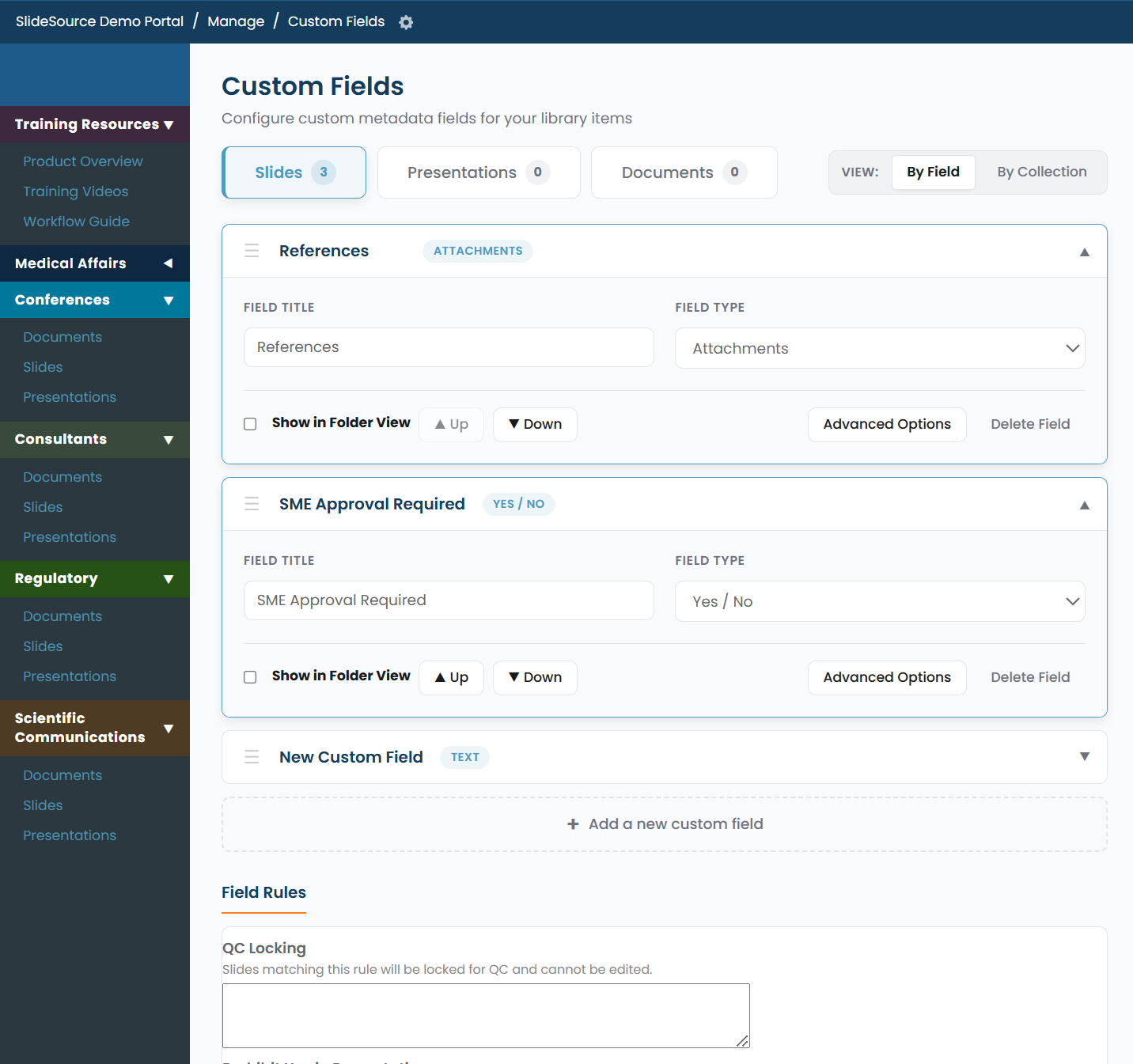
Define custom fields. Open Custom Fields, which has three tabs: Slides, Presentations, and Documents. Add a field and choose its Type:
- Plain text, Rich text, Date and time, Date, Dropdown choice, Multiple choice, Attachments, User Lookup.
For each field, set the Title, Type, Choices (one per line, for dropdown/multiple choice), toggle Show in Folder View, reorder, or Delete. Advanced Field Settings include Show Last Edit User / Date, Read Only, and per-collection visibility.
-
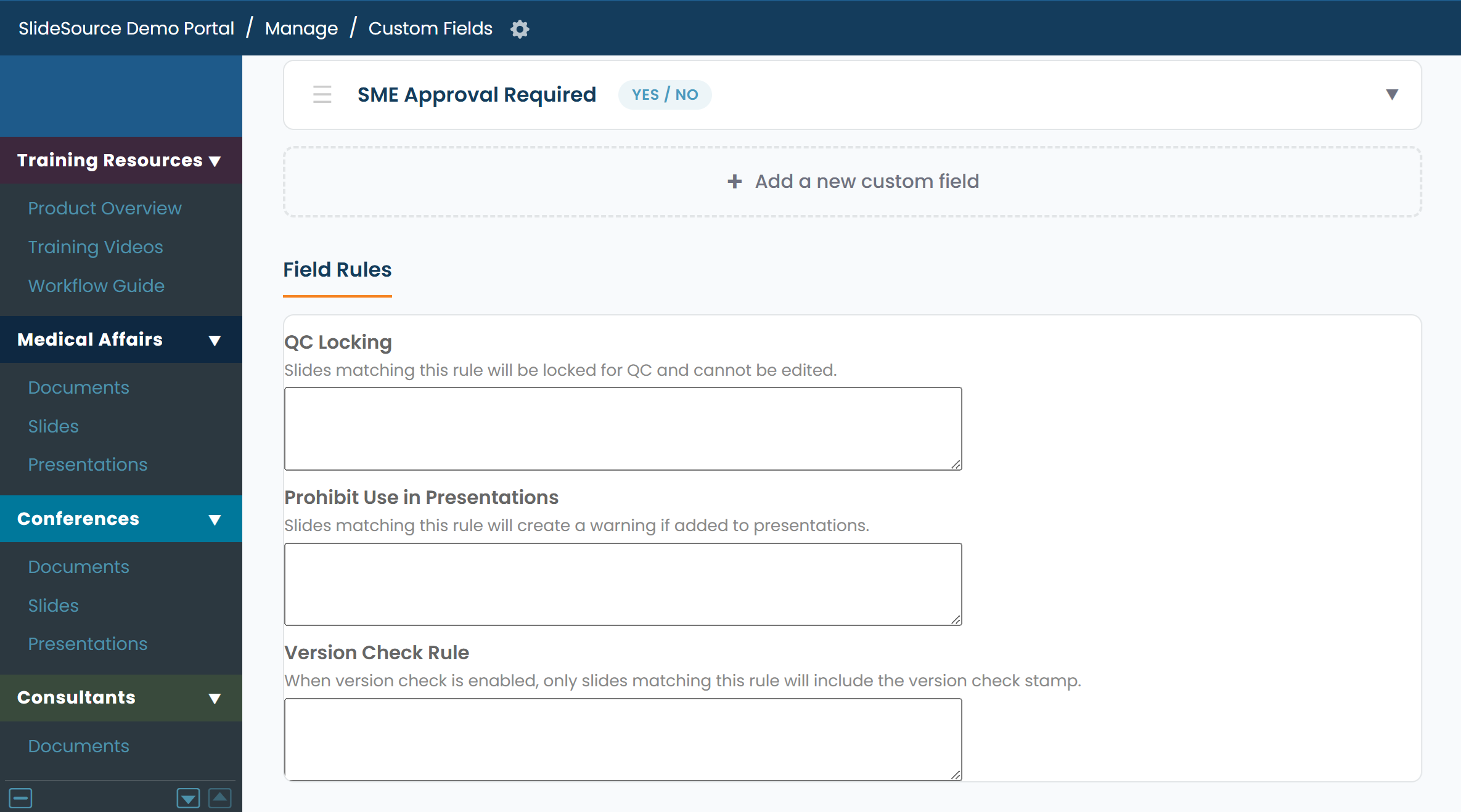
Add field rules (Slides tab). The Slides tab includes Field Rules that apply restrictions when specified field conditions are met:
- QC Locking: lock a slide when a condition is met, preventing further changes while the condition applies.
- Prohibit Use in Presentations: a condition that blocks a slide from being added to decks.
-
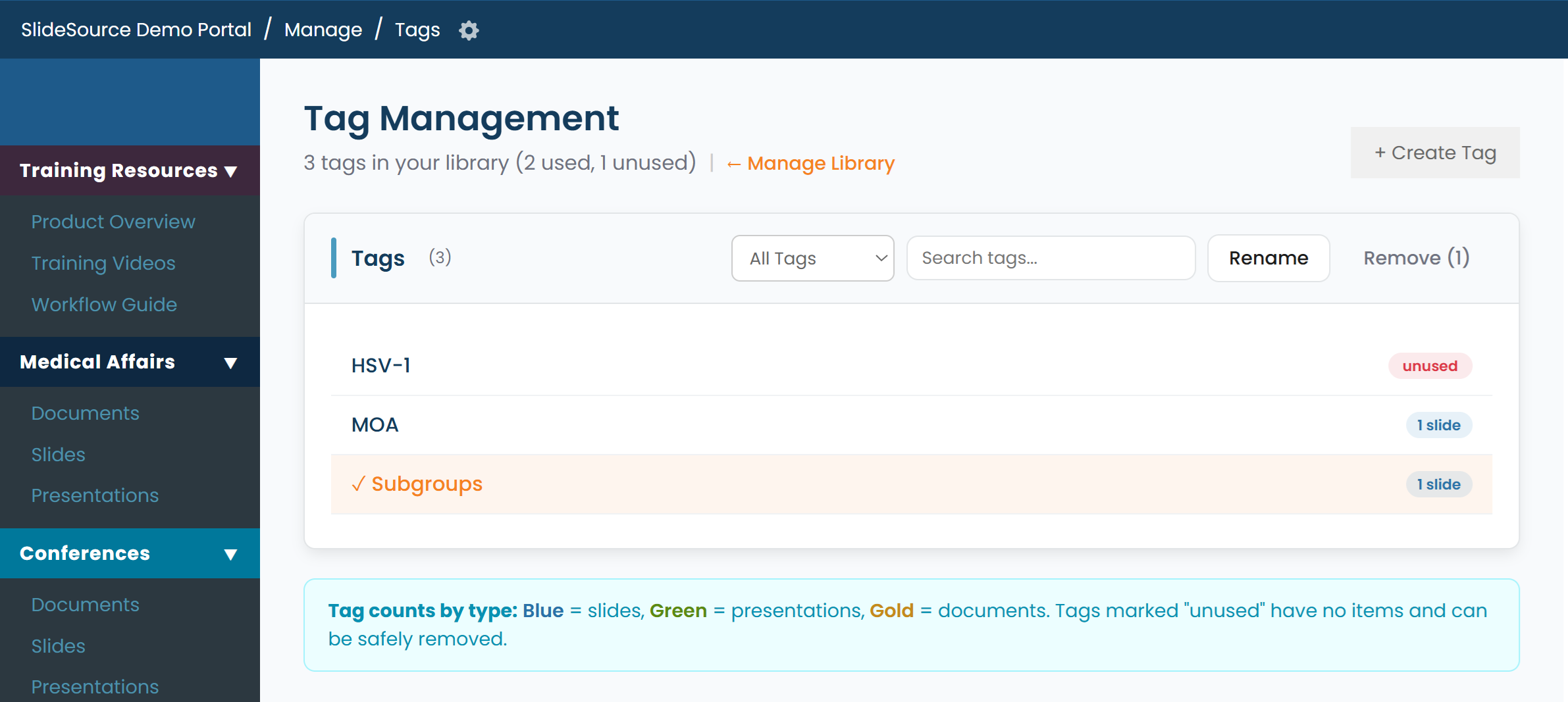
Clean up tags. Open Tag Management to view all tags and their usage counts. From here, you can rename a tag, merge it with an existing tag by renaming it to the same name, or remove it from all items.
-
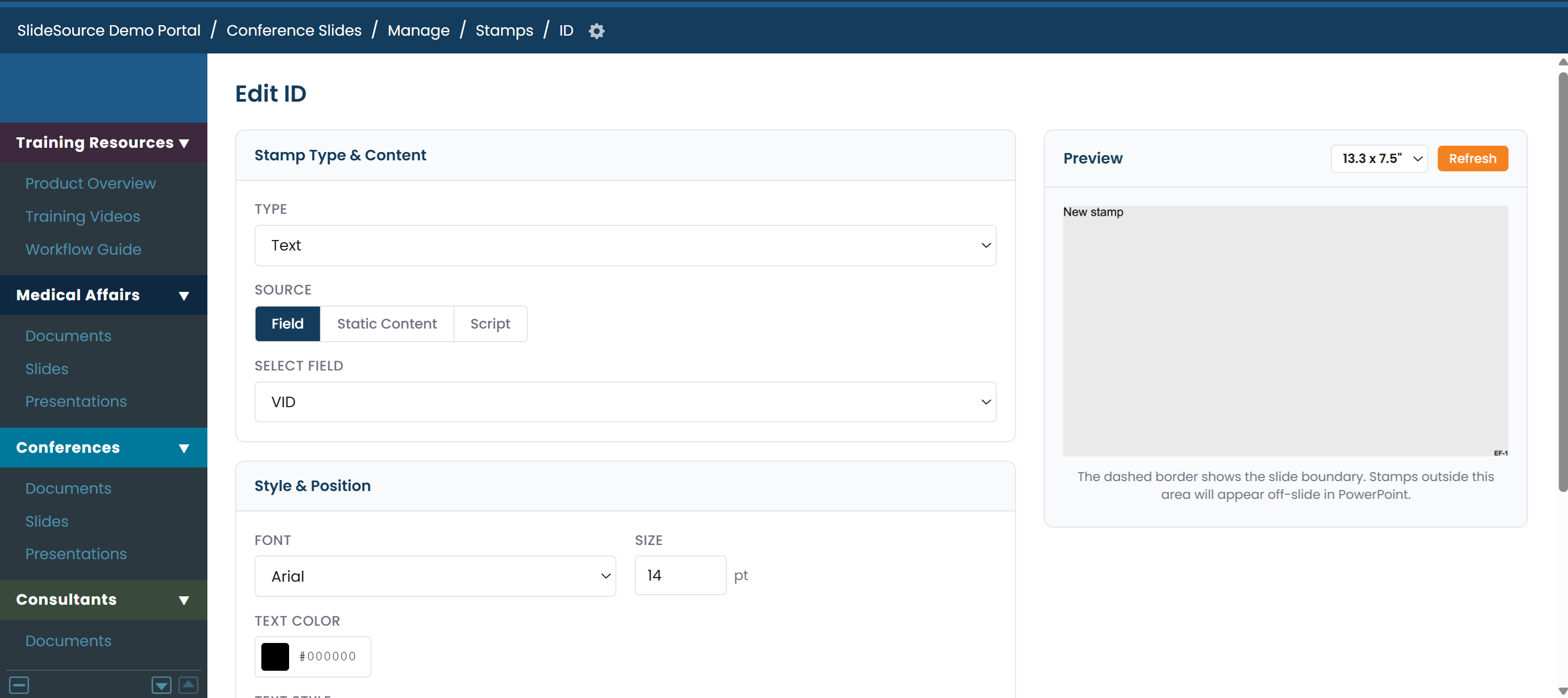
Configure stamps. Configured Stamps overlay text, image, field, or script content onto slides when they appear in presentations, for example a VID stamp. Set the content source, font, color, and position, with a live preview as you go.
-
Set requirements. Requirements define slides a presentation must include, as well as co-occurrence rules for slides that must appear together. Use them to enforce mandatory content such as safety or disclaimer slides.