Uploading & Slide Identification
Uploading is how new and updated slides enter the library. The key decision during an upload is edited vs. new: telling SlideSource Library whether each incoming slide is a new version of something already there or a genuinely new slide.
The upload flow
Section titled “The upload flow”When you upload one or more slides, SlideSource Library takes each slide, renders a thumbnail, and walks you through resolving where it belongs. The full step-by-step is in the workflow below.
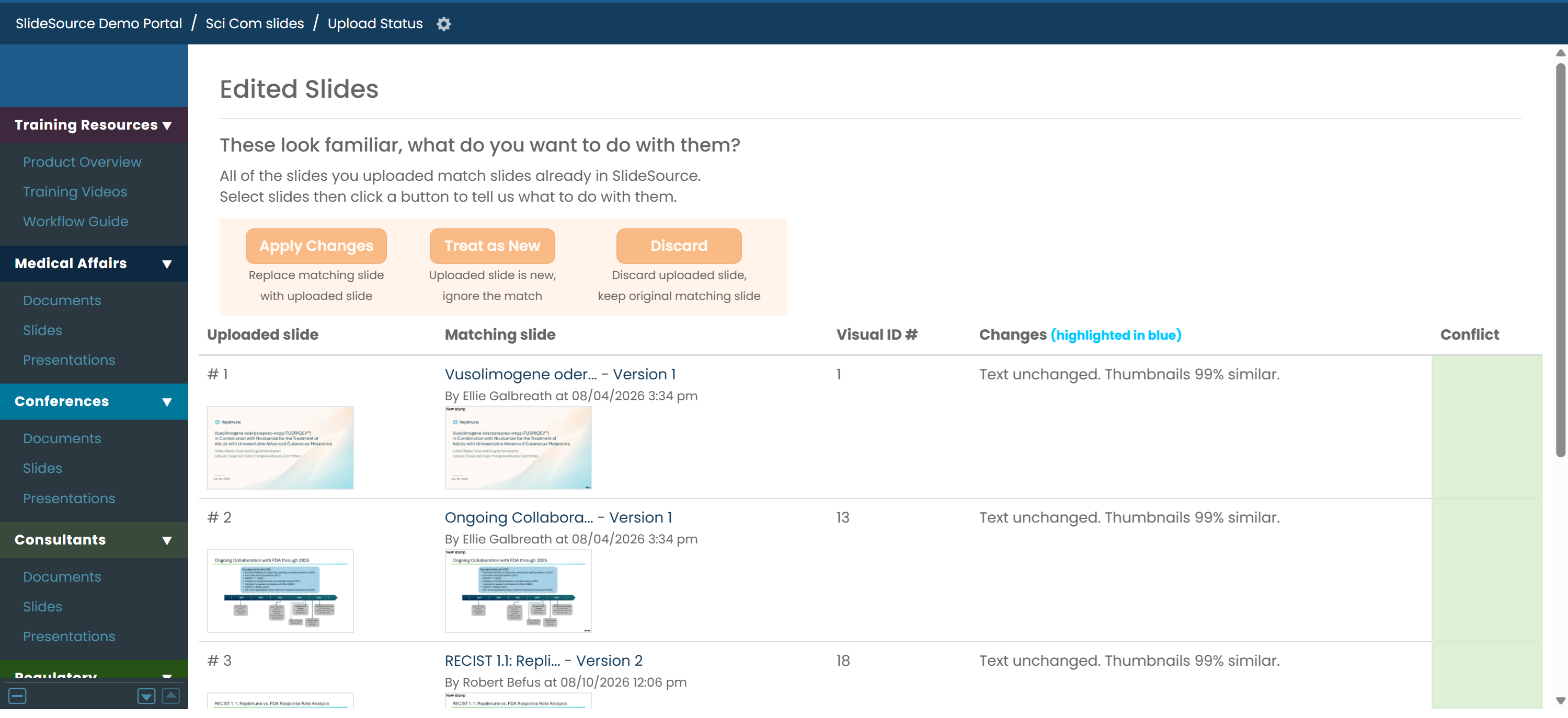
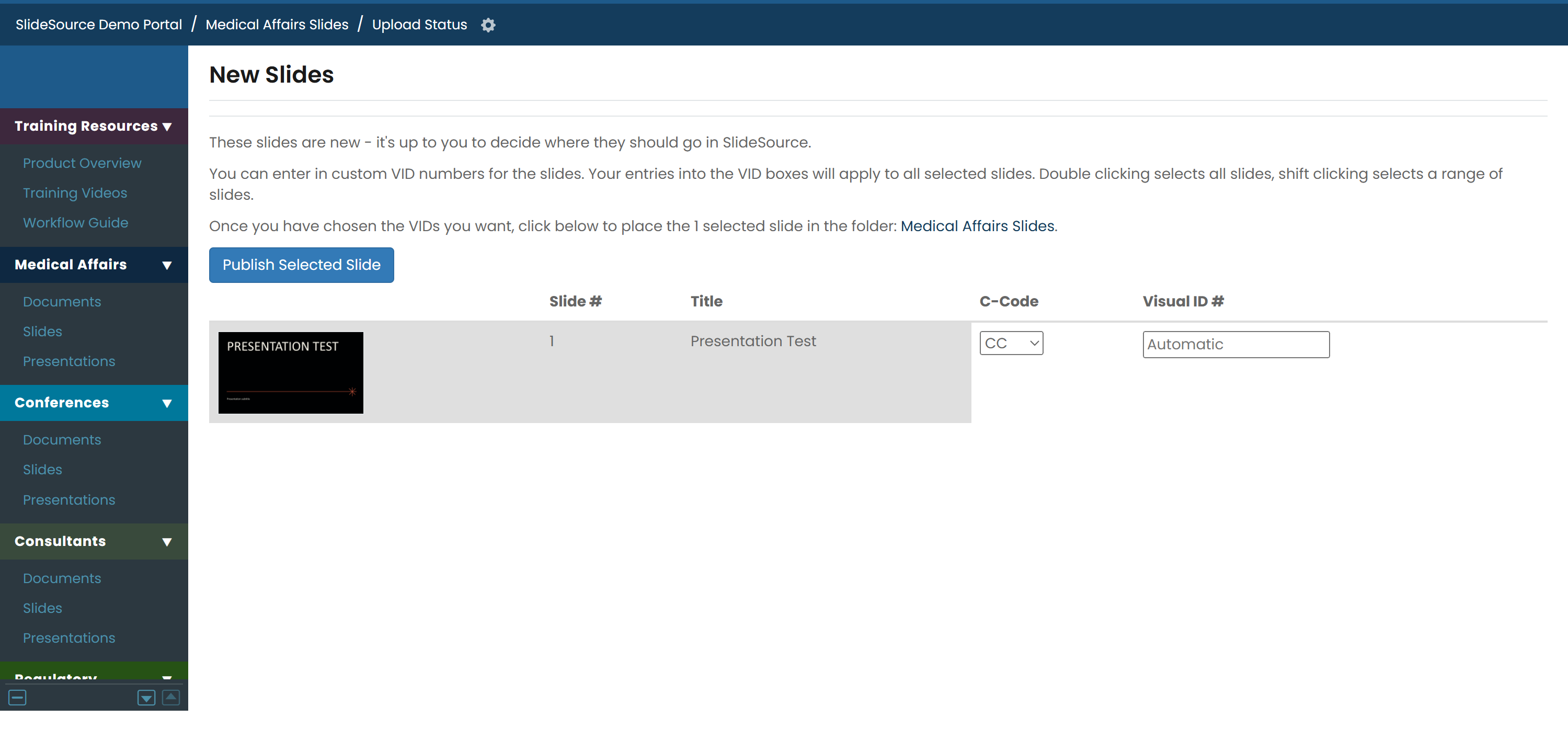
Edited vs. new
Section titled “Edited vs. new”For each incoming slide you decide:
- Edited: this is a new version of an existing library slide. It joins that slide’s version history instead of creating a duplicate, so the slide’s identity, usage, and history all carry forward.
- New: this is a brand-new slide with no prior version in the library.
Getting this right keeps the library clean: real updates stack up as versions, and only genuinely new content becomes a new slide.
C-Codes
Section titled “C-Codes”A C-Code is a code carried by a slide to tie it to its source or review record.
Visual IDs (VIDs)
Section titled “Visual IDs (VIDs)”A Visual ID (VID) is a short, easy-to-reference identifier assigned to a slide, something like BU-3, that’s far easier to say and search than an internal number.
- Automatic numbering: when VIDs are in use, SlideSource Library assigns the next number in the series automatically as slides are added. You can also assign VIDs manually. See Upload slides & assign VIDs.
- Live duplicate detection: as a VID is set, the library checks in real time whether it’s already taken and prompts you to choose another VID.
- VID shortcuts: VIDs power search shortcuts like typing
bu3to find BU-3 in Lightning Search.