Set up your collections
Goal: organize your library by creating collections for different types of content and building a clear folder hierarchy within each one.
When to use this: when you’re setting up the library for the first time, or whenever you need a new area for a distinct kind of content (a new slide set, a presentation set, a document library, or a productivity dataset).
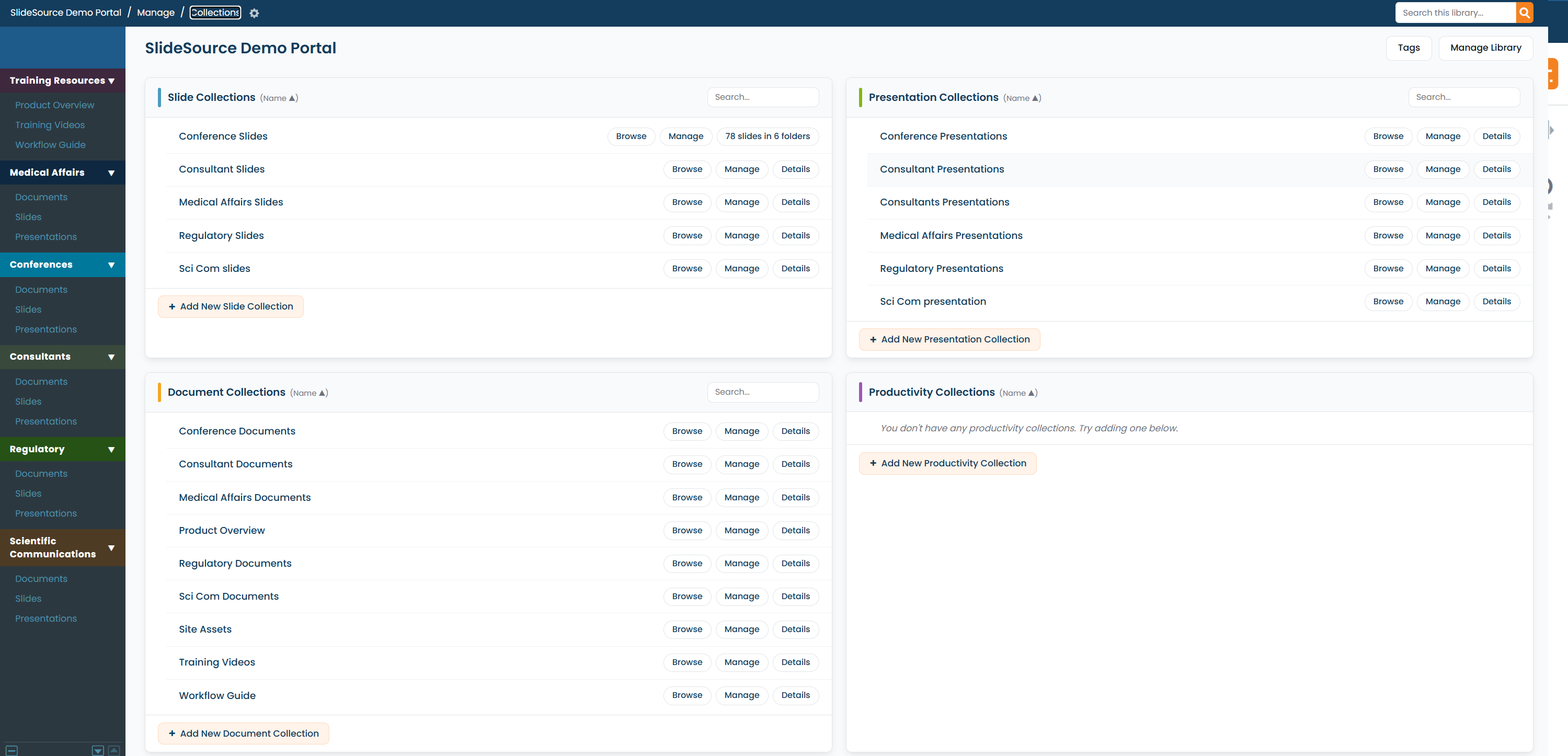
A collection (the app also calls it a set) is the top level of organization inside your library. Each collection holds one kind of content and has its own folder hierarchy. There are four kinds:
- Slide collections: the reusable slides your teams build with.
- Presentation collections: decks assembled from slides.
- Document collections: supporting files (publications, study reports, source materials).
- Productivity collections: structured datasets defined by a schema, with Excel import/export.
-
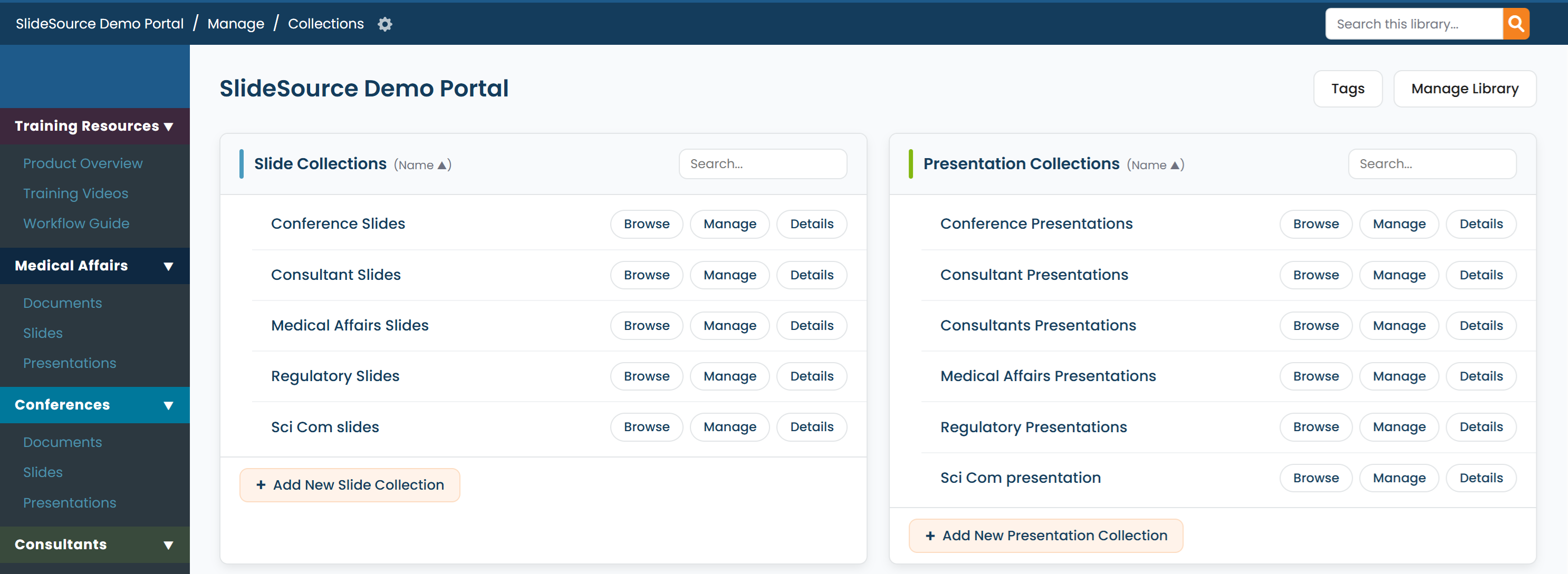
Open Manage Library. From the library, open Manage Library: the admin home where all collections and library-wide settings are managed.
-
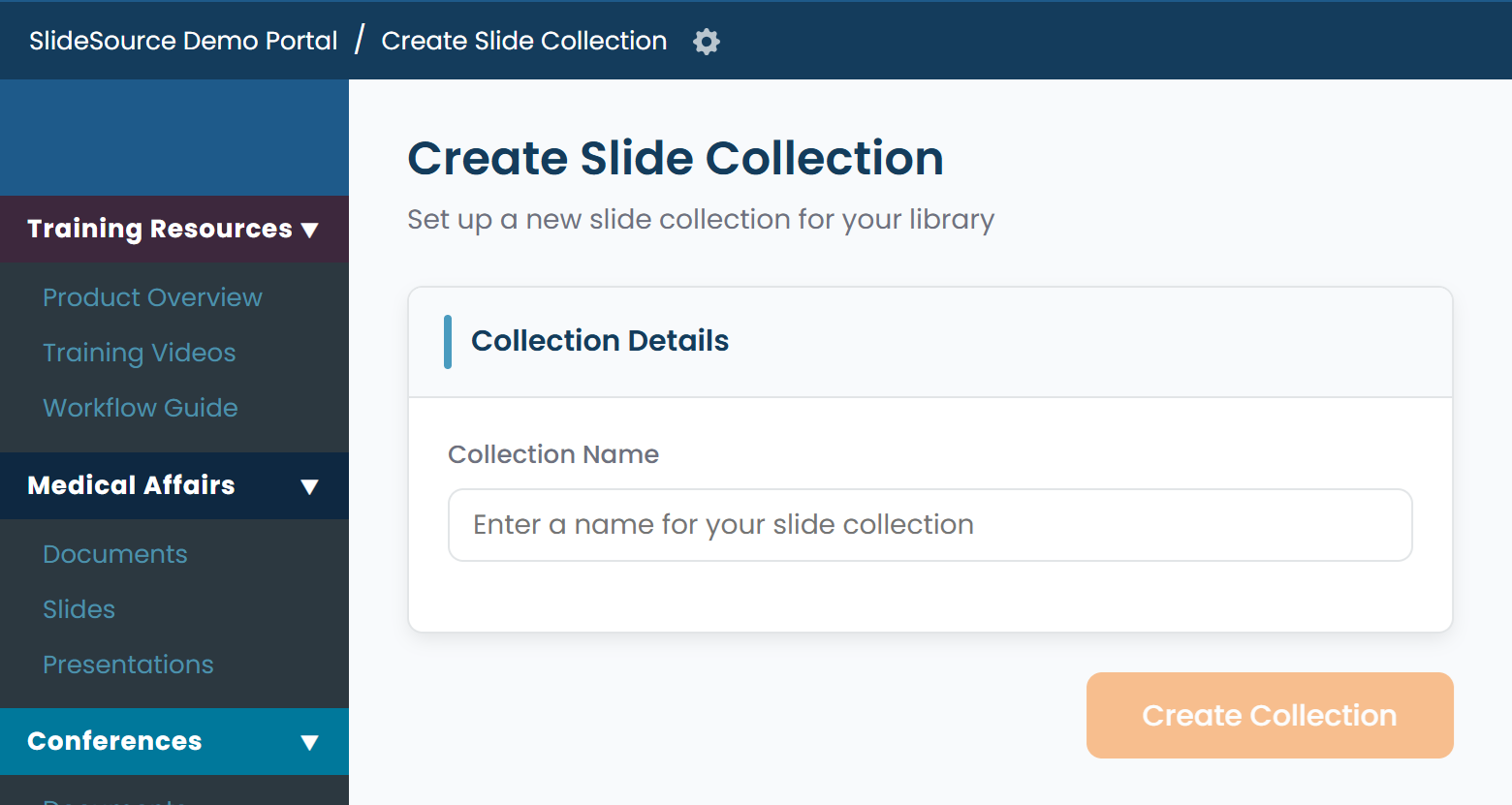
Create a collection. Choose New collection (or Add Collection), pick the type (Slide, Presentation, Document, or Productivity) and give it a name. A Productivity collection also asks you to define its schema (the columns/fields each record will contain).
-
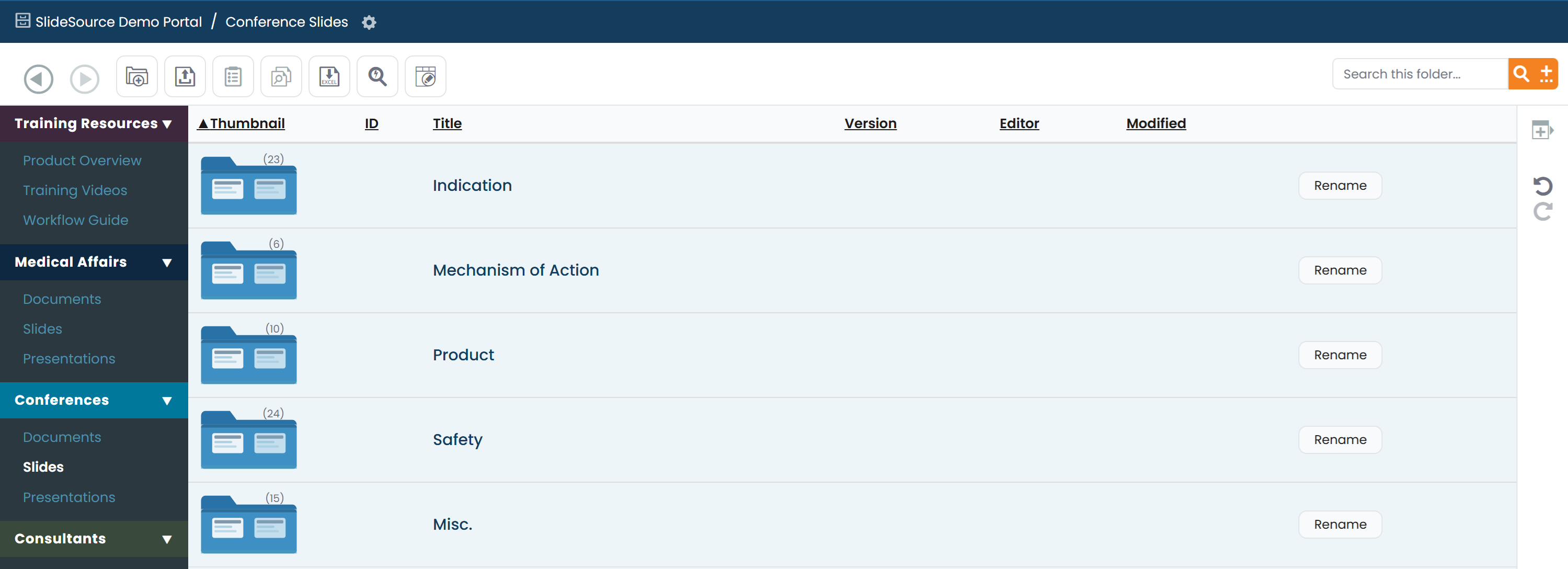
Build the folder hierarchy. Open the collection and use New folder to add folders, then nest them to reflect meaningful categories your teams actually use. Rename a folder in place, and drag a folder to move it within the hierarchy.
-
Manage the collection. Each collection has its own Manage page with a grid of cards:
- Rename: change the collection’s name.
- Browse: jump into the collection’s content.
- Email Notifications: choose which events trigger email notifications to subscribers of this collection.
- Assign Users and Groups: control who can see and use the collection.
- Delete Collection: remove the collection (see the pitfall below).
Type-specific tools are also available:
- Slide collections add Manage stamps (overlays applied to slides in presentations).
- Presentation collections add Required Slides (slides a deck must include).
- Productivity collections add hierarchy, email-processing, and Excel import/export tools.