Users, groups & permissions
Access in SlideSource Library is granted through roles, carried by groups, and resolved per collection. This page explains each piece and how they combine. For the step-by-step, see Onboard users & permissions; for a capability-by-capability chart, see the Permissions matrix.
| Role | What it can do |
|---|---|
| Library Owner | Everything a Library Admin can do, plus manage billing and delete the library. There is one owner. See Subscription & billing. |
| Library Admin | Manages everything else in the library: collections, taxonomy, users and groups, governance, the landing page, integrations, and reports. |
| User | Can do only what they’ve been granted, per collection. |
| Local Admin (per collection) | Can assign users and permissions within a single collection: a delegated admin scoped to one collection, not the whole library. |
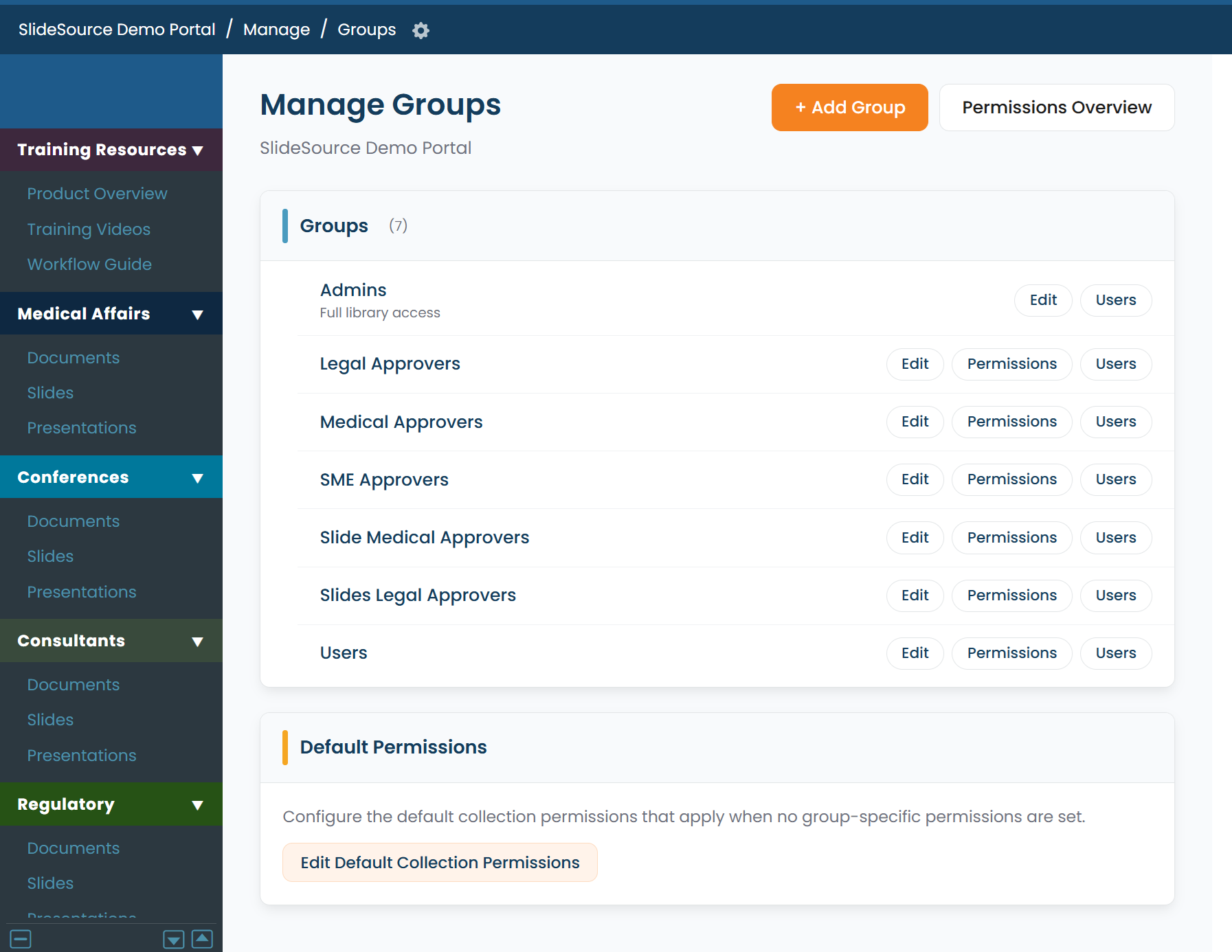
Groups carry permissions
Section titled “Groups carry permissions”Permissions are attached to groups, and users are placed in groups. Rather than granting capabilities to each person, you:
- Create groups that mirror how people work (for example, an editors group, a viewers group, a field group).
- Set each group’s access to the collections it needs.
- Add users to the appropriate groups.
A user can belong to several groups; their effective access is the combination (resolved by the rules below).
The permission model
Section titled “The permission model”Access is decided per collection. For each capability on each collection, the value is resolved in order:
Library Default → Group → User
- Library Default: the baseline the library sets for the capability.
- Group: what the user’s group(s) grant or deny for that collection.
- User: a user-specific override for that person on that collection.
Each capability is set to one of three states:
| State | Meaning |
|---|---|
| Allow | Grant the capability. |
| Default | Inherit from the level above (fall back to the library default). |
| Deny | Withhold the capability. |
Two rules settle conflicts:
- Deny wins across a user’s groups. If any of a user’s groups sets Deny for a capability, the user does not get it: even if another group says Allow.
- A user-specific setting overrides. An explicit Allow or Deny set directly on the user takes precedence over what their groups resolve to.
Root-folder capabilities inherit down the tree
Section titled “Root-folder capabilities inherit down the tree”Capabilities set at a collection’s root folder (Upload, Edit, Move, Delete, Approve, Unlock) inherit down the folder tree to the folders beneath it. Set access at the level where it should apply, and it flows to child folders unless you change it lower down.
Managing users and groups
Section titled “Managing users and groups”From Manage Library → Users & Groups:
Invite Users
Section titled “Invite Users”Invite Users sends invitations to join the library. New people arrive as Users; you place them in groups (or assign collection access) to give them the access they need. See Onboard users & permissions.
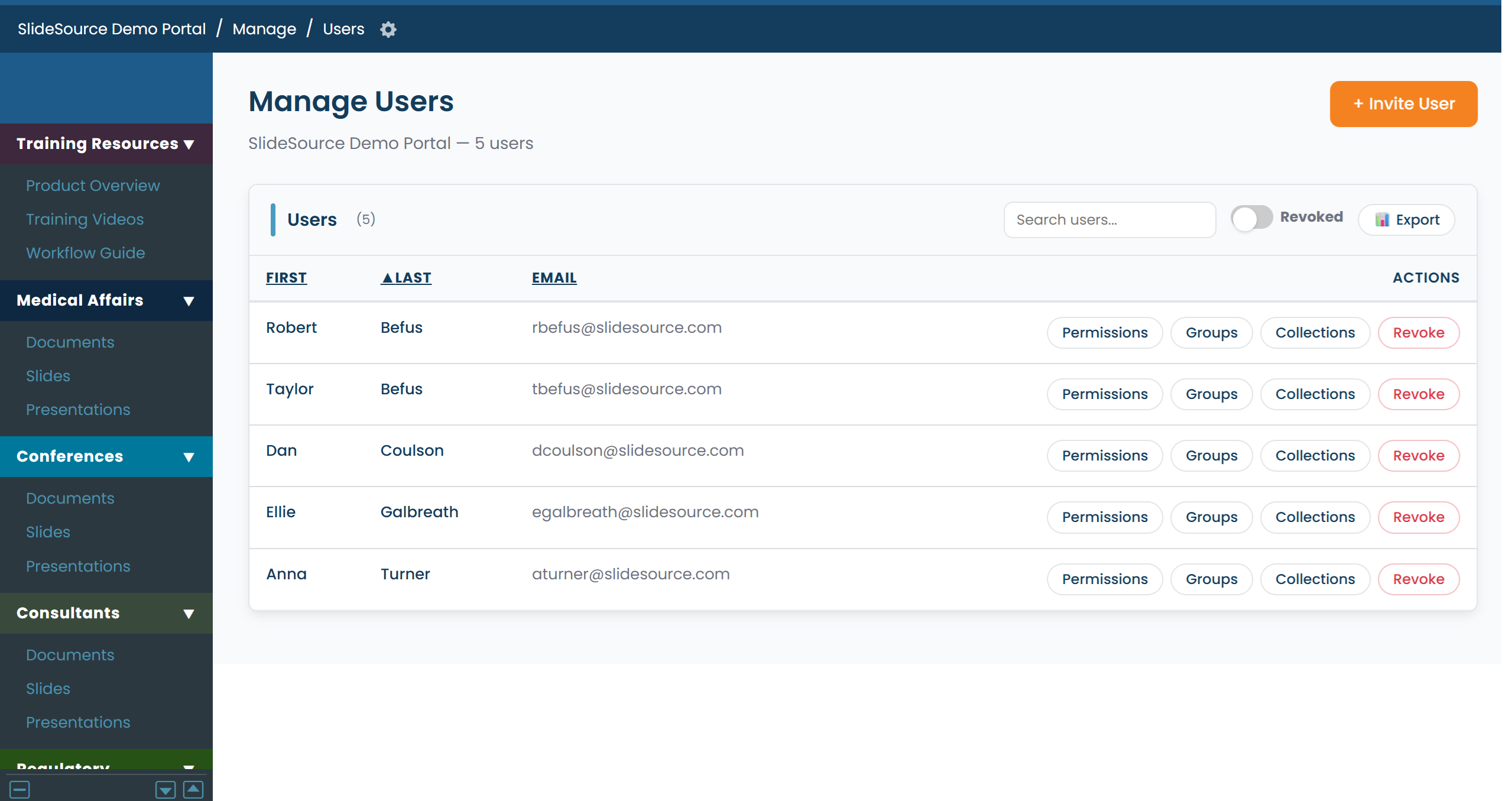
Manage Users
Section titled “Manage Users”Manage Users lists everyone in the library. Here you set a person’s role, apply per-user overrides on a collection, and remove people who no longer need access.
Manage Groups
Section titled “Manage Groups”Manage Groups is where you create groups and set each group’s per-collection capabilities. This is the primary place you shape access: most access should come from group membership, not per-user overrides.
Assigning users and groups to a collection
Section titled “Assigning users and groups to a collection”Each collection has an Assign Users and Groups control (on its Manage page) that scopes who can see and use that collection. A per-collection Local Admin can use this to manage access within their collection without library-wide admin rights.