Integrations
SlideSource Library connects to the rest of your stack in a few ways: a PowerPoint add-in with vCheck, publishing to Veeva Vault, a public shared presentation listing, document sharing, and a SIEM API key for security logging. This page is the reference; for the step-by-step, see Integrations (workflow).
Add-in and vCheck
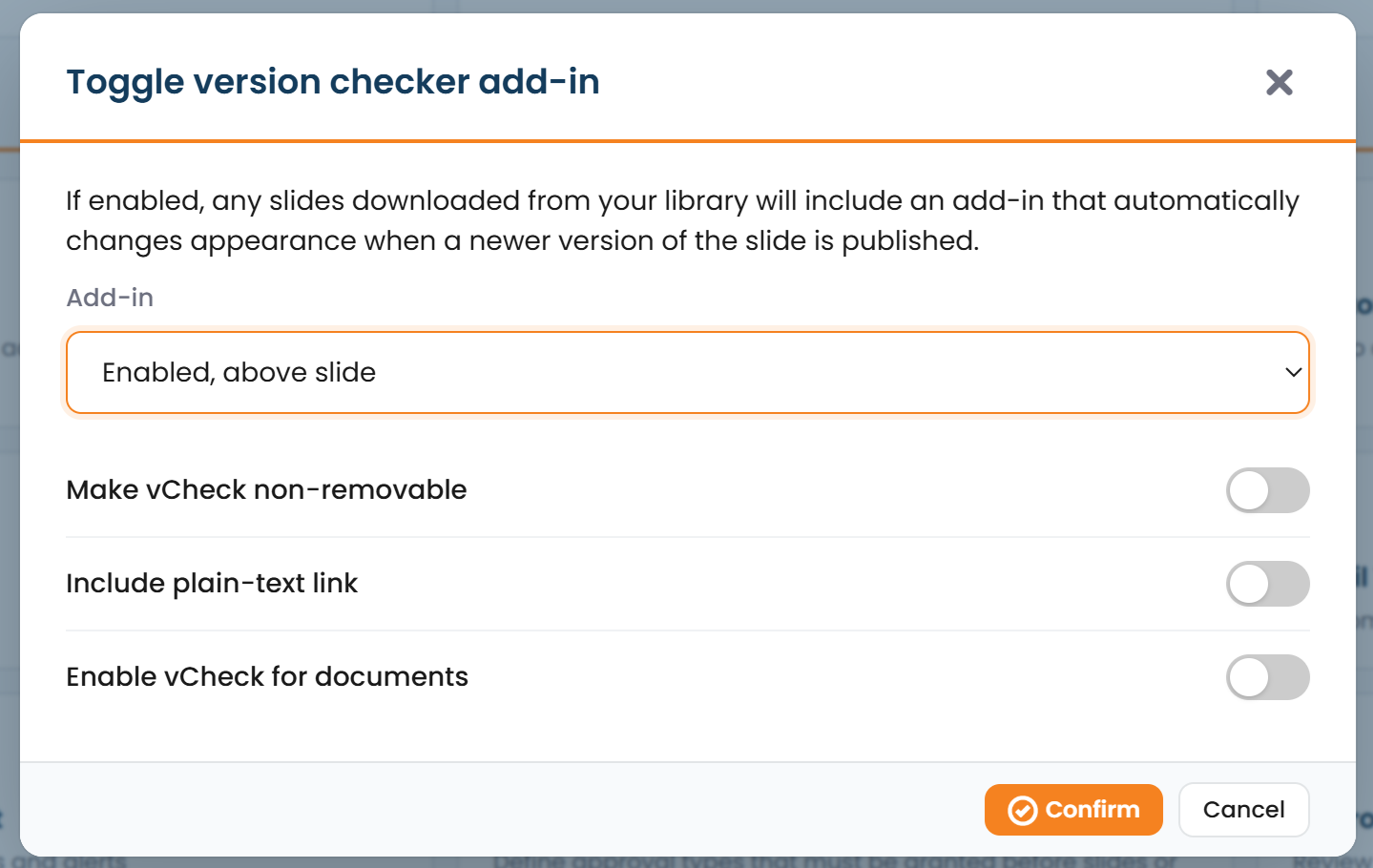
Section titled “Add-in and vCheck”Configure these in Manage Library → Configuration → Add-in Settings. The add-in and vCheck work together to keep field decks current:
- Stamp downloaded decks: compiled presentations are badged so a downloaded deck can be checked against the library later. This is what lets vCheck flag decks that contain outdated slides.
- Non-removable option: the badge/stamp can be set so it can’t be removed from the downloaded file, ensuring the deck stays checkable.
- Plain-text link: a plain-text link option for the badge, for environments where a rich stamp isn’t suitable.
Veeva Vault
Section titled “Veeva Vault”Veeva Vault integration sends presentations from the library into Vault as PowerPoint documents, so finished work lands in your regulated content system. SlideSource builds the file, uploads it and records the Vault document ID. Later edits go to Vault as new versions of the same document.
Setting up the connection
Section titled “Setting up the connection”Vault Settings is a full page under Manage Library → Configuration. Enter the Vault server, the integration user and its password. One integration account makes every call, and each library connects to one Vault.
vault-settings.pngFrom the same page you choose which Vault document types people can send to, and add fields to ask for or fill in automatically. That used to require hand-editing JSON; the JSON is still there for advanced setups. When you do not restrict the types, every document type in the Vault is offered.
The password is stored encrypted and never sent back to the browser. Leave it blank on later edits to keep the stored one. Every settings change goes in the library’s audit log, and Remove Integration disconnects the library while leaving documents already in Vault where they are.
Sending a presentation
Section titled “Sending a presentation”Libraries with a connection get a Veeva Vault section on each presentation’s properties panel, above Approvals. Send to Vault opens a dialog with the Vault fields side by side, the Vault name already filled in from the presentation’s title, and any missing fields highlighted where they are.
vault-send-dialog.pngAfter a successful send the section shows where the presentation stands in Vault: the version sent, the current version in Vault, and who sent it and when.
vault-status-panel.pngWhat it tells you afterwards
Section titled “What it tells you afterwards”The section warns when the document has been edited in Vault since it was sent, or has been deleted from Vault. The last-edit date turns red when the presentation itself has changed since the last send, so you can see which side moved.
Linking to a document already in Vault is possible, but it is off by default: the integration account can see more of Vault than a given user, so turning it on lets any presentation editor search every PowerPoint file that account can reach.
Sending, linking and unlinking need permission to edit presentations in that folder. Any library member can see a presentation’s Vault status.
Shared Presentation Listing
Section titled “Shared Presentation Listing”The Shared Presentation Listing is a public, embeddable listing of selected presentations. It gives a fixed web address you can embed elsewhere (via an iframe) so people outside the library can see an approved set of presentations without signing in. You choose what the listing includes from Manage Library → Configuration → Shared Presentation Listing; the on-page arrangement is covered in Landing page & widgets.
Document Sharing
Section titled “Document Sharing”Document Sharing lets documents be shared out of the library. It depends on the Document Sharing feature being enabled (see Setup & features) and works alongside document collections.
SIEM API key
Section titled “SIEM API key”The SIEM API key lets your security team pull the library’s security-relevant activity into a SIEM (security information and event management) system. Treat the key like any other secret.