Find & reuse a slide
Goal: find a slide that already exists in the library and reuse it, either download it or drop it into a presentation, instead of rebuilding it.
When to use this: any time you need a slide that likely already exists. Reusing the library copy means you get the current, approved version and stay consistent with everyone else.
-
Find the slide. Use whichever search works best for you:
- Library search: the search box, for a quick keyword match across every collection you can see.
- Lightning Search (slides): fast filtering with toggles for Title / Text / Notes / Fields / Tags, plus VID shortcuts (type
bu3to find BU-3). - Search by Tag: pull every slide (and presentation) carrying a tag.
- Advanced search: filter by a specific custom field, editor, or last-edited date range.
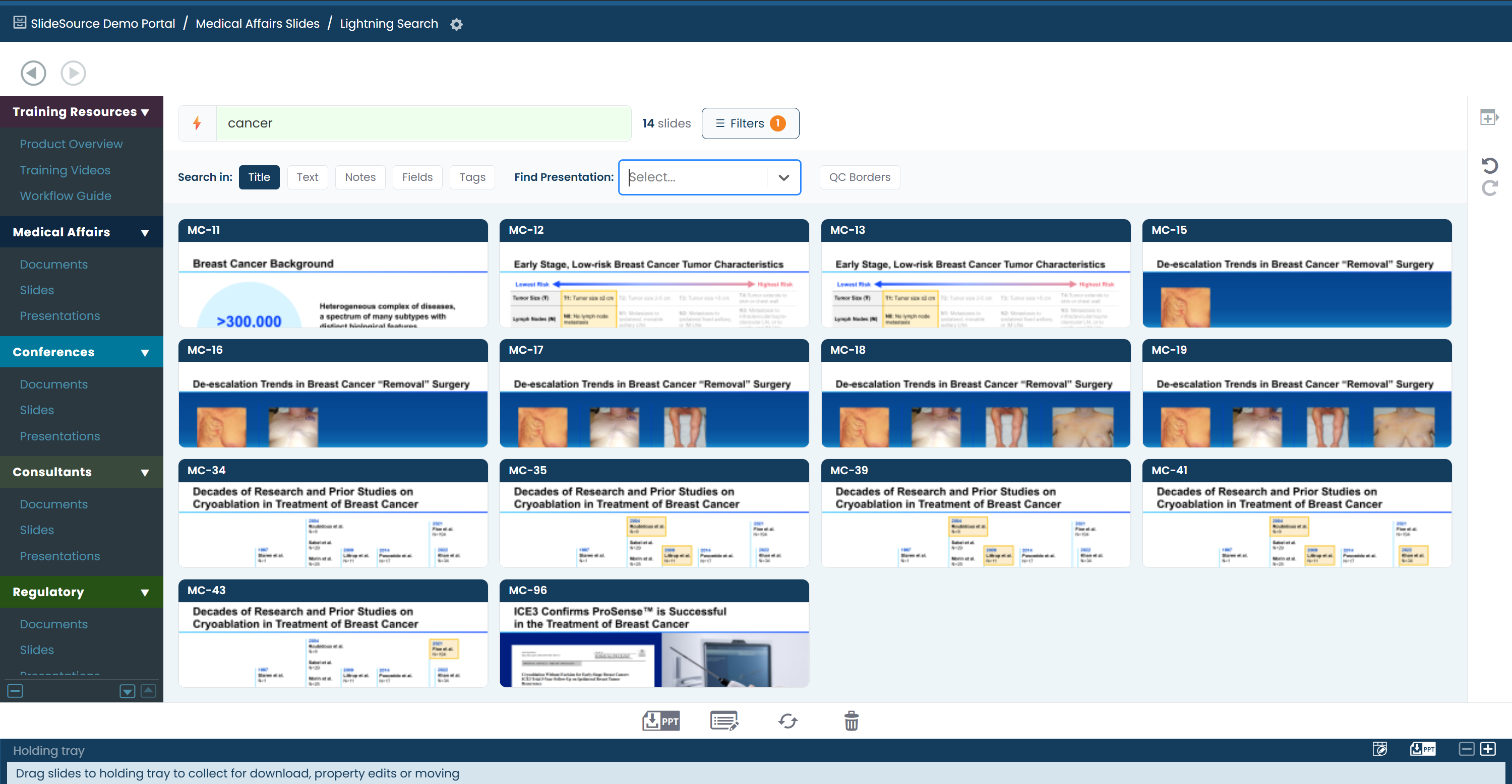
-
Click the slide to open and confirm it’s the right slide, and to see the slide details. Check the thumbnail, speaker notes, the properties (tags and custom fields), the version number, and the approval stamp (for example, “Approved by …”). Use prev / next buttons below the slide to scan nearby slides.
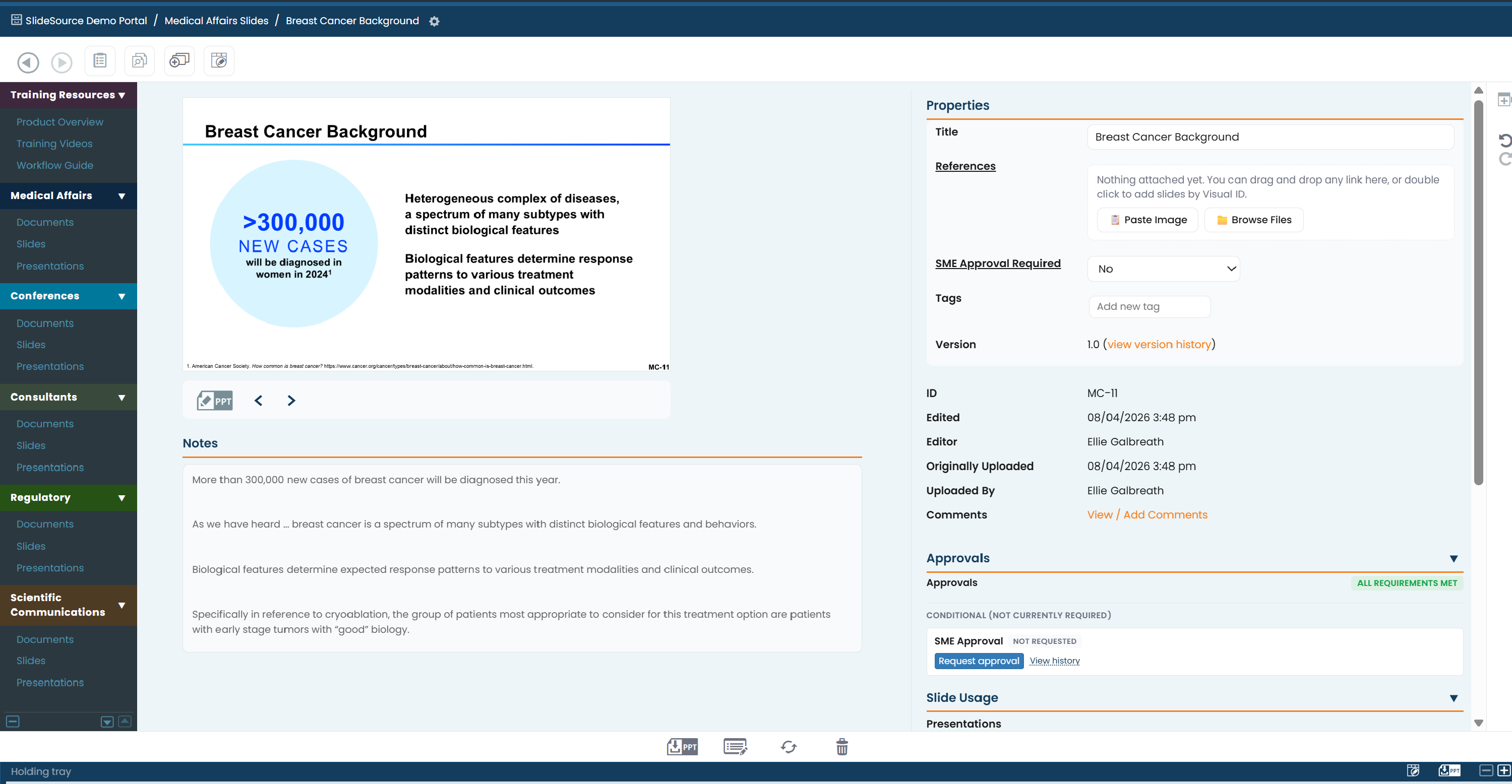
-
Add it to the tray. Drag the slide (from the detail view, a folder row, or a specific version) down into the tray at the bottom of the screen. Add as many slides as you need, from as many folders as you like.
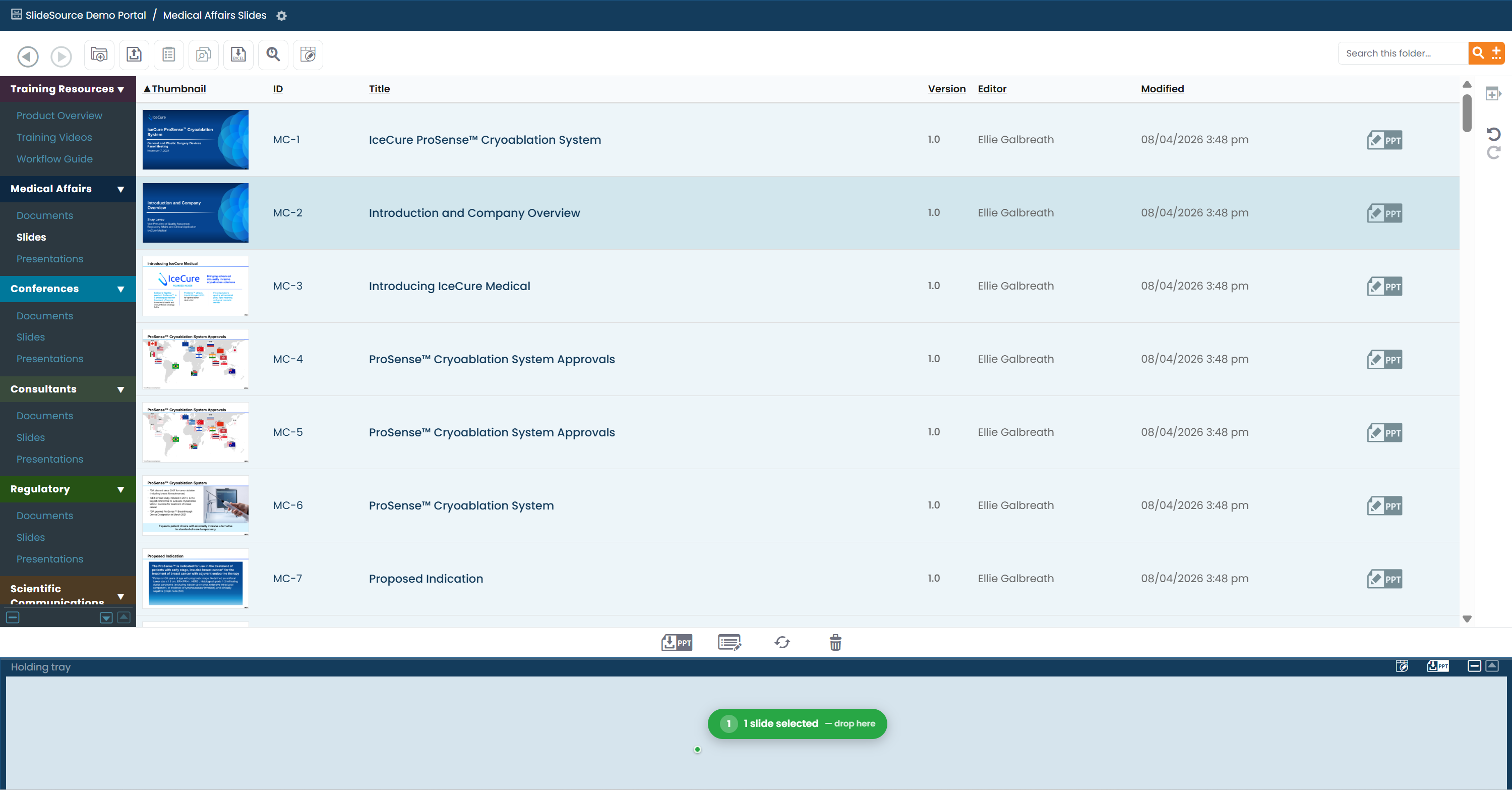
-
Reuse it. From the tray’s toolbox, either:
- Download PowerPoint icon in the right header of the tray: compiles the slides in the tray into a single
.pptx, or - open a presentation and drag the tray items into the deck to build with them.
- Download PowerPoint icon in the right header of the tray: compiles the slides in the tray into a single
Tips & pitfalls
Section titled “Tips & pitfalls”Can’t find it? Broaden your Lightning Search filters, try Search by Tag, and check that you have access to the collection it lives in: you only see content you’ve been granted.