Email templates
Email Templates (from Manage Library → Configuration → Email Templates) control the look and wording of the emails your library sends: invitations, notifications, approval messages, and so on. This page is the reference for the manager; for the step-by-step, see Notifications & email.
Templates vs. subscriptions
Section titled “Templates vs. subscriptions”Two separate things decide what lands in someone’s inbox:
- Templates: what the email looks like and says (subject, body, branding). You edit these here.
- Subscriptions: who gets notified about which events. Those are set per collection and per user. See Notifications & email and the Notification events reference.
Editing a template changes the wording for everyone who receives that email; it does not change who receives it.
The template types
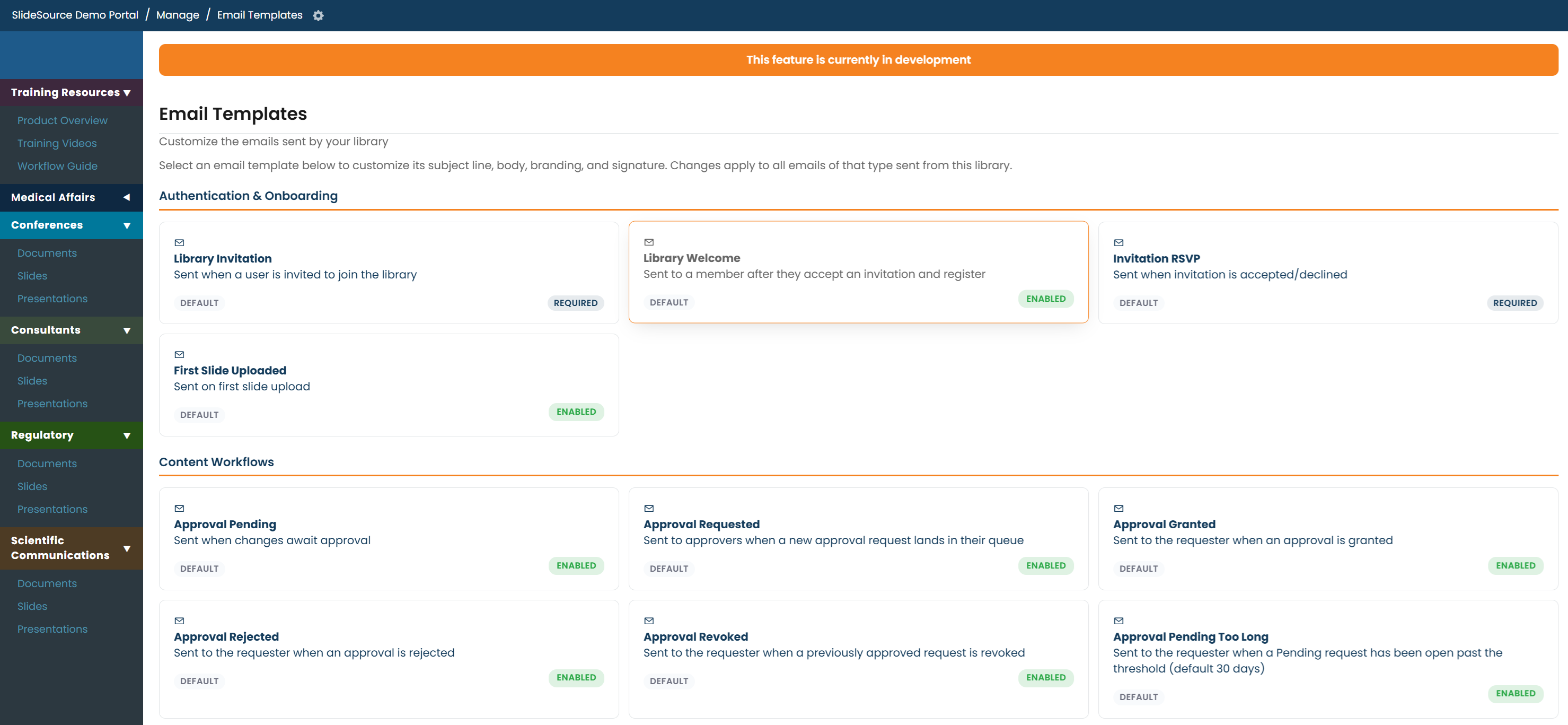
Section titled “The template types”The library has 18 template types organized into 6 categories (for example, invitations, account/access, approval, and other system messages). Some templates are required, the system always sends them, while others are optional and only send when the matching feature or event is in play.
Editing a template
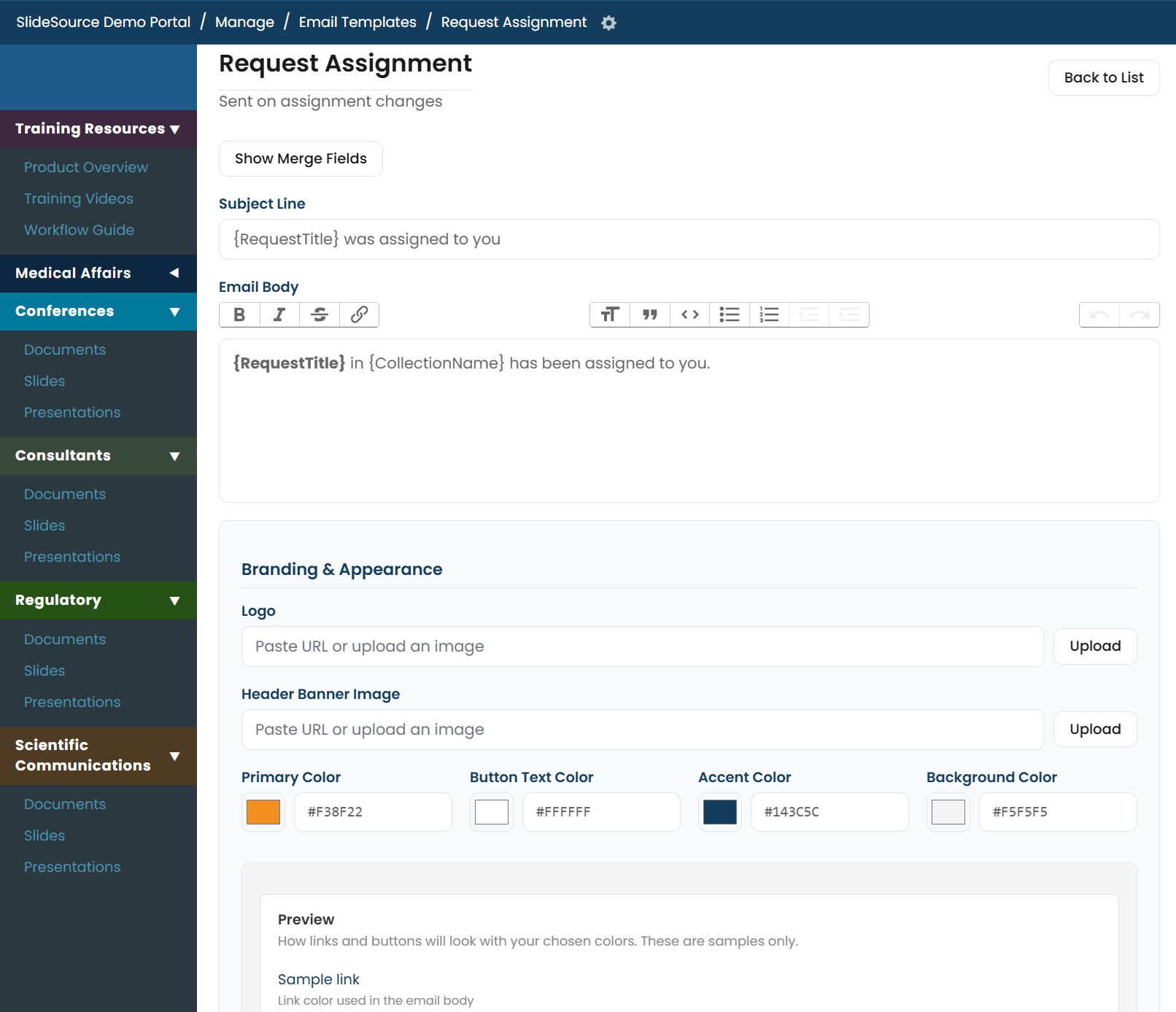
Section titled “Editing a template”Select a template to open its editor. For each template you can set:
- Subject: the email’s subject line.
- Body: the main message content.
- Branding: logo and visual styling.
- Footer: the standard footer text.
- CTA: the call-to-action button/link.
- Signature: the closing signature block.
Two controls help you work safely:
- Preview: see the rendered email before you rely on it.
- Reset: return the template to its default content.