Approve content
Goal: as an approver, review pending slide versions and approve or reject each one, adding feedback when needed.
When to use this: when you have Approve rights in a library that uses approvals, and slide versions are waiting on your decision.
-
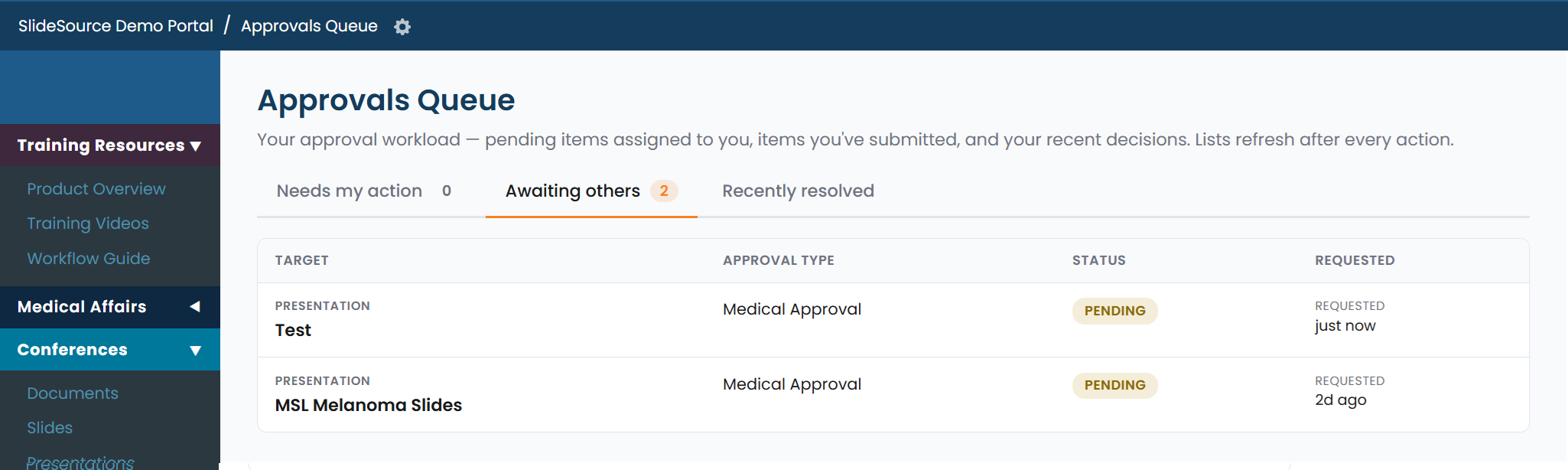
Open the review queue. From a slide folder, click View slides pending approval to open the Review queue of everything awaiting a decision.
-
Review a pending version. Look over the slide (its content, notes, and properties) to decide whether it’s ready.
-
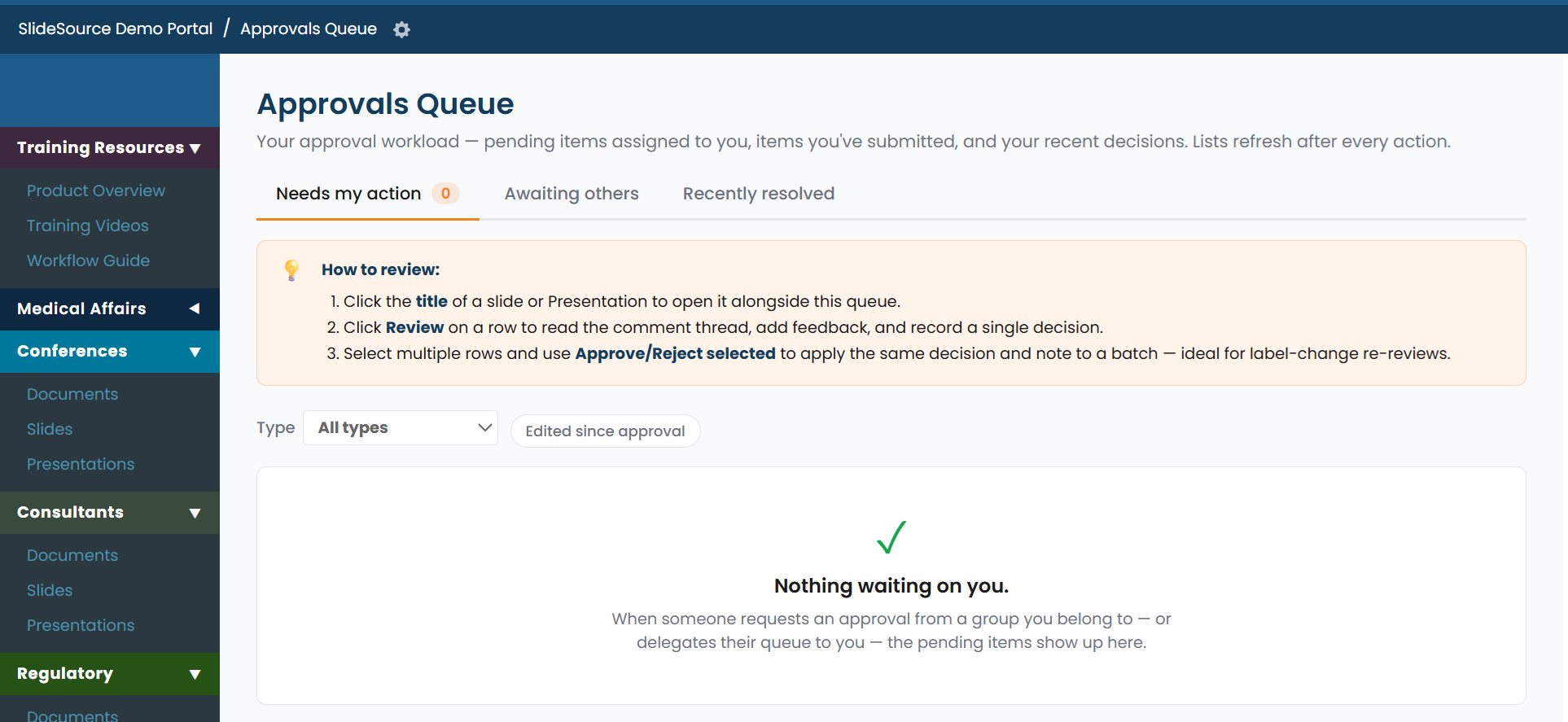
Approve or Reject. Choose Approve to stamp the version, or Reject and add a comment that goes back to the author explaining what needs to change. Always leave a comment when you reject; it’s the author’s only signal for what to fix before resubmitting a new version.
-
Clear the queue in bulk. Select several pending slides and use Approve All Selected or Reject All Selected to act on them at once.