Onboard users & permissions
Goal: give people the right access to your library by building groups first, setting each group’s collection permissions, and then inviting users into those groups.
When to use this: when you’re onboarding a wave of new users, configuring access for a new collection, or adjusting what an existing person can do.
There is no “role” dropdown in SlideSource Library. A user’s access is determined by the groups they belong to, so the fastest, most maintainable way to manage access is groups first, users second.
-
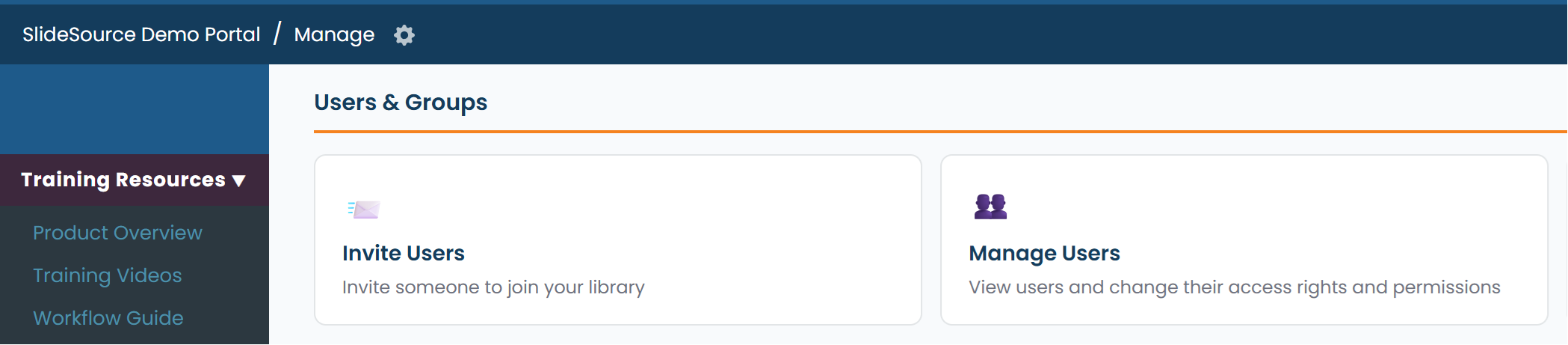
Create your groups. Open Manage Groups and choose Add Group. Build groups around how people actually work, for example a broad Viewers group, a Content authors group, and an Approvers group.
-
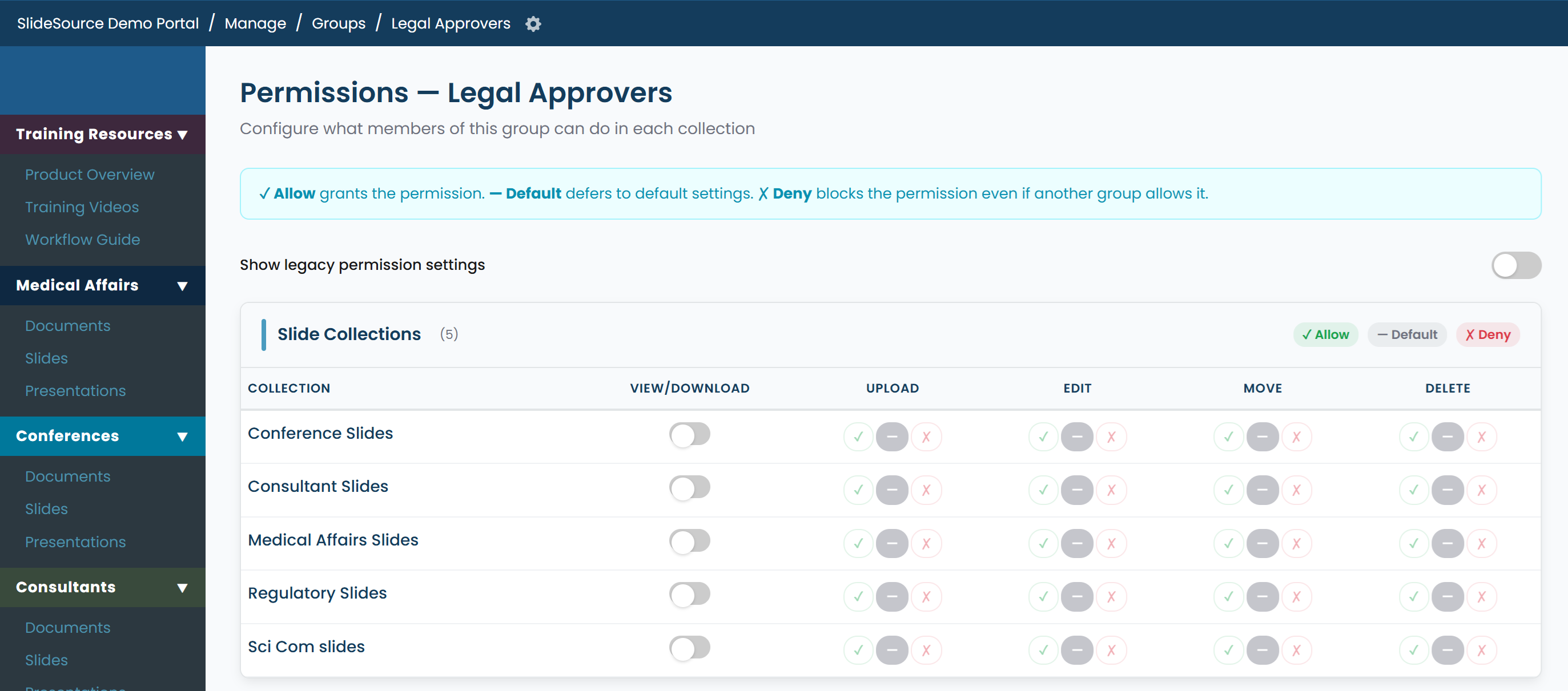
Set each group’s collection permissions. For every collection, a group gets View / Download access plus a set of capability controls, each with three states:
- Allow: grant this capability.
- Default: Inherit settings from the library’s default.
- Deny: block it. Deny wins over everything else.
-
Set the library defaults. Configure Default Collection Permissions for the library so that anything left on Default resolves to a sensible baseline. This is what new collections and unset capabilities fall back to.
-
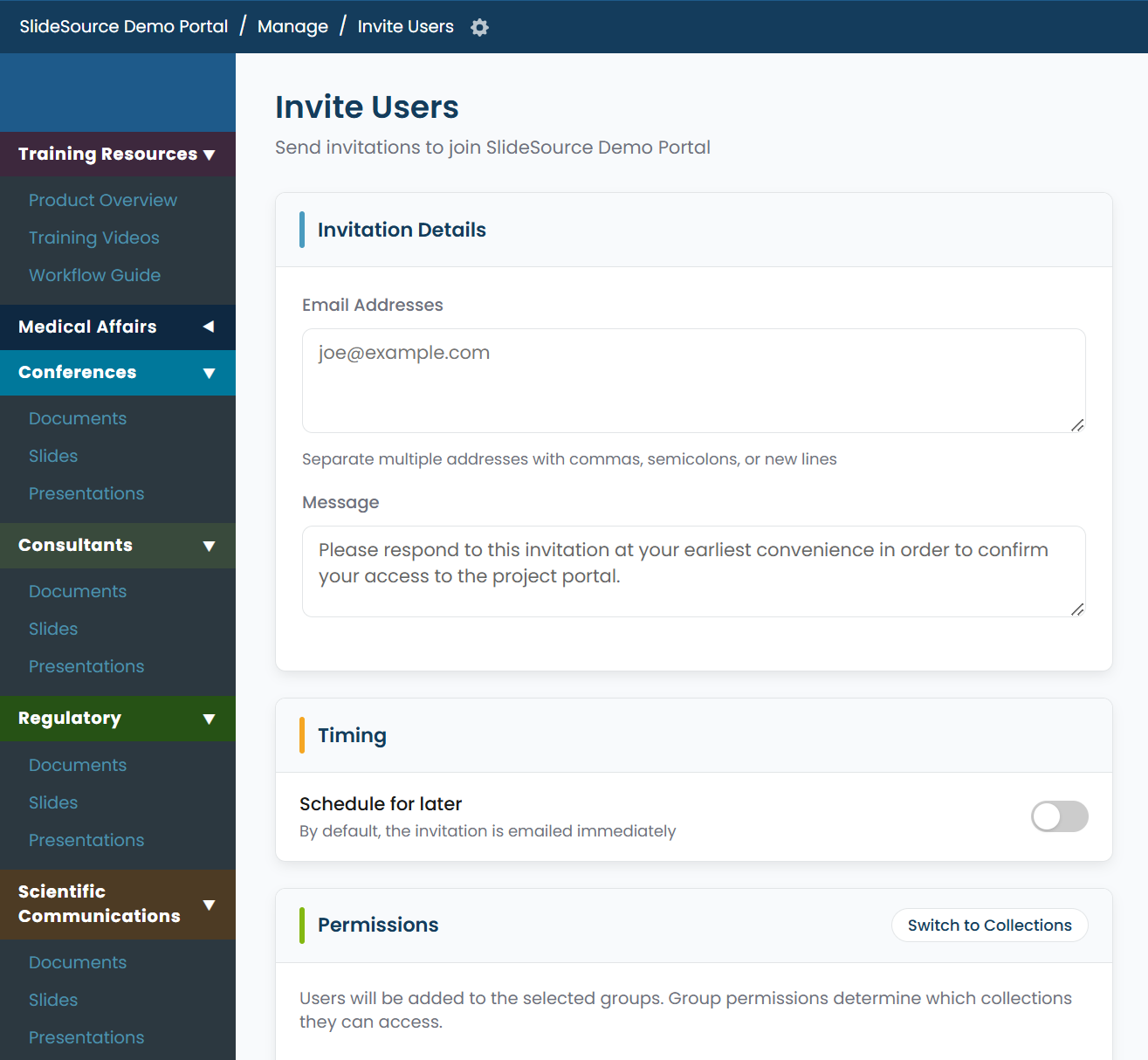
Invite users. Choose Invite Users, enter one or more email addresses, add a message, and assign each person to the right groups. You can optionally:
- grant per-collection access directly to an individual,
- set up Personal Collections for their own slide/presentation/document sets, and
- schedule the invitation for later instead of sending now.
-
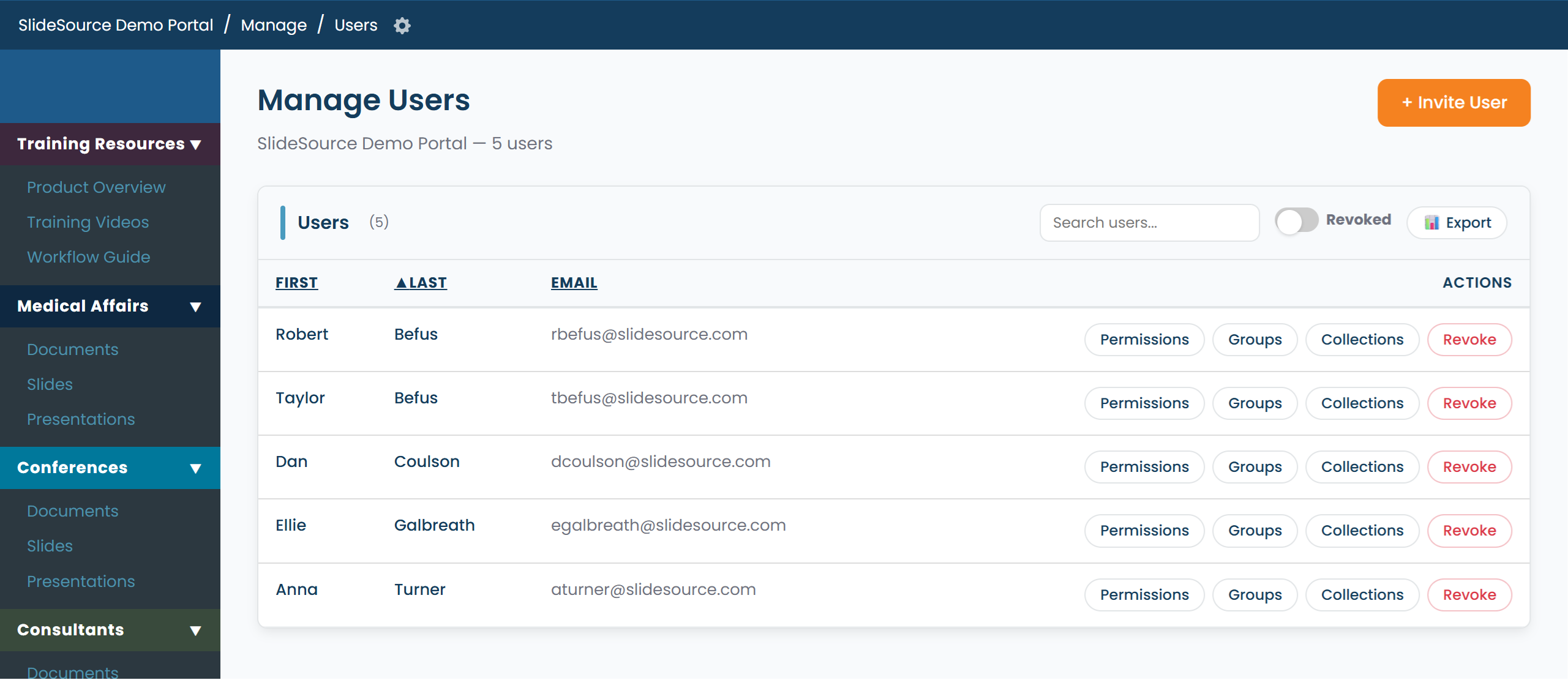
Manage users over time. Open Manage Users to adjust an individual’s Permissions / Groups / Collections, Revoke or Grant access, and export a CSV of users. Pending invitations can be Resent or Revoked from here.