Taxonomy
Taxonomy is the structure you put on your content so people can find it, filter it, and trust it. In SlideSource Library that means four things: custom fields, tags, requirements, and configured stamps. This page is the reference for each; for the step-by-step, see Build your taxonomy.
Custom fields
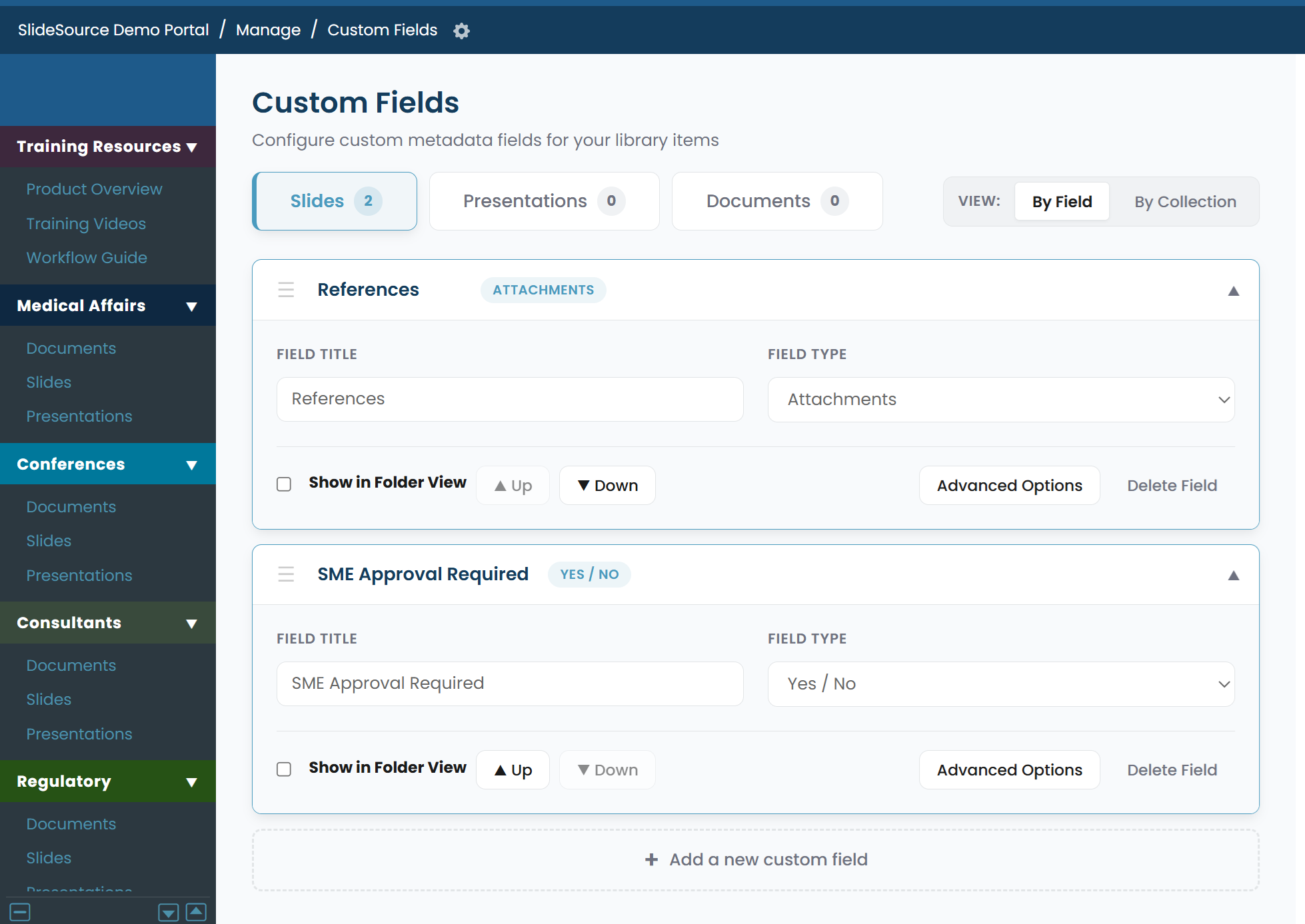
Section titled “Custom fields”Custom fields are the structured properties you attach to slides (and other content), for example product, indication, audience, or evidence type. You define them in Manage Library → Configuration → Custom Fields. Each field has a type that controls what kind of value it holds and how people enter it.
Field types
Section titled “Field types”Field types cover single-line and rich text, dates, single-choice and multi-choice lists, true/false values, user references, and file attachments. Two further types are calculated rather than entered: one surfaces a record’s serial number, the other derives its value from a script. The type determines how the field is displayed, edited, and filtered, and it cannot be changed once a field holds data, so it is worth choosing deliberately.
Choices
Section titled “Choices”For choice-style fields, you define the list of Choices: the allowed values people can pick from. Managing choices centrally keeps values consistent (so “Oncology” isn’t also entered as “onc” or “Onc.”) and makes filtering reliable.
Show in Folder View
Section titled “Show in Folder View”Show in Folder View promotes a field so its value appears as a column when browsing a folder. Turn this on for the handful of fields people scan by, and leave the rest for detail and advanced search.
Advanced Field Settings
Section titled “Advanced Field Settings”Advanced Field Settings hold the finer options for a field: how it behaves and where it applies. Use these when a field needs behavior beyond a simple label and value. The options available depend on the field type you chose.
Field Rules (Slides tab)
Section titled “Field Rules (Slides tab)”On the Slides tab of a field’s settings, two governance rules control how a field participates in your process:
- QC Locking: ties the field to your quality-control state so that content is locked against edits at the appropriate stage (a QC gate).
- Prohibit Use in Presentations: prevents slides that carry the field (or a given value) from being used in presentations, for example, to keep draft or restricted content out of finished decks.
Tags are lightweight, free-form labels for finding related content across the library. Anyone with the right permission can apply them; you keep them tidy from Manage Library → Content Management → Tag Management.
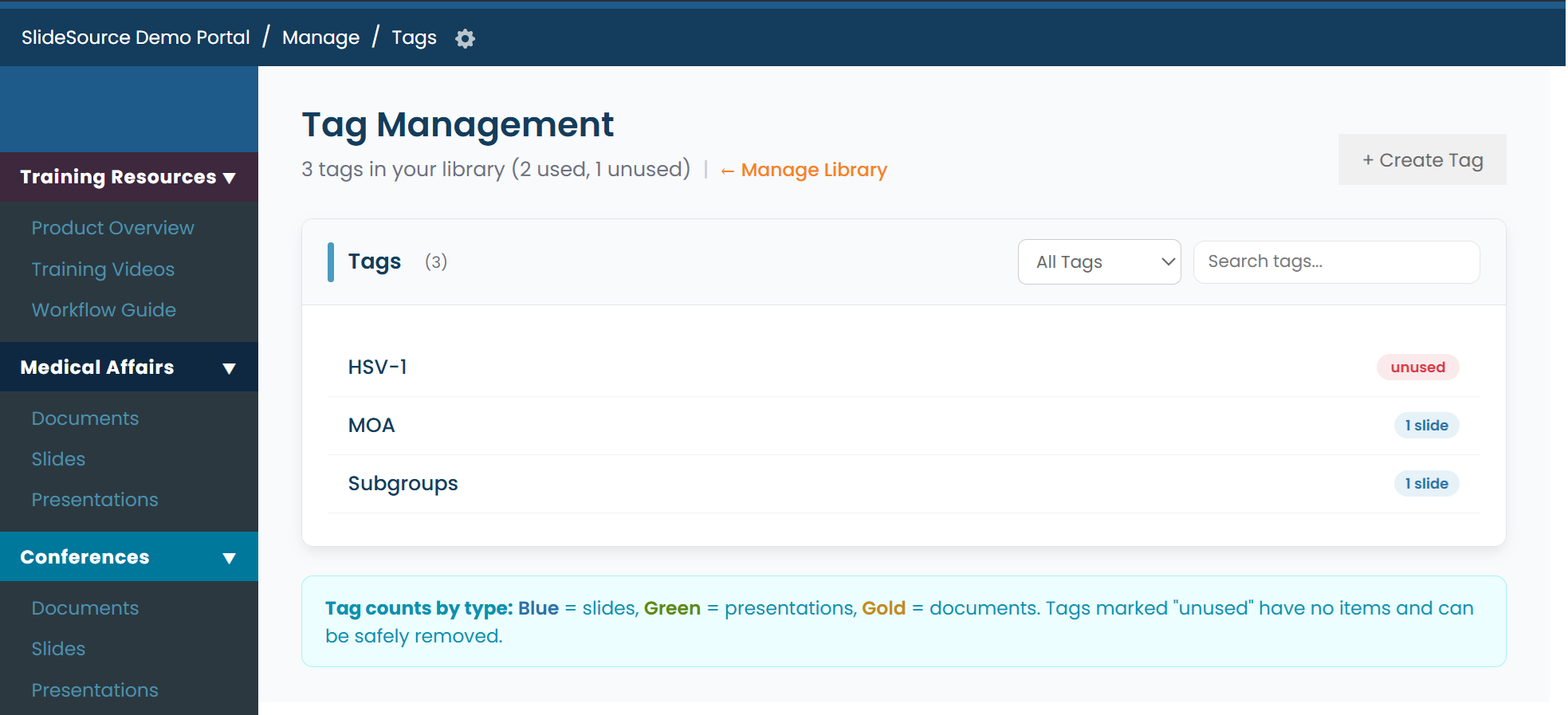
Tag Management lets you:
- See usage counts: how many items carry each tag, so you can spot one-offs and near-duplicates.
- Rename (with merge): renaming a tag to an existing tag merges them, consolidating everything under one label.
- Remove from all: delete a tag and strip it from every item at once.
Requirements
Section titled “Requirements”Requirements express rules about which slides a presentation must contain and how slides go together:
- Required slides: slides a deck of a given type must include (for example, a safety or ISI slide).
- Slide co-occurrence rules: pairs or sets of slides that must appear together (or must not) when a deck is built.
Requirements are defined for the relevant presentation collection; see Set up your collections for where Required Slides appears on a presentation collection’s Manage page.
Configured stamps
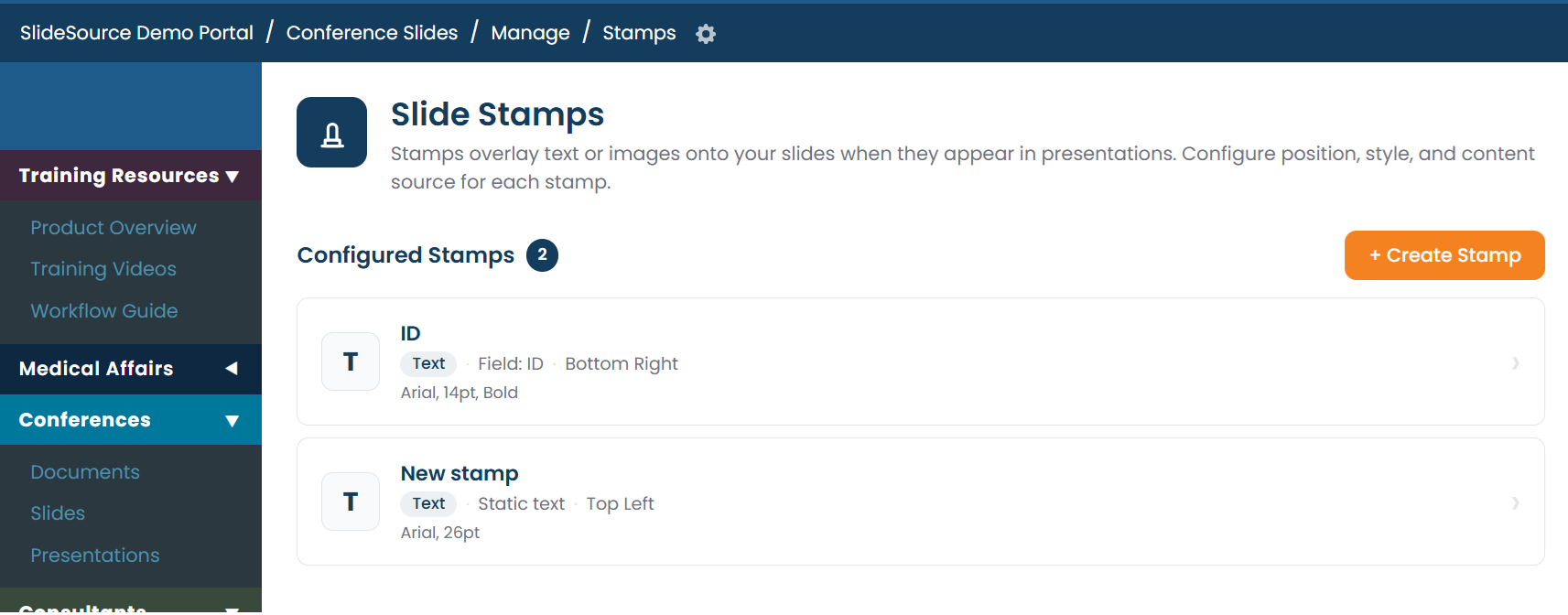
Section titled “Configured stamps”Configured stamps are overlays burned onto slides when they’re compiled into a presentation: for versioning, identifiers, disclaimers, or approval marks. You define them per slide collection (its Manage stamps tool).
A stamp can be one of several sources:
- Text: static text you type.
- Image: a logo or graphic.
- Field: the value of a custom field (so the stamp reflects the slide’s own data).
- Script: a computed value from a small expression.
For each stamp you set its font and formatting, its position on the slide, and you can preview how it lands before applying it.