Edit in PowerPoint
Edit in PowerPoint lets you make changes in the Office application and have SlideSource Library capture the result: no manual re-upload. Slides and documents each use a round-trip, with a small difference in how the file is reserved while you work.
Editing a slide
Section titled “Editing a slide”For a slide, Edit in PowerPoint opens the slide in PowerPoint, and when you’re done SlideSource Library saves your changes back as a new version.
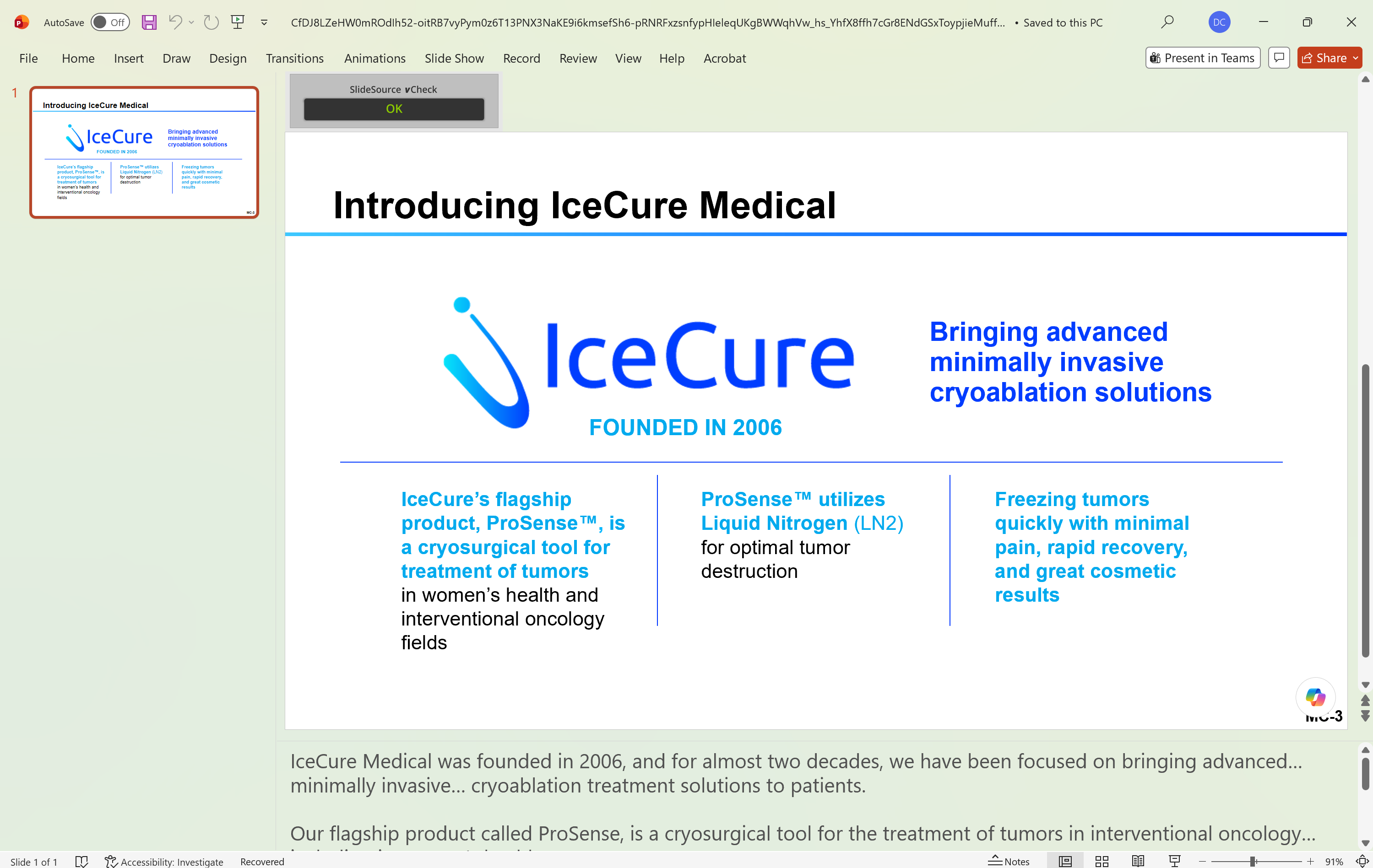
- Your edits become the new current version; the previous version is preserved in version history.
- Because it’s a new version, anything referencing the current version of the slide picks up your updates.
Editing a document
Section titled “Editing a document”For a document, the round-trip goes through check-out: the file is checked out to you while you edit, and checking in saves your changes as a new version. See Documents for the check-out / check-in states.
Prerequisites
Section titled “Prerequisites”Before you can Edit in PowerPoint, all of these must be true:
- You have edit rights in that collection.
- The item is not locked: for a document, that means it isn’t already checked out to someone else.
- You’re working from the current version (you edit current, not an archived one).
What happens on save / close
Section titled “What happens on save / close”- Save in PowerPoint pushes your changes back to SlideSource Library.
- Closing the file finishes the round-trip: the slide’s new version is committed, or the document is checked in.
Related
Section titled “Related”Edit a slide in PowerPointThe round-trip, step by step.
SlidesVersions and Restore version.
DocumentsCheck-out / check-in for files.