Consultant Portals
A Consultant Portal gives an outside partner a branded view of a defined slice of your content, at its own address, without making them a member of your library. A library can run several, so an agency, a contract medical writer and a field partner can each have their own.
Manage them in Manage Library → Portals.
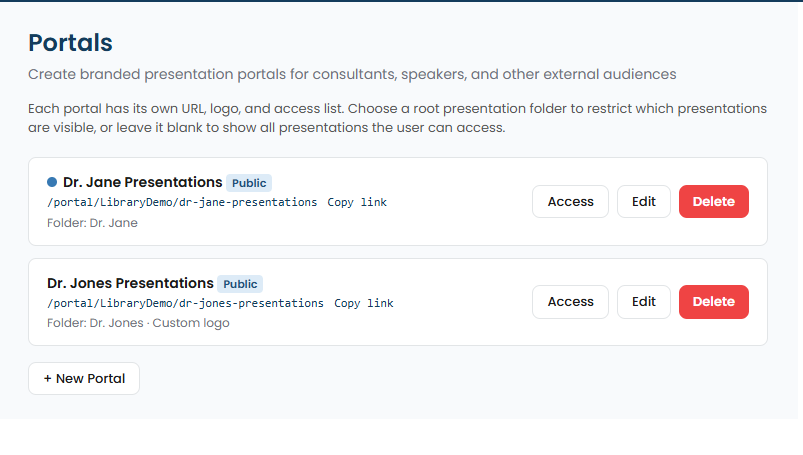
What a portal is made of
Section titled “What a portal is made of”| Setting | What it does |
|---|---|
| Name | What the portal is called internally. |
| URL Path | The address the portal answers on. Give each portal a path the partner will recognize. |
| Folder shown to consultants | The presentation folder the portal exposes. This is the whole of what the portal shows. |
| Custom logo / Logo URL | The logo at the top of the portal. |
| Accent Color | The portal’s accent, so it can match the partner’s branding or your own. |
| Help / Disclaimer Text | Text shown with the content. It can sit above or below it. |
| Custom fields shown on each row | Which of your custom fields appear as columns in the partner’s list. |
| Login Required | Whether the portal is Public or needs a SlideSource login. |
| Inactivity alert window (days) | How long a portal can go unused before admins are notified. |
Scoping
Section titled “Scoping”A portal shows one folder. Everything under it is in scope and nothing else is, so scope a portal by building the folder you want the partner to see rather than by trying to filter a wider one.
Access
Section titled “Access”Under Access you invite people by name and email and manage what they already have.
- With Login Required on, a consultant signs in with a SlideSource login before seeing anything.
- With it off, the portal is reachable by a link carrying a token.
- Any access can be given an expiry date, and any access can be revoked.
Revoking takes effect for that person without disturbing anyone else using the portal.
Activity logging
Section titled “Activity logging”Portal activity is recorded. Each entry captures what happened, when, and which presentation was involved, along with the originating address and browser. The recorded actions are viewing the portal, launching a presentation, and downloading one.
Use this when a partner asks what they were sent, and when you need to show that content left the library through a controlled route.
Inactivity alerts
Section titled “Inactivity alerts”Set an inactivity alert window and the library watches for a portal going quiet. When nothing has happened for longer than the window, admins are notified so the portal can be closed or chased. A portal with no window set is not watched.
Invitations
Section titled “Invitations”Inviting a consultant sends them an email with what they need to reach the portal. Invitation and inactivity emails both use the library’s email templates, so the wording and branding are yours.